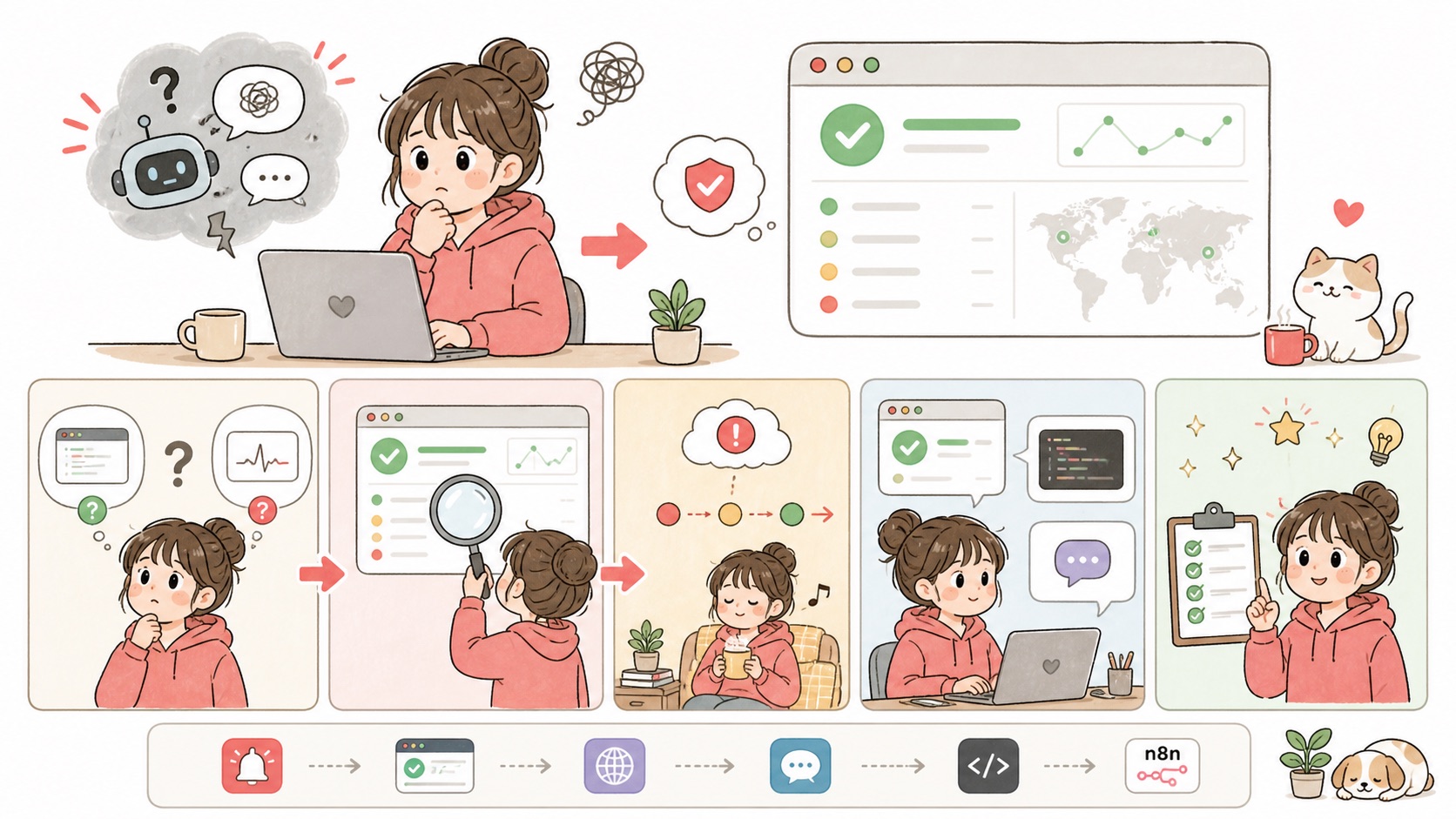
Is It Me or the AI? Find Out in 10 Seconds: A 4-Step Status Page Check Plus a Script That Checks Everything at Once
When an AI suddenly throws errors or gives off-the-wall answers, I check the official status page first, before touching my prompt or code. It tells you within 10 seconds whether the problem is on the service's side, and it saves you from spending hours taking apart code that works fine.
Who this is for
- You use ChatGPT, Claude or Gemini at work and have asked yourself "it worked yesterday, why not today?"
- You call AI APIs from n8n, Make or your own code, and errors suddenly start piling up
- You're an instructor or team lead who needs to tell students or teammates "if the AI acts weird, check this first"
All you need is a browser. To use the script in Step 4, you also need Terminal on a Mac (it comes preinstalled). I opened and checked every URL and response in this post myself on October 7, 2026.
Step 1. Bookmark the three status pages
If you start searching only once something breaks, you're already late. Put these three URLs in one bookmark folder ahead of time.
| Service | Status page | What it shows |
|---|---|---|
| OpenAI (ChatGPT, API) | status.openai.com | Status of ChatGPT and each API feature (Chat Completions, Responses, Embeddings, etc.) |
| Anthropic (Claude) | status.claude.com | claude.ai, Claude Console, Claude API, Claude Code, etc. |
| Google (Gemini API) | status.cloud.google.com | All Google Cloud incidents. The Gemini API is listed as "Vertex Gemini API" |
The old address status.anthropic.com now redirects to status.claude.com. It's cleaner to bookmark the new one.
Step 2. Look at the banner color and text at the top
When you open a status page, the overall status appears in one line at the very top.
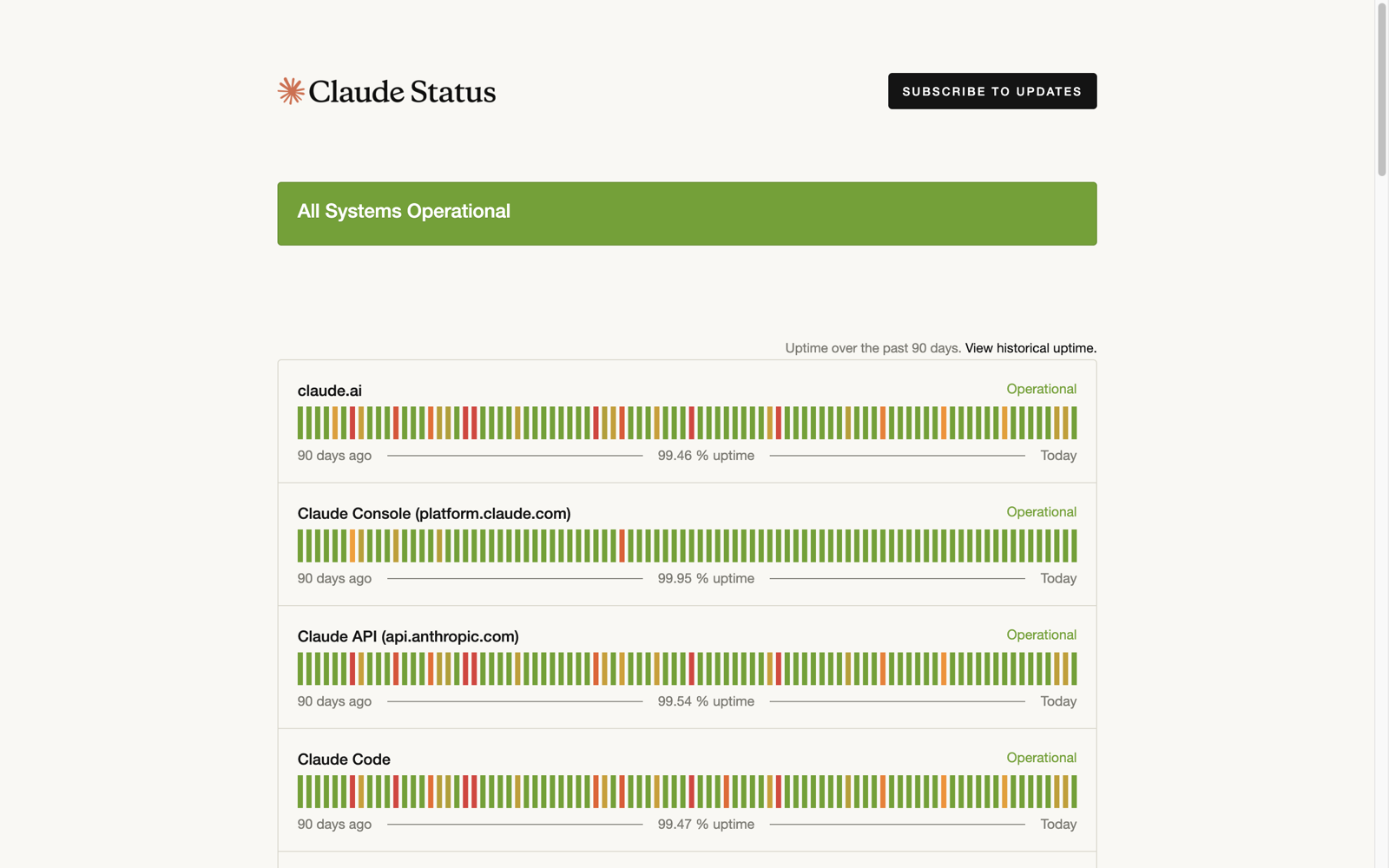
This is the Claude status page on October 7, 2026. If the green banner at the top says All Systems Operational, everything is running normally. Here's roughly how to read the messages.
| Message | Meaning | What to do |
|---|---|---|
| All Systems Operational / Operational | Normal | Move on to Step 3 and look for the cause on your side |
| Degraded Performance | Slower, or some requests failing | Wait a bit and try again |
| Partial Outage | Some features down | Check whether the component you use is affected |
| Major Outage | Major incident | Leave your code alone and wait for recovery |
The bars below show each service's history for the last 90 days. On this screen, claude.ai's 90-day uptime was 99.46%. The scattered red and orange bars also tell you that outages happen more often than you might think.
Step 3. Check whether the component you use has its own incident
Even when the overall banner is green, just the feature you use might be down. Find the component you use in the list below the banner.
- If the problem is in the ChatGPT app, look at the ChatGPT component.
- If you call the API from code or n8n, look at the API components. OpenAI splits these by feature, such as Chat Completions and Responses.
- Claude lists claude.ai (web and apps) and the Claude API separately. Some days the web works and only the API fails.
If everything here is normal too, that's when you start suspecting your side (API key, billing limits, prompt, code). Sticking to this order alone cuts down on debugging in the wrong place.
Step 4. Use a script to check all three services at once
Besides the page meant for humans, the OpenAI and Claude status pages also expose an address for programs to read. Open the URLs below in a browser and you get a one-line result.
https://status.openai.com/api/v2/status.json
https://status.claude.com/api/v2/status.json
Here's the actual response on October 7, 2026 (Claude).
{"page":{"id":"tymt9n04zgry","name":"Claude","url":"https://status.claude.com","time_zone":"Etc/UTC","updated_at":"2026-10-07T00:45:09.742Z"},"status":{"indicator":"none","description":"All Systems Operational"}}
An indicator of none means normal. During an incident it changes to minor, major or critical. Google uses a different format, so you have to look in https://status.cloud.google.com/incidents.json for unresolved incidents (no end value) that involve Gemini.
Checking all of this by hand every time got tedious, so I wrote a script that does it in one go. Paste the whole block below into Terminal and it creates an ai-status.sh file on your Desktop.
cat > ~/Desktop/ai-status.sh <<'SCRIPT'
#!/bin/bash
# Check the status of AI services in one go. (Uses macOS built-in curl and python3)
for pair in "OpenAI|https://status.openai.com/api/v2/status.json" "Claude|https://status.claude.com/api/v2/status.json"; do
  name="${pair%%|*}"; url="${pair#*|}"
  curl -s -m 10 "$url" | python3 -c "import sys,json; d=json.load(sys.stdin)['status']; print(f\"$name: {d['indicator']} / {d['description']}\")" 2>/dev/null || echo "$name: check failed (check your network or the URL)"
done
curl -s -m 10 https://status.cloud.google.com/incidents.json | python3 -c "
import sys,json
d=json.load(sys.stdin)
open_=[i for i in d if not i.get('end') and any('Gemini' in p.get('title','') or 'Vertex' in p.get('title','') for p in i.get('affected_products',[]))]
print('Google Cloud (Gemini/Vertex): %d ongoing incident(s)' % len(open_))
for i in open_[:3]: print('  -', i['external_desc'][:80])
" 2>/dev/null || echo "Google Cloud: check failed"
SCRIPT
chmod +x ~/Desktop/ai-status.sh
Running it takes one line.
~/Desktop/ai-status.sh
Here's the result when I ran it on October 7, 2026.
OpenAI: none / All Systems Operational
Claude: none / All Systems Operational
Google Cloud (Gemini/Vertex): 0 ongoing incident(s)
If all three lines are normal, the cause is most likely on your side.
If you get an error, start here
| Symptom | What to check |
|---|---|
The script prints check failed | Check your internet connection, and whether a company network or VPN blocks those URLs |
permission denied | Run chmod +x ~/Desktop/ai-status.sh from Step 4 again |
Status page is normal but the API returns 401 | Your API key is wrong or expired. Double-check the key |
Status page is normal but you get 429 | You've hit your account's usage or rate limit. Retry after a while, or check your billing and limits |
| Status page is normal but the answers are strange | Now it's time to check your prompt, the material you passed in, and your model choice |
Wrap-up
When an AI acts up, the order is always the same: check the status page banner, check the component you use, and only when both are normal, look at your side. With three bookmarks and a one-line script, this check takes under 10 seconds.