Claude Team-Only Features and First-Time Setup in 14 Steps: From a Side-by-Side With Personal Pro and Max to Claiming Monthly API Credits (Up to $500) and Putting Claude to Work in Slack DMs
Switching to the Claude Team plan does more than raise your usage. On-call shows up in the left sidebar, Claude tag appears in organization settings, and creating a project now asks you to pick its visibility. This post is my record from October 25, 2026, when I used the same account (a single dev@ account attached to both a Team organization and a personal Max plan) to open both sides back and forth and check which features only Team has. The next day, October 26, I added Steps 9 through 13 covering the first-time setup I did while actually bringing teammates in (viewing usage per member, inviting Gmail members, adding an owner, claiming monthly API credits, organizing the Console). On October 28, I added an FAQ at the bottom for teams moving from individual personal Claude plans to a team plan (including how to choose versus ChatGPT Business), and Step 14 on actually giving Claude work over Slack DM.
Who this is for
- You're on Claude Pro or Max and weighing whether moving to Team is worth it
- You subscribed to Team but couldn't find on screen what changed compared with a personal plan
- You want to try a shared Claude (@Claude) that anyone on the team can call from a Slack channel, or on-call for incident response
- Your staff have been using their own personal Claude plans, and as you move them to a company team plan you're deciding between Claude Team and ChatGPT Business (see the FAQ)
Here's what you need.
- A claude.ai account that belongs to a Team organization. To see the admin screens (Steps 3, 5, 6, 8), you need the Owner role in that organization
- A personal plan account to compare against (optional). If the same email still has a personal plan, you can switch to it directly from the account menu
The screenshots show Claude's Korean interface. In the text I use the English menu names, and quoted on-screen messages are translated from Korean, so the exact English wording in your UI may differ slightly.
I opened every screen myself. I also connected a Slack workspace and tried giving Claude work over Slack DM (Step 14) myself. However, calling @Claude in a channel to run tasks requires topping up the organization's usage balance, so I haven't run that yet; that part is based on the official docs. As of October 2026, Claude Tag and on-call are in public beta.
At a glance: what only Team has
I combined the plan comparison on the official pricing page with what I saw on screen. "Personal" means Free, Pro and Max (5x, 20x).
| Feature | Personal plans | Team | Where to find it |
|---|---|---|---|
| @Claude (Claude Tag): a shared team Claude in Slack channels | No | Yes (beta, usage-based billing) | Organization settings > Claude tag |
| On-call: watches monitoring alerts, auto-joins incident channels | No | Yes (beta) | Sidebar > On-call (claude.ai/oncall) |
| Project sharing and organization-wide visibility | No | Yes | New project > Visibility |
| Organization instructions (instructions applied to every conversation) | No | Yes | Organization settings > Organization & access |
| Organization-level Skills and plugin distribution | No | Yes | Organization settings > Plugins & Skills |
| Usage analytics dashboard | No | Yes | Account menu > Analytics |
| Code Review (automatic GitHub PR review service) | No | Yes | Organization settings > Usage > Services |
| Per-user and organization-level spend limits | No | Yes | Organization settings > Usage |
| Enterprise search, Claude Motion (beta) | No | Yes | Per the pricing page |
| SSO, domain verification, centralized billing, admin controls for connectors | No | Yes | Organization settings > Organization & access |
| Model training on your conversations | Allowed by default (can be turned off) | Not trained on by default | Per the pricing page |
On the other hand, some things are not Team-only. I've listed just the ones that are easy to mix up.
| Item | What's actually the case |
|---|---|
| Routines | On personal Max they show up right in the sidebar; on Team they're tucked under More. Both have them |
| Claude Code, Cowork, Claude in Chrome | Available on personal plans from Pro up |
| Monthly API credits | Max 5x gets $100 and Max 20x gets $200. Team gets $20 per Standard seat and $100 per Premium seat, pooled up to $500. Pro gets none (official help article). How to claim them is in Step 12 |
The /code-review command | The review command you use inside Claude Code works on every plan. What's Team-only is the Code Review service that attaches to PRs automatically |
As of the October 25, 2026 pricing page, a Team Standard seat is $20/month billed annually ($25 billed monthly), and a Premium seat is $100/month billed annually ($125 billed monthly). It's aimed at teams of 2 to 150 people. Usage limits aren't shared across the team; they apply to each seat separately.
Step 1. Switch to the Team organization from the account menu
Click your name in the bottom left of claude.ai to open the account menu. If the same email has both a Team organization and a personal plan, you pick the organization here.
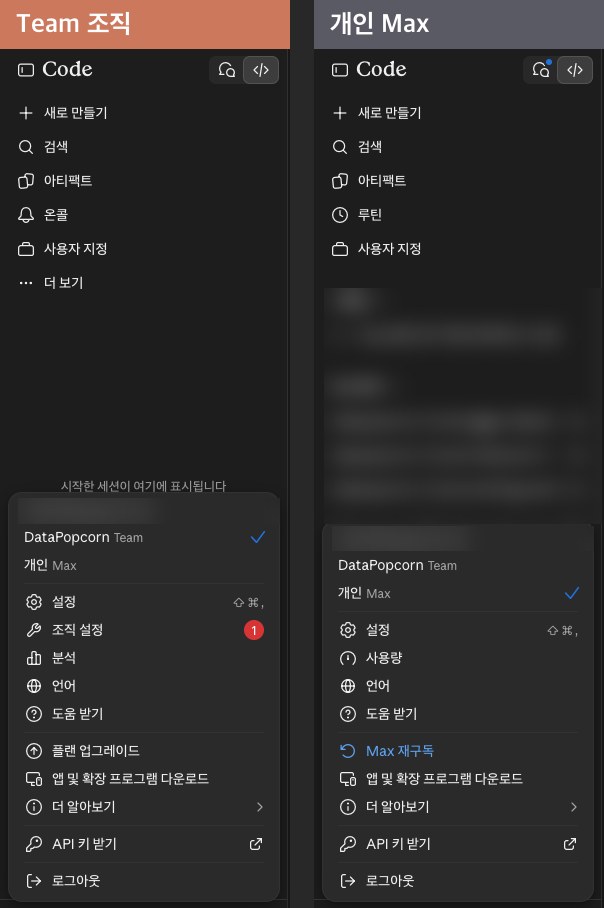
Three places change as soon as you switch.
- Sidebar: Team gets
On-call. TheRoutinesentry that sat there on personal Max moves underMoreon Team - Account menu: Team gets
Organization settingsandAnalytics. Personal Max hasUsageandResubscribe to Maxinstead (the latter appears because cancellation was scheduled) - Projects screen: Team gets
OrganizationandShared with metabs next toMy projects. Personal Max has no tabs
If you go to Settings > Billing with the Team organization selected, you get the Team billing screen, not your personal subscription. To cancel a personal plan, first select the personal plan in this menu, then go in. Do it the other way around and you could end up canceling the Team subscription, so be careful.
Step 2. Open the on-call screen
Click On-call in the sidebar or go to claude.ai/oncall. If you open the same address with personal Max, you only get a notice saying "This page isn't available for your organization yet."
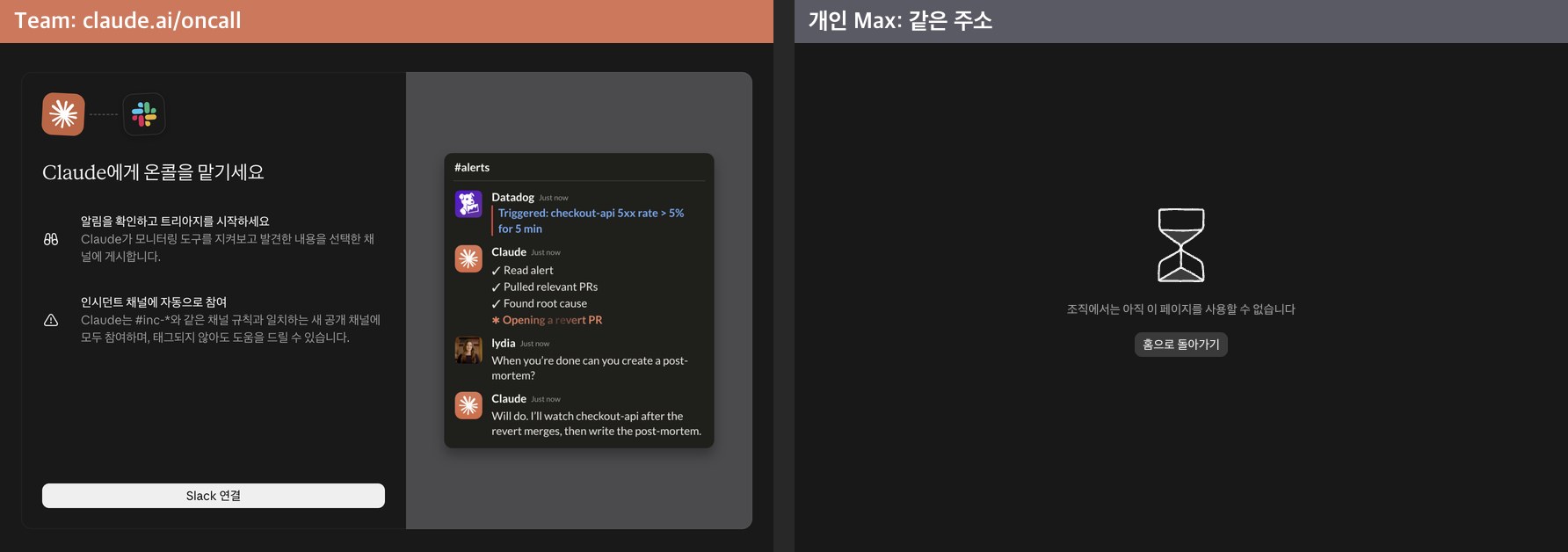
On-call puts Claude next to your team's incident-response on-call person. During setup you choose one or both of two modes (official docs).
- Alert monitoring: watches monitoring tools such as Datadog, Sentry and PagerDuty, and posts what it finds to a designated channel
- Auto-join incident channels: set a channel naming rule like
incident-, and Claude joins new public channels created with that name on its own and investigates alongside you without being tagged
Things to know:
- Your team's on-call rotation stays as is; Claude works alongside the person on call
- On the Team plan, any organization member can open the settings screen. Changes that affect the whole organization can only be saved from an account with permission
- On-call work is billed to organization usage, and you can cap it with a monthly spend limit
- Naming rules apply only to public channels. For private channels, you have to invite Claude directly with
/invite @Claudein the channel
Step 3. Open the Claude Tag (@Claude) settings screen
Go to Organization settings > Claude tag (claude.ai/admin-settings/claude-tag). On an owner account, you'll see a Start setup button and a 4-step guide (connect a Slack workspace, connect GitHub, buy usage credits, start Claude Tag).
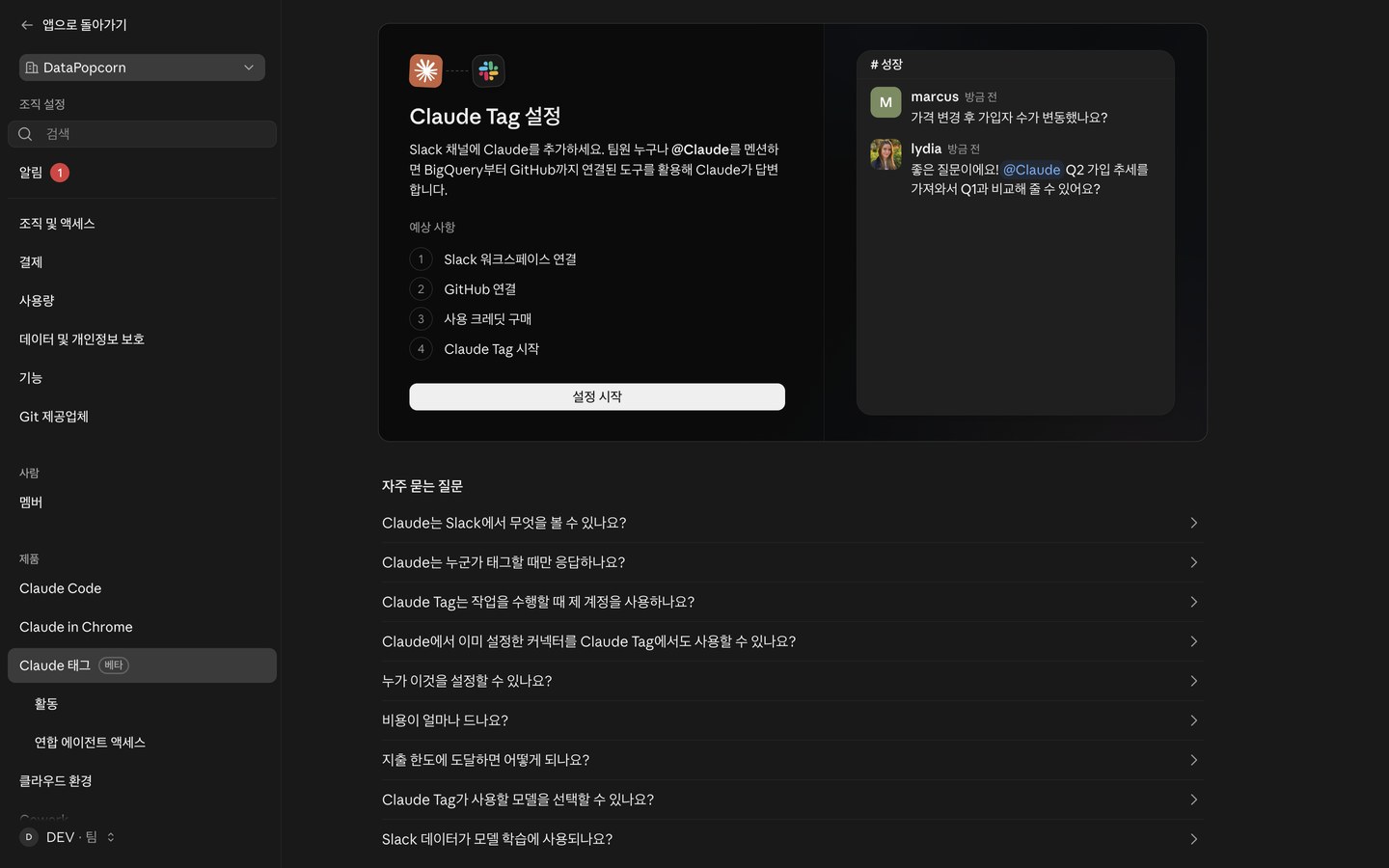
Claude Tag lets anyone in a Slack channel call @Claude and hand it work. It can reproduce a bug and open a PR, turn a thread where a decision was made into a document, or pull together a project status update. Progress is posted to the thread as a checklist that everyone in the channel can see. The official docs state plainly that this feature works only on Team and Enterprise, not on Free, Pro or Max (Claude Tag overview).
Here's what you need before you start (setup guide).
| Requirement | Why |
|---|---|
| The Owner role in the Claude organization | Only owners can connect the workspace and turn the feature on |
| Slack workspace admin | You get the connection code by sending @Claude connect in Slack. The code expires after 15 minutes, so if a different person is the admin, have them online at the same time |
| Routines turned on | If routines are off under Organization settings > Features, Claude replies to every mention with just "not available right now" |
| Usage credits topped up (Team) | On Team, nothing runs in channels until the balance is funded |
| One public channel | You have to pick at least one during the start step |
The cost structure is where it differs most from personal plans. Here's what the FAQ on the settings screen says.
- It's usage-based billing, not per seat. Work Claude does in channels is billed to the organization
- Not every Slack user needs a Claude seat. By default, anyone in the connected workspace can call it in channels, and owners can restrict it to organization members only
- If someone calls it in a 1:1 DM instead of a channel, it comes out of that person's seat limit
- When the spend limit is reached, Claude stops taking new work and tells the channel. If you don't set a limit, there is no cap
The old Slack app had each person connect their own claude.ai account and replied as that person. Claude Tag works under a shared team identity that an owner sets up once, and the results stay in the channel rather than with the person who called it. According to the official docs, starting October 5, 2026, the old app no longer replies in channels in workspaces connected to a Claude organization. In workspaces that aren't connected, Pro and Max users keep getting channel replies from the old app (migration notice).
Step 4. Choose visibility when creating a project
Click New project on the Projects screen. On Team there's a Visibility option at the bottom; on personal Max this field doesn't exist at all.
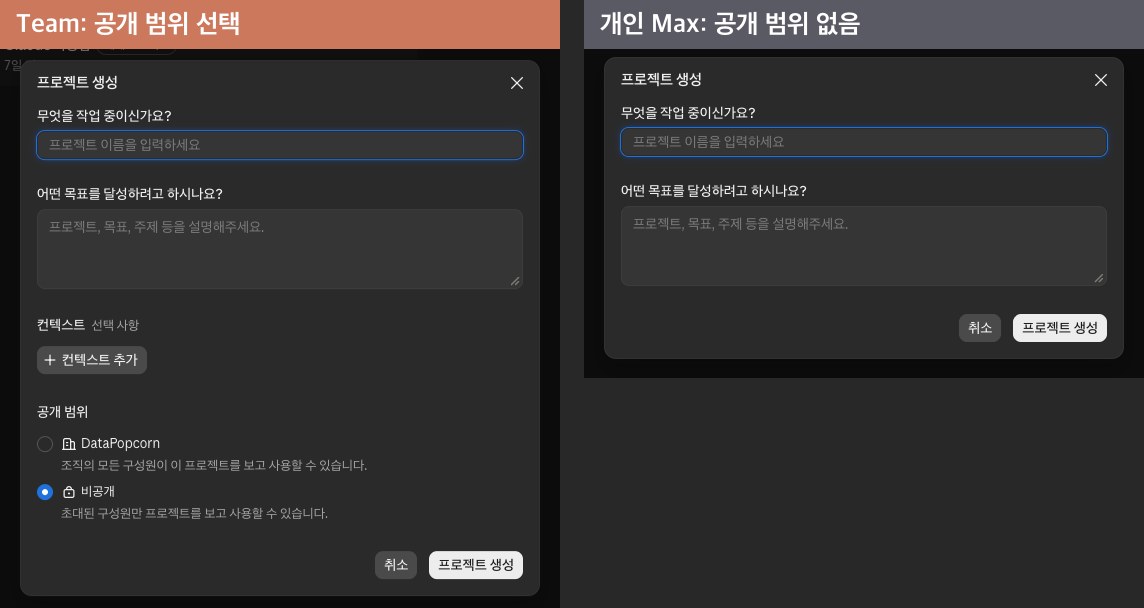
- Organization: any organization member can find and use the project under the
Organizationtab on the Projects screen - Private: only people you invite can use it. When inviting, you choose
Can view(view and chat only) orCan edit(including editing instructions and knowledge)
Sharing a project doesn't automatically share the chats inside it. Each person's chats stay private, and you share only the chats you want to show through a separate share link (official help article). If an owner turns off project sharing in organization settings, projects that were already shared become private too.
Step 5. Write organization instructions
Scroll down in Organization settings > Organization & access and you'll find an Organization instructions field.
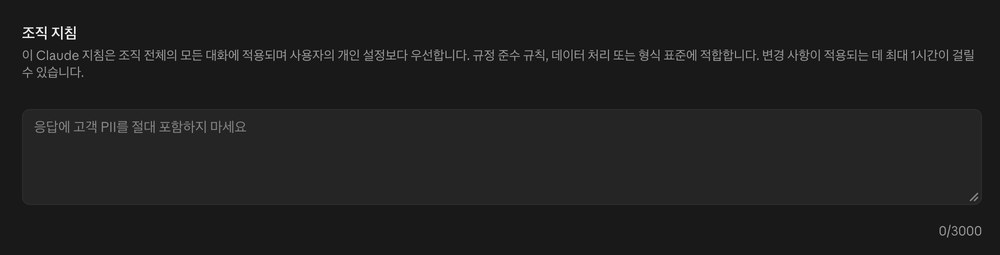
What you write here applies to every conversation in the organization and takes priority over each person's personal preferences. It can be up to 3,000 characters, and the screen notes that changes can take up to an hour to take effect. This is where you set rules the whole team should follow in one go, like "never include customer personal data in answers" or "always start reports with a table." Personal plans only have personal preferences that apply to you alone.
Step 6. Manage Skills and plugins at the organization level
Go to Organization settings > Plugins & Skills. There are four tabs.
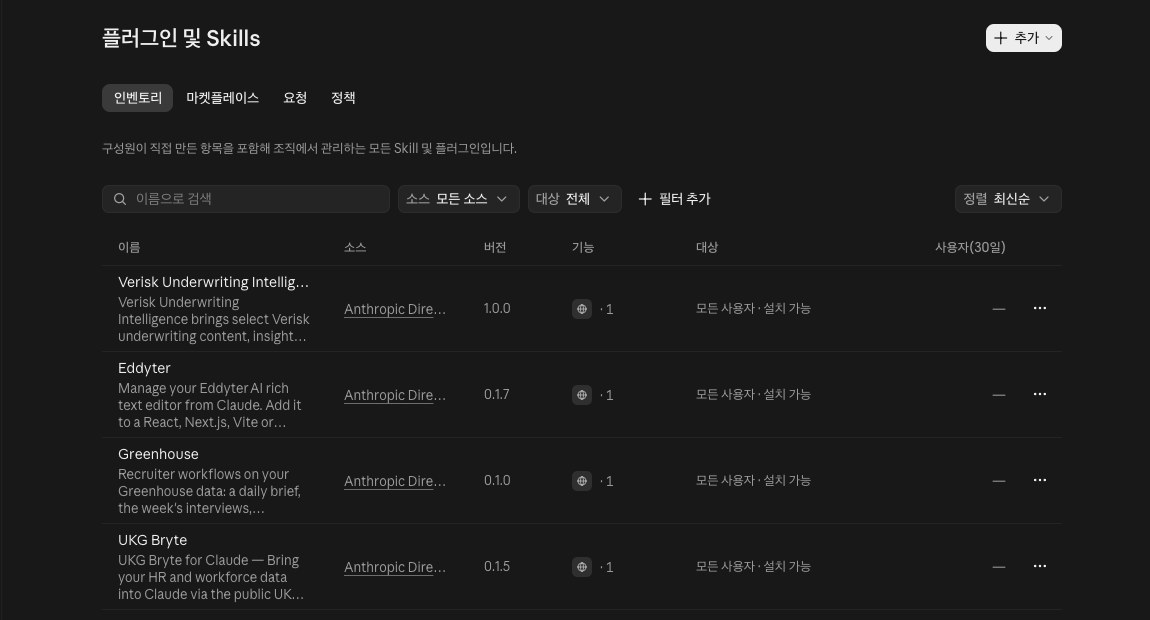
| Tab | What it does |
|---|---|
| Inventory | The full list of Skills and plugins the organization manages, including ones members built themselves. Shows who each is available to (audience) and the number of users in the last 30 days |
| Marketplace | Set up an organization-only marketplace |
| Requests | Approve items members have requested to install |
| Policies | Decide what members can install |
You can create and use Skills on personal plans too, but distributing them to the whole team at once and seeing usage starts with Team. Sharing a plugin you built with specific colleagues only also works on Team and Enterprise (sharing guide).
Step 7. See team usage in the analytics dashboard
Open Analytics from the account menu (claude.ai/analytics).
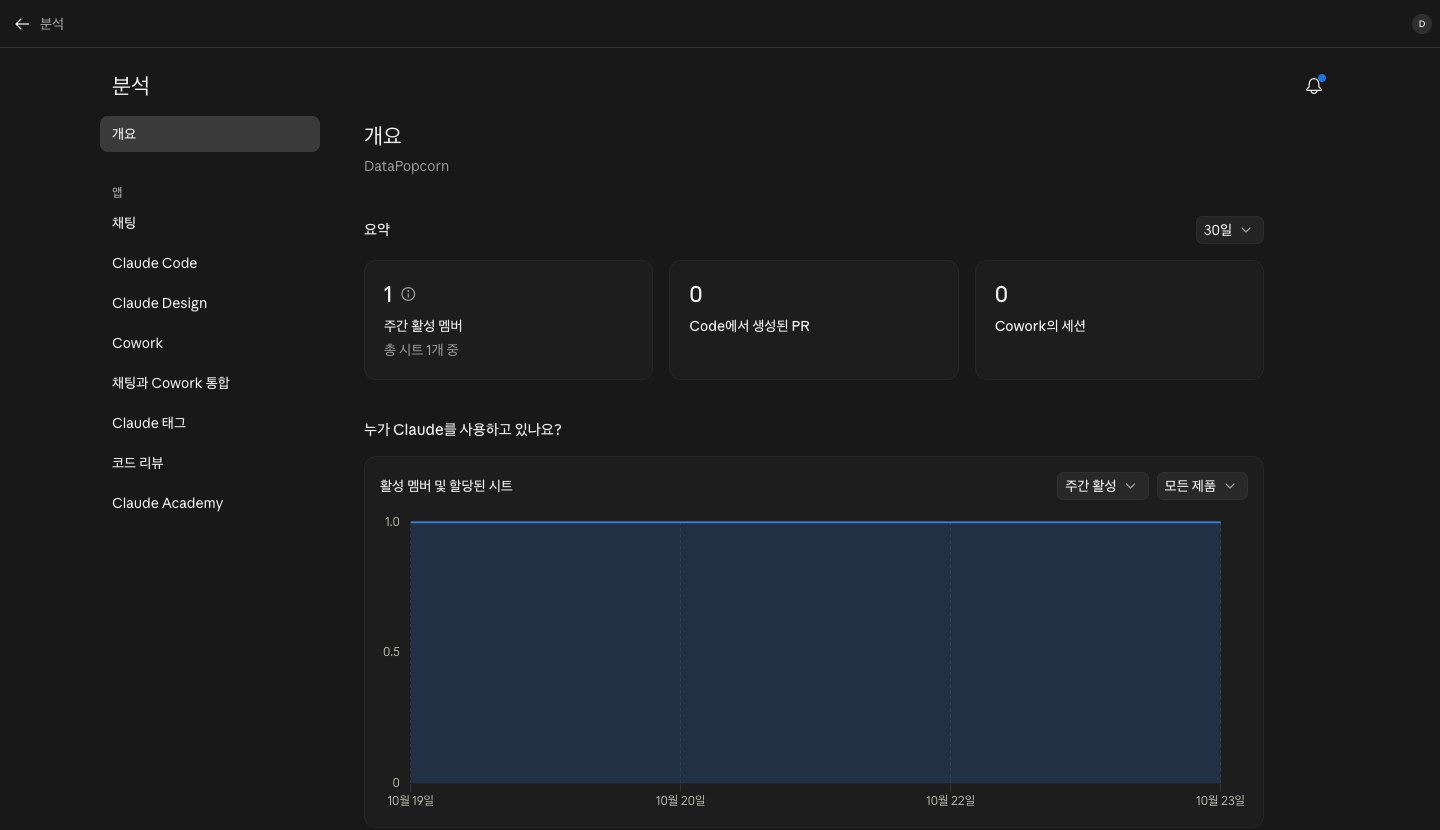
The overview shows weekly active members, PRs created with Claude Code and Cowork sessions, followed by metrics such as usage per member, the most-used Skills and connectors, and "actions Claude performs per prompt." The tabs on the left break out Chat, Claude Code, Cowork, Claude tag and Code review separately. This is the screen for checking who is actually using the seats you bought. Personal plans only have a screen for your own usage.
Step 8. Set usage and spend limits
Go to Organization settings > Usage.

- Enable usage credits: lets members keep working at usage rates after they've used up their seat limit
- Request usage credits: lets members who hit their limit request credits from an admin
- Per-service spend limits: set limits for services that run automatically. In our organization, Claude Code Review was set to Unlimited
Code Review is a service where Claude automatically reviews PRs in your GitHub repositories and leaves comments and check results on problematic lines. An owner has to turn it on, and a review starts when someone with write access comments @claude review on a PR. Reviews don't approve or block PRs (official docs). Since Unlimited appears to be the default, it's safer to set a limit in this table before turning it on.
Setup to do right after subscribing (added October 26, 2026)
From here on is what I did after subscribing to Team and actually bringing teammates in. It follows almost the same order as the Get your team on Claude checklist (members, customization, spend tracking) at the top of Organization settings > Organization & access.
Step 9. See usage per member
The admin screens (Organization settings) don't show usage per person. You have to go to Analytics (claude.ai/analytics).
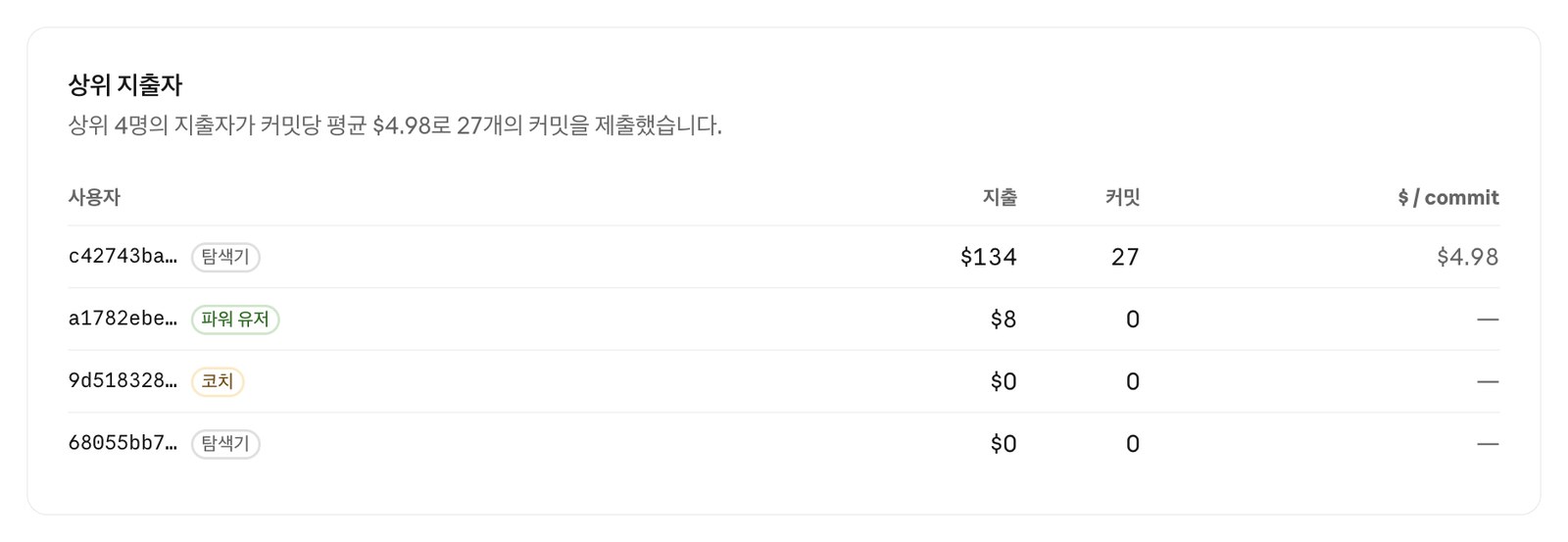
| What you want to see | Where |
|---|---|
| Who used Claude Code and how much (lines of code) | Analytics > Claude Code > Productivity tab, the Team table at the very bottom. Shows this month's line count by member email |
| Who spent how much on Claude Code (dollars) | Analytics > Claude Code > Value tab, the Top spenders table. Users appear as anonymous IDs, with spend, commit count and cost per commit |
| Who uses features like Skills, MCP and plan mode | Analytics > Claude Code > Usage tab (beta) |
| Chat and Cowork activity | Analytics > Overview > View all under Who's using Claude? |
You can download per-person data as a file with Export on the Productivity tab and Download CSV on the Usage tab. Two things I couldn't see on these screens:
- What percentage of their seat limit (5-hour and weekly) each person has used: I couldn't find this anywhere in the admin screens or analytics.
- Usage by people who run Claude Code with an API key instead of logging in: the screen notes that it's recorded in the Console organization, not in this dashboard.
Step 10. Invite people without a company email (Gmail)
When I tried to invite an outside collaborator by their personal Gmail by entering the address in Organization settings > Members > Add member, I got the error "You can only invite emails from @datapopcorn.ai." By default, only the domain of the account that created the Team is allowed. Only the owner account that created the team has to be on the company domain; you can bring in members by adding their domain.
- In
Organization settings > Organization & access > Domains, click Add or edit domains - Enter
gmail.com, then click Add domain and Save - Go back to
Add memberand invite the Gmail address
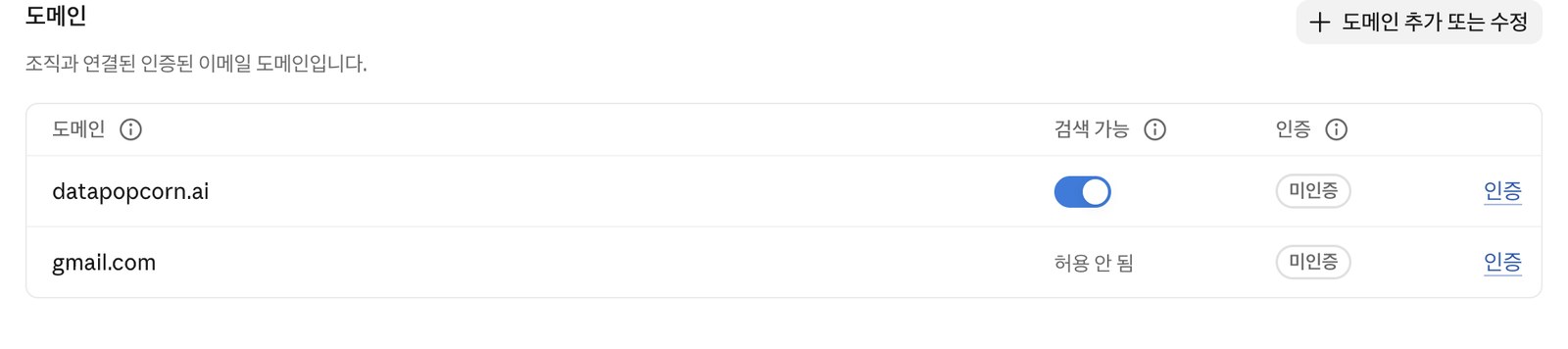
The Discoverable column on the gmail.com row shows Not allowed. Letting people find and join the organization without an invite only works for the company domain. The only people who actually get in are the ones you invite.
Further down the same screen, the Invite link is a link that "lets users with an allowed email domain join," and people who join through the link are approved automatically. If the link is on while gmail.com is allowed, any Gmail user who gets hold of the link can walk right in and take a paid seat. Right after adding gmail.com, we turned off the invite link and decided to use email invites only.
The invite dialog says "Charges for new team members are prorated from the date they're added." We had bought 5 seats in advance, so each invite showed up as the number in 5 seats (n available) on the Billing screen dropping by one. Invites that haven't been accepted yet also count as a seat.
Step 11. Add a second owner
The first item on the checklist is Add another owner. If there's only one owner and that account gets locked, nobody can manage organization settings, billing or members. We created the team with a shared account, so we added the CEO's personal account as another owner.
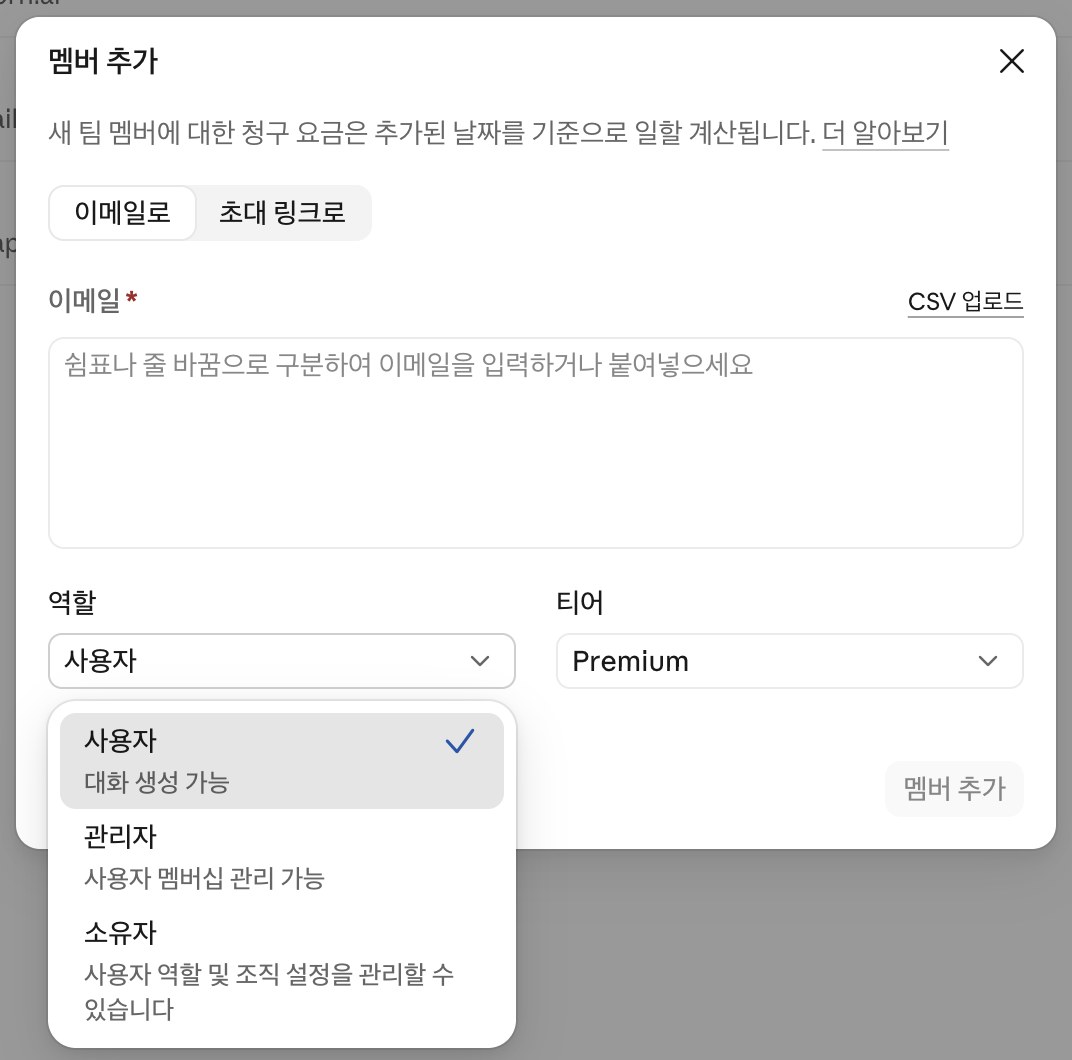
In Add member, enter the email, set the Role to Owner and send. There are three roles.
| Role | What it can do |
|---|---|
| User | Create conversations |
| Admin | Invite and manage members |
| Owner | Manage roles and organization settings. Connecting API credits in the next Step is owner-only too |
Until the invitee accepts from their email, they stay under the Members > Pending tab, and owner permissions start only then.
Step 12. Claim your monthly API credits (up to $500)
$500 is a ceiling, and the actual amount is set by your seat count. You get $20 per Standard seat and $100 per Premium seat, pooled up to a maximum of $500 (official help article).
| Seat mix | Monthly amount |
|---|---|
| 2 Standard seats (Team minimum) | $40 |
| 3 Standard + 2 Premium (example from the official help article) | $260 |
| 5 Premium seats (us) | $500 |
| 25+ Standard seats, or 5+ Premium seats | $500 (doesn't go higher) |
There are other conditions too. Only Max and Team get it; Free, Pro and Enterprise don't. You need to have been subscribed for 7 days, and a Team owner has to connect it personally. The $500 we got comes from using 5 Premium seats under the Claude Startups discount.
The Team plan comes with monthly API credits, but they don't arrive until you connect them yourself. If the API credits section in Organization settings > Billing shows "Connect an API organization to receive credits" and a Connect organization button, you haven't claimed them yet.
- Click Connect organization
- Choose the Claude Console organization that should receive the credits. We chose the organization that already had our startup credits. If you don't have a Console organization, create one in the Console first
- Review the additional credit terms at the bottom of the dialog and click Connect organization
As soon as we connected, a notice popped up saying "Your first API credits of $500 USD have been added," and the billing screen changed as shown below.

Per the official docs, here are the conditions you need to know.
| Item | Details |
|---|---|
| Amount | $20 per Standard seat and $100 per Premium seat, pooled up to $500. Based on the seat count at the start of that month's billing. We have 5 Premium seats, so $500 |
| When you can claim | After keeping the Team plan for 7 days or more |
| Required permissions | Team owner (or primary owner), plus one of Owner, Admin or Billing in the Console organization |
| Where you can use them | Claude API, Managed Agents, Agent SDK, Console playground |
| Where you can't | Claude Code, extra usage in the Claude apps, and other clouds such as AWS and Google Cloud |
| Expiration | They disappear at the end of the billing cycle and don't roll over to the next month |
| Order of use | These credits are used first, then credits you bought or received separately |
These $500 can't be used for Claude Code. If you run Claude Code with a key from an organization that has only these credits, you'll get Credit balance too low. The claude-api command that keeps you going with an API key when you hit your limit draws from separately received credits (like startup credits) or purchased credits.
After we opened and closed the organization list once, the Connect organization button turned gray and wouldn't respond. Refreshing still left it unconnected; closing the dialog with Cancel, reopening it and clicking right away did the trick.
Step 13. Organize the Console so credits don't leak
The monthly credits vanish if unused, and every key in an organization draws from the same balance. So we split the Console organization that receives the credits by purpose.
1) Create a workspace per purpose. In the Console > Organization settings > Workspaces > Create workspace, you just pick a name and a color. We created n8n (automation workflows) and 콘텐츠 ("Content", for content work such as scripts and summaries). The emergency key for Claude Code stayed in the existing Default workspace.
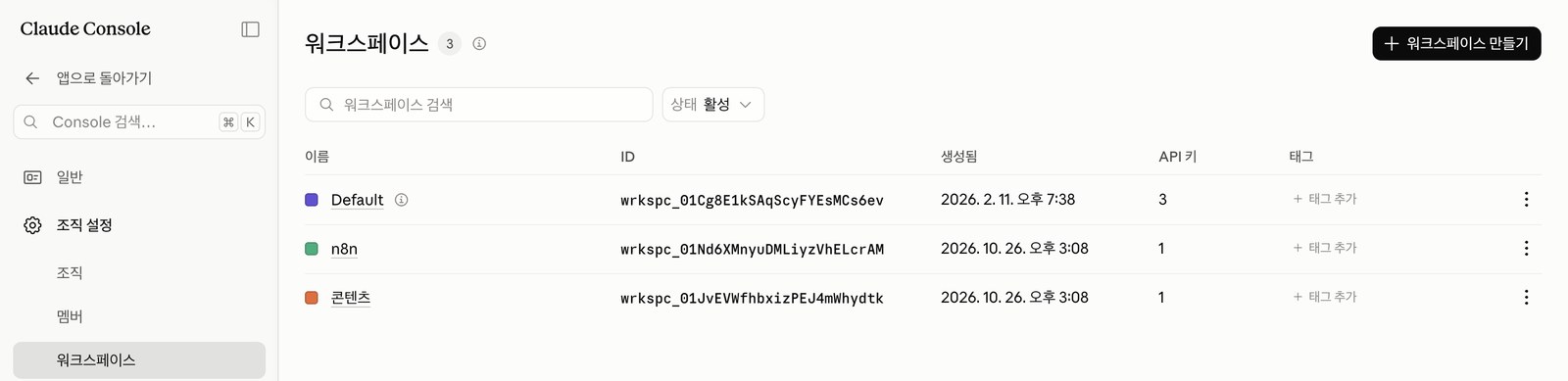
2) Put a monthly spend limit on each workspace. Select a workspace, then enter an amount under Manage > Spend limits > Change limit. We set $250 on each of the two. Together they don't exceed the $500 we get each month, so even if an automation runs wild, it can't eat into the other credits we've kept for Claude Code emergencies.
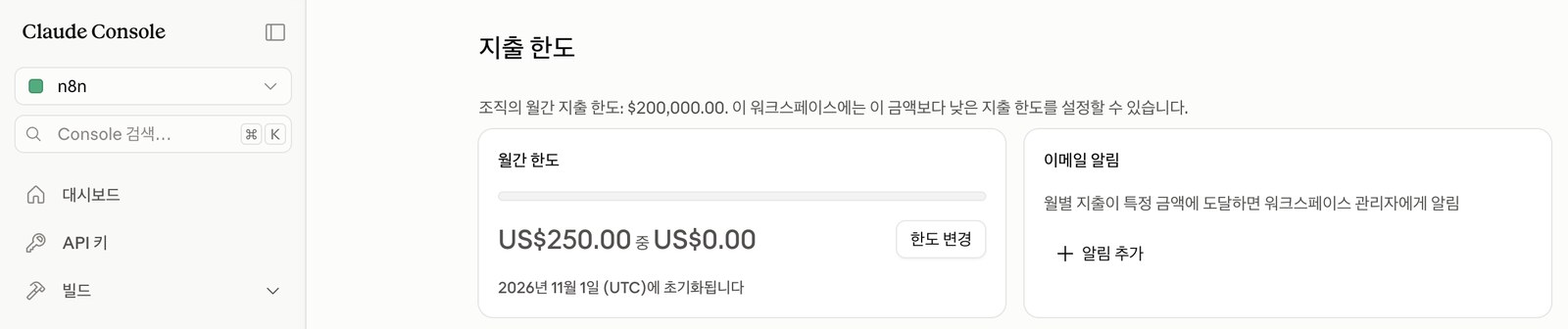
Spend limits reset on the 1st of each month (UTC), while credits arrive on your billing cycle (around the 20th for us). Since the dates differ, it's better to set the limits generously.
3) Create workspace-specific keys. In API keys > Create key, set the Scope to that workspace, and the key works only in that workspace with limits applied based on that workspace. Expiration defaults to 30 days, so for automation, choose Custom and set it long (we used October 18, 2027, when our Team discount ends). The key is shown only once, so save it to your password manager right away and never paste it into chats or documents.
4) Connect it where it's actually used. We put the n8n workspace key into n8n under Credentials > Anthropic and confirmed the connection test (Connection successful). Don't put it anywhere lots of people come and go, like a teaching n8n instance shared with students.
The official docs recommend three ways to make the credits go further.
- Pick the right model for the job: Haiku for classification or short summaries, Sonnet for writing and general automation, Opus only for hard judgment calls
- Prompt caching: turn it on for tasks that attach the same long instructions every time
- Message Batches API: bulk jobs that don't need an immediate answer are processed 50% cheaper
As a bonus, organizations whose monthly credits exceed $200 get bumped to at least the Build tier for API rate limits.
Step 14. Give Claude work over Slack DM (added October 28, 2026)
After connecting Claude Tag, the first thing worth trying is a 1:1 DM with the Claude app. Unlike channel work, it doesn't need a top-up.
| Where you call it | What it's billed to | Our status |
|---|---|---|
| Channels, group DMs | Organization usage balance (on Team, nothing runs until it's funded) | Balance is $0, so it doesn't run yet |
| 1:1 DM (members who connected their Claude account) | The sender's seat limit | Works right away |
This table is based on the official docs (billing guide). Reading channels, deciding whether to reply and giving short answers from what it already knows aren't billed either. The monthly API credits from Step 12 don't apply to either of these.
1) Open the Claude app in the Slack sidebar and send a DM. Here's what we sent.
Please summarize the recent alerts in the #infra channel. If there are any recurring issues, point those out too. Please reply politely, without profanity.
2) If you see "Your Claude connection expired," reconnect. Our account, connected through the old Slack app back in August, had expired.

- Clicking
Reconnect Claude accountopens the connection approval screen on claude.ai - Check that the Team organization is selected under
Switch organizationat the bottom, then clickApprove - If your Slack account email and claude.ai account email differ, you get one more confirmation screen saying "doesn't match." If it's the right account, click
Confirm and connect. If you connected the wrong one, you can disconnect from theHometab of the Claude app in Slack - Reconnecting didn't resume the message sent before the expiration. A notice said "your earlier message couldn't be picked up. Please send it again," so I sent the same request again
3) Check the reply. About 30 seconds later, a reply came into the thread. It organized the channel's top-level posts by date and flagged two recurring incidents and some credits about to expire. It said on its own that it hadn't read the posts inside threads, and asked whether I wanted it to look further.
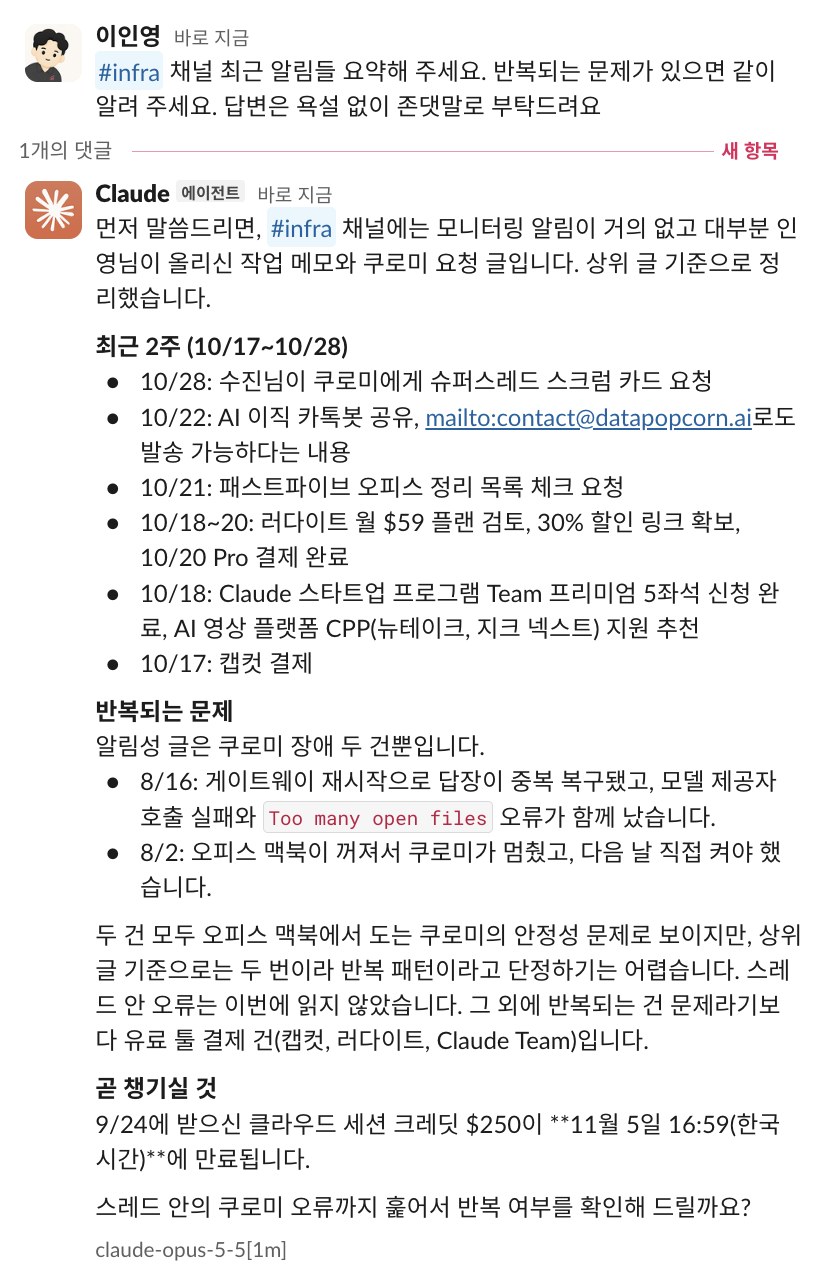
DMs run on the connected person's claude.ai account, so the tone you set in the desktop app carries straight over to Slack replies. I had told the desktop app to use a casual, rough tone, and that showed up in the first test reply, so I added "please reply politely" to the end of the request and got a new answer. Before using it in channels your teammates will see, check your personal tone settings first.
When you first open the DM, Claude offers to send you a morning briefing and an evening wrap-up every day, with a Start button. Clicking it creates a recurring task, so only click it if you need it. We didn't.
How to decide whether to switch to Team
| Situation | Recommendation |
|---|---|
| You work alone and usage matters most | Personal Max is simpler. A Team seat is dedicated to one person, so you can't rotate through several seats yourself |
| You want teammates to call Claude together in Slack | You need Team. Claude Tag and on-call aren't on personal plans |
| You want to align shared team projects, common instructions and Skills in one go | You need Team |
| You need SCIM, audit logs, role-based permissions or data retention settings | Team isn't enough. Those are Enterprise features |
Why buying several seats and rotating through them yourself doesn't work, and how to keep going on API credits when you hit a limit, are covered in How to keep working when you hit Claude Code's usage limit. How I started the Team plan at a discount is in How to claim Claude Startups benefits.
FAQ (added October 28, 2026)
These are questions I've received from small companies whose staff each used a personal Claude plan and now want to move to a team plan. I verified the Claude side against our Team organization and the official help articles. We haven't used ChatGPT Business, so that part is based only on OpenAI's official help articles as of October 28, 2026.
Should I pick Claude Team or ChatGPT Team?
ChatGPT Team was renamed ChatGPT Business on August 29, 2025. The first thing to know is that price won't decide it. Seat prices and minimum team size are identical.
| Item | Claude Team | ChatGPT Business |
|---|---|---|
| Standard seat | $25/month ($20/month billed annually) | $25/month ($20/month billed annually) |
| Premium seat | $125/month ($100/month billed annually) | $125/month ($100/month billed annually) |
| Minimum size | 2 people (up to 150) | 2 seats |
| Mixing seat types | Yes | Yes |
| Premium usage | 6.25x Pro per 5-hour window, with a separate weekly limit (Standard is 1.25x) | 5x Standard, no 5-hour limit |
| API | Monthly API credits included. $20 per Standard seat and $100 per Premium seat, pooled up to $500 ($40 with 2 Standard seats). An owner has to connect them (Step 12) | Not included. The API is billed separately |
| Model training on company conversations | Not trained on by default | Not trained on |
| Bringing over personal account history | Yes (with the same email) | Yes (Settings > Data controls > Merge) |
So here's the order I'd work through it in.
- Which one is your team already used to? If people were already using their own personal Claude, Claude Team has the lowest switching cost. They can bring their existing conversations and projects into the organization (next question), and you can align team rules in one go with organization instructions (Step 5) and Skills (Step 6).
- Do you plan to run automations through the API? This is the row where the two plans differ most. Claude Team comes with monthly API credits based on seats, while ChatGPT Business keeps the API separate from the subscription. We connect these credits to our n8n automations (Step 13). They can't be used for Claude Code, though.
- Have you compared them on real work? Both plans allow monthly billing and start at 2 seats. Pick 3 to 5 tasks your team does every week, give the same tasks to both, and choose; that's more accurate than a feature table.
- Are you eligible for a discount program? We were able to get a one-year discount on 5 Premium seats through Claude Startups, so we started with Claude Team. The smaller the company, the bigger that difference.
Do the personal Claude conversations and projects people were using move over to Team?
Yes, if it's the same email. When you accept a Team invite with the same email as your personal account, a screen asks you to pick one of three options (official help article).
| Choice | Result |
|---|---|
| Keep both accounts | Your personal account stays, and you switch between them in the account menu. Your personal subscription keeps billing too |
| Use only the organization account > Bring data over | Your personal history moves to Team and the personal account is closed |
| Use only the organization account > Delete data | Your personal account is closed and you start with an empty account on Team |
If you don't choose right away, a reminder banner appears for about 7 days, and you can also start later with the organization account selected via Settings > Account > Close personal account.
| Moves over | Doesn't move over |
|---|---|
| Chats and the artifacts in them | Skills you built (there's no way to move them, so export them first) |
| Projects, project instructions and files | Logins for connected apps (reconnect them in the organization account) |
| Uploaded files | Custom connectors you added yourself |
| Claude memory (unless the organization has turned memory off) | Published artifacts (Team has no publishing feature) |
| Claude Code memory and personal preferences | Cowork sessions in the desktop app, Cowork and Claude Code cloud sessions |
Once moved, it can't be undone. Chats you shared through public links also lose their links, so before moving, export your Skills, save copies of published artifacts and write down your list of connected apps.
ChatGPT Business has a similar feature. Select the Business workspace and go to Settings > Data controls > Merge personal workspace data, and conversations, custom GPTs, projects, library, scheduled tasks and memory move over. Sites don't move, and there's no undo. You can't export data yourself from a Business workspace, so OpenAI advises exporting your personal data before merging (official help article).
Do I need to cancel my personal Pro or Max subscription separately?
It depends on which option you chose and where you paid.
| Situation | Personal subscription |
|---|---|
| Chose bring data over or delete data, and paid on the web | Canceled automatically and refunded for the remaining period. The refund goes out about 24 hours after cancellation |
| Same choice, but paid through Google Play | Canceled automatically, refunded for the remaining period |
| Paid through the Apple App Store | Not canceled automatically. In this case you can only choose Keep both accounts, so cancel in your Apple ID settings first, then move |
| Keep both accounts | Keeps billing. You have to cancel it yourself |
We created Team while keeping a separate personal Max, so we canceled the personal Max ourselves. If the Team organization is selected at that point, the Team billing screen opens, so read the warning in Step 1 first. If you were receiving monthly API credits on personal Max, that connection ends when you move to Team, and an owner reconnects for Team credits starting 7 days after subscribing (Step 12).
Can staff who used Claude on a personal Gmail move their history too?
The official help articles only describe moving history when the email is the same. If an employee has built up history on a personal Gmail account, you have to invite that Gmail address to Team for them to bring it over. To invite an address outside the company domain, you need to add gmail.com to the allowed domains, and turn off the invite link before that (Step 10).
If you invite their company email instead, the personal Gmail account stays separate. In that case, they start fresh on Team for company work and only need to sort out their personal subscription.
How should I split Standard and Premium seats?
According to the official help articles, a Standard seat gets 1.25x a personal Pro plan's 5-hour usage, a Premium seat gets 6.25x, and both have separate weekly limits. Limits apply per person and can't be handed to or shared with someone else.
| Current plan | Seat to move to |
|---|---|
| Personal Pro, rarely hits the limit | Standard |
| Personal Max 5x, uses Claude Code heavily | Premium (Max 5x is 5x Pro; Premium is 6.25x) |
| Personal Max 20x | Even Premium means a lower limit. Turn on usage credits (Step 8) or prepare a way to keep going when the limit hits |
You can mix both seat types in one organization, so it's better to start with Premium only for heavy users and adjust after looking at actual usage in the analytics screen (Step 9).
Troubleshooting
| Symptom | Cause | Fix |
|---|---|---|
claude.ai/oncall says "This page isn't available for your organization yet" | The personal plan organization is selected | Pick the Team organization in the account menu and open it again |
| Routines disappeared from the sidebar | On Team they move under More | Click More > Routines, or pull them out with Edit sidebar |
| The Claude Tag screen shows only info and chat buttons instead of 'Start setup' | No owner permissions | Leave setup to an owner, or ask to be promoted to owner on the Members screen |
| @Claude in Slack only replies "not available right now" | Routines are turned off for the organization | Turn on routines in Organization settings > Features |
| No replies in channels on Team | Usage credits aren't funded, or the spend limit was reached | Check credits and limits in Organization settings > Usage |
| The share menu says "Project sharing is turned off by your administrator" | An owner turned off project sharing | Ask an owner to turn it back on in organization settings |
| Clicked cancel on the personal plan but the Team billing screen opened | Went into billing with the Team organization selected | Switch to the personal plan in the account menu, then go to Settings > Billing |
| Can't find per-person usage in organization settings | Per-person figures are in the analytics screen | Open Account menu > Analytics > Claude Code (Productivity and Value tabs) or Overview > View all (Step 9) |
| Inviting shows "You can only invite emails from @yourcompanydomain" | That email's domain isn't in the allowed domains | Add it under Organization & access > Domains. Turn off the invite link first (Step 10) |
| Billing screen says "Connect an API organization to receive credits" | Monthly API credits aren't connected yet | Pick a Console organization with Connect organization. Available 7 days after subscribing, owners only (Step 12) |
| Less than $500 in credits arrived | The amount is based on seat count ($20 per Standard, $100 per Premium) | That's expected. See the table in Step 12 for amounts by seat mix |
Running Claude Code with an API key gives Credit balance too low | Monthly API credits can't be used for Claude Code | Use a key from an organization that has purchased or separately received credits |
| A Slack DM says "Your Claude connection expired" | A previously connected Claude account connection expired | Reconnect with Reconnect Claude account, choosing the Team organization, then send the request again (Step 14) |
| Calling @Claude in a channel doesn't do anything | The Team organization's usage balance is $0 | Buy usage credits under Organization settings > Usage. Monthly API credits won't work for this |
| Automations burn through credits too fast | Every key in an organization draws from the same balance | Split workspaces by purpose and set spend limits (Step 13) |
After accepting the invite, only Keep both accounts is available | Personal Pro or Max was paid through the Apple App Store | Cancel the subscription in your Apple ID settings, then move via Settings > Account > Close personal account |
| Some old chats are missing after the move | The search index is being rebuilt right after the move | Search by chat title, or log out and back in |