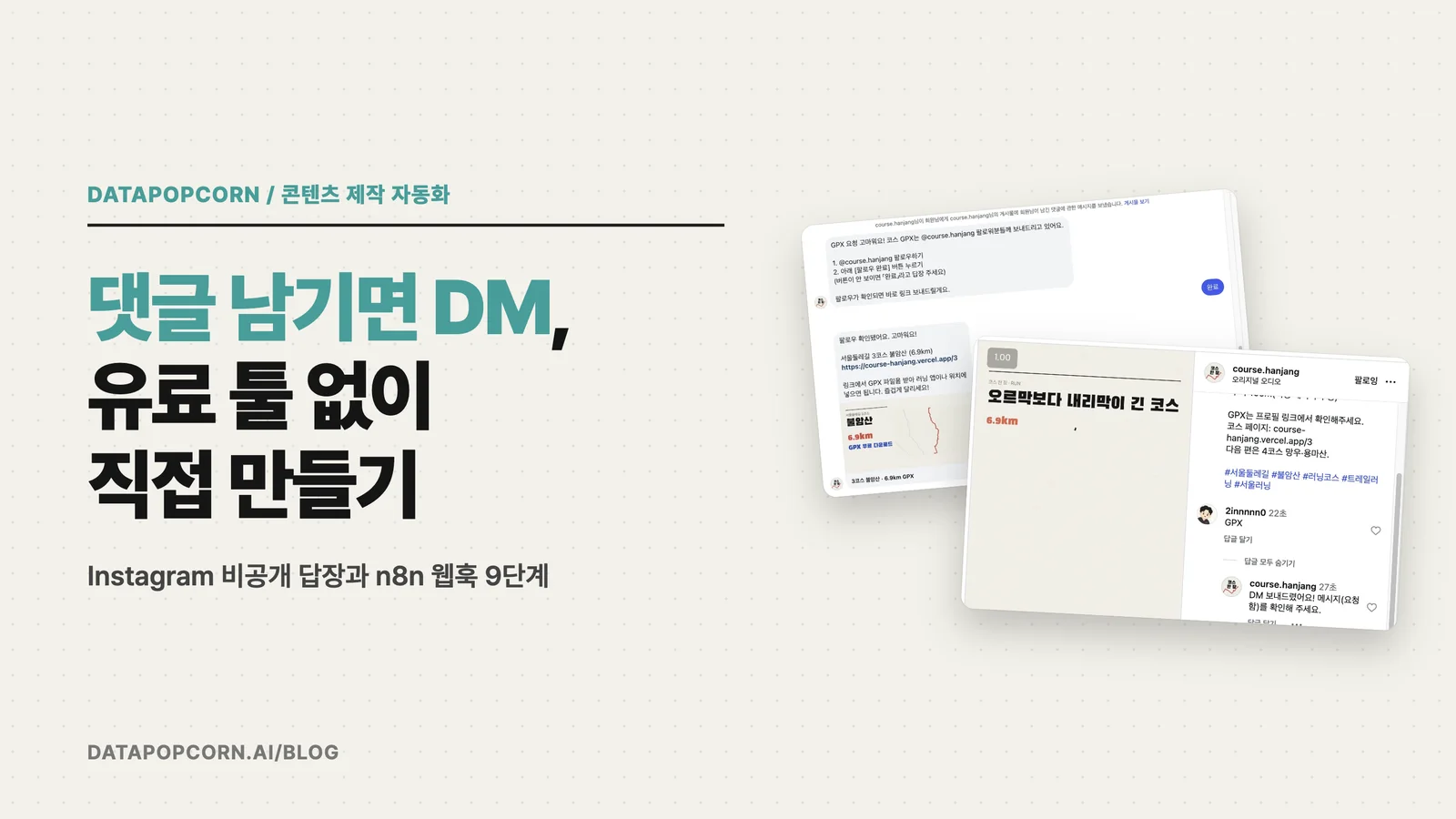
Build Instagram's 'Comment and I'll DM You' Yourself, No Paid Tools
The moment you write "Comment GPX and I'll DM it to you" in a Reels caption, you sign up for copying a link and sending a DM by hand every time someone comments. Follow this post and a single n8n workflow does that for you. When a comment containing the keyword arrives, a DM asking them to follow goes out within seconds, a "Sent you a DM" reply appears under their comment, and the link only goes out once they've actually followed. Nobody gets it twice. No monthly-subscription automation tool, just Meta's official API.
What it looks like when it's done
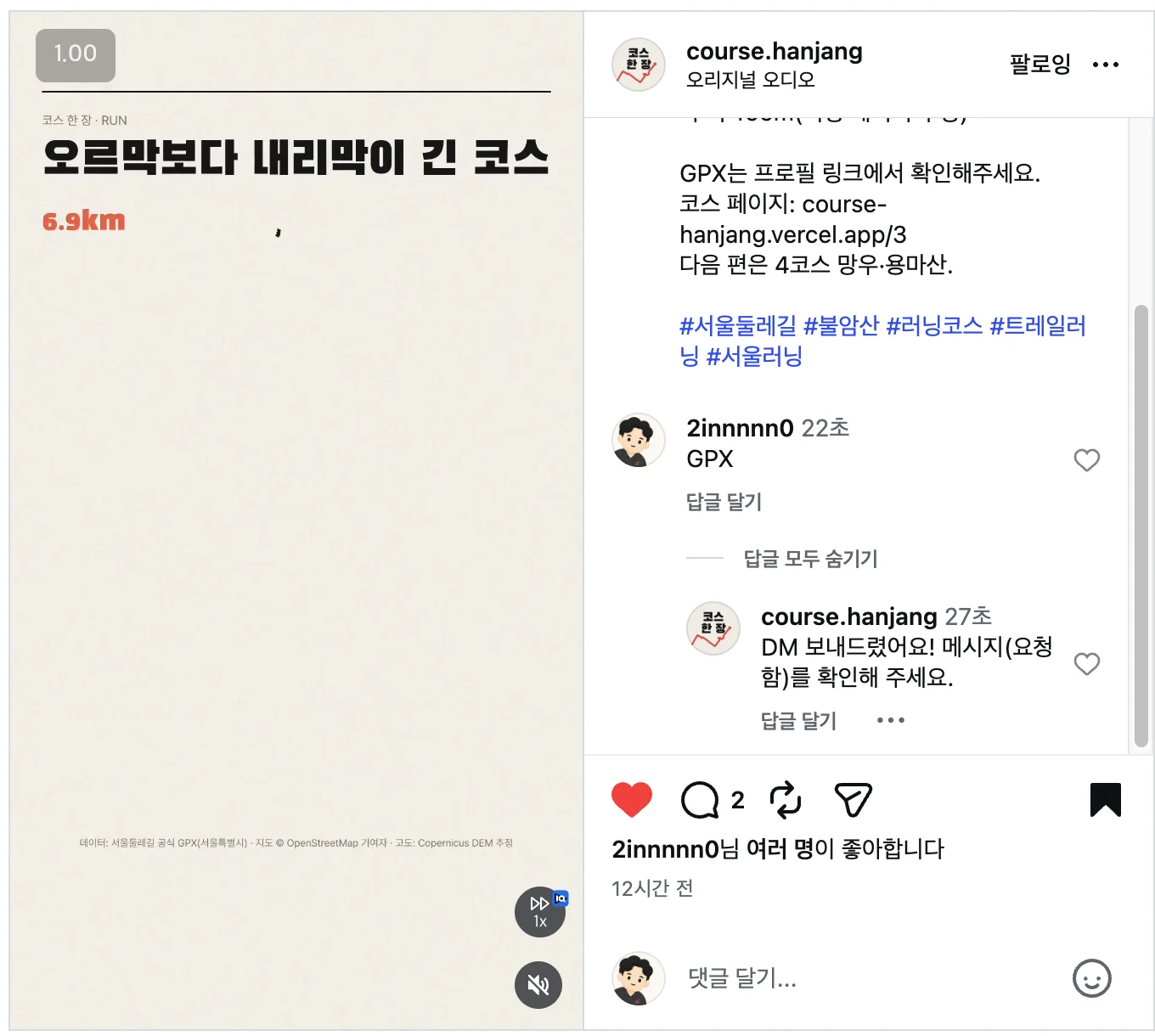
On the morning of October 6, 2026, I re-tested it by commenting GPX from a different account on a Reel on @course.hanjang, an account I run. A few seconds after commenting, a public reply appeared. (The account posts in Korean, so the messages in these screenshots are in Korean.)
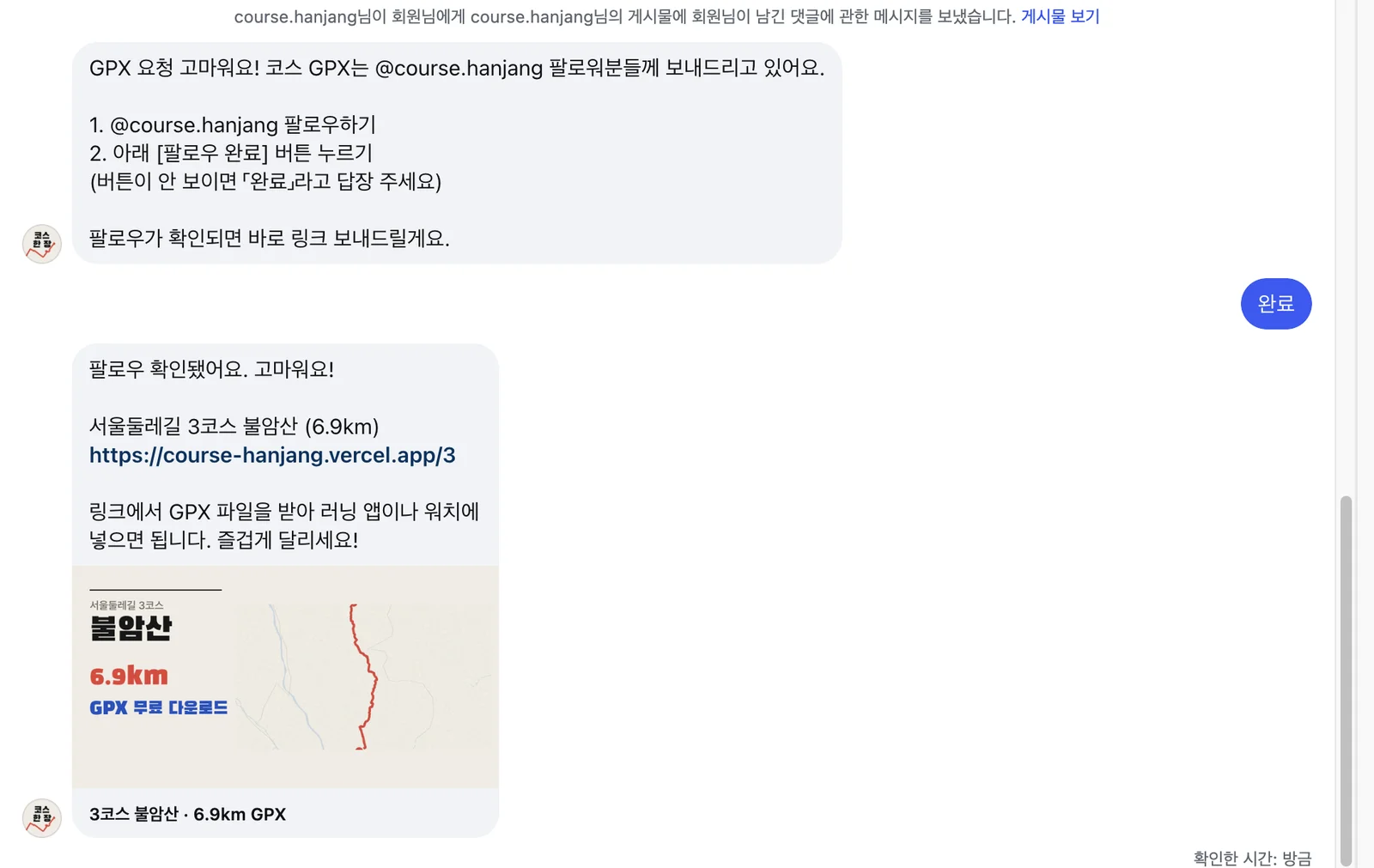
The follow prompt was waiting in my DMs. When I replied "Done", the workflow checked that I followed the account and then sent the link for that trail course. Because I was on desktop web, the [Followed] button wasn't shown, so I typed "Done" as the message instructed.
The 3-minute summary: do it in this order
If you're short on time, you can follow just this list. The real screens and the spots where people get stuck are in Steps 1-9 below.
- Create a Meta app. Create an app at developers.facebook.com and pick the use case Manage messaging and content on Instagram. Add the three permissions (
basic,manage_comments,manage_messages). - Make your account a tester. In App roles, add your Instagram account as an Instagram Tester, then accept it in Instagram under Settings → Apps and websites → Tester invites.
- Generate a token. On the API setup screen, click Generate token and save the token and the Instagram app secret in your password manager.
- Prepare n8n. Create two credentials (Header Auth for the token, Crypto for the secret) and two tables (
dm_rules,dm_log). Every column is a string. - Paste in the workflow. Grab the workflow file for free from the link in Step 5, paste it in, re-select just the verify_token, credentials and tables, then Publish.
- Connect the webhook. In Meta Webhooks, enter your n8n URL and verify_token and subscribe only to
commentsandmessages. Run thesubscribed_appscall once. - Publish the app. Add a privacy policy URL and switch the app to Published (Live). In development mode, real comment notifications don't arrive.
- Register a Reel and test. Add one row to
dm_ruleswith the Reel's media_id, keyword and link, then confirm by leaving a keyword comment from an account that isn't yours.
Who this is for
- Creators and small business owners who want to run "comment and I'll send you the resource" campaigns on Reels and posts
- People who'd rather build it themselves and understand how it works than pay for a DM automation tool like ManyChat
- n8n users who want a real-world example of receiving events from an external service via webhook
You'll need four things:
- A professional Instagram account (Business or Creator) that is public. Private accounts don't get comment notifications.
- A Meta developer account (developers.facebook.com)
- An n8n instance reachable from the internet over HTTPS. n8n Cloud or self-hosted with a domain both work. I used self-hosted n8n 2.38.5.
- A privacy policy URL to enter when you publish the app
All screens and settings here are ones I built and verified myself on October 3, 2026. I called the Graph API at v24.0, and the Meta webhook dashboard showed v26.0.
First, how a comment becomes a DM
The official name for this feature is Private Replies. It's an Instagram API feature that lets you send one DM to someone who commented on your post, based on that comment. You can send it even if they don't follow you; in that case it lands in their message requests.
The official Meta docs boil down to three rules:
- You can send only one DM per comment.
- You must send it within 7 days of the comment.
- If the person replies, you can send further messages for the next 24 hours.
Here's the overall flow. When someone comments, Meta sends a "new comment" notification to your server (n8n, here). This notification is called a webhook. n8n checks that the notification really came from Meta, looks for the keyword, makes sure that comment hasn't been handled already, and then sends the DM.
There's one important constraint. You can only check via the API whether someone follows you after they've sent you a DM. According to the User Profile API docs, if you try to fetch a profile before the app user has messaged the app, you get an error saying user consent is required. And the is_user_follow_business field, which tells you whether they follow you, lives in exactly that API.
So the order works like this: in reply to the comment, send a prompt that says "Follow, then tap the button" along with a button. Only when they tap the button or reply do you check whether they follow and send the link. Tapping the button counts as sending you a DM, so the condition for the lookup is met.
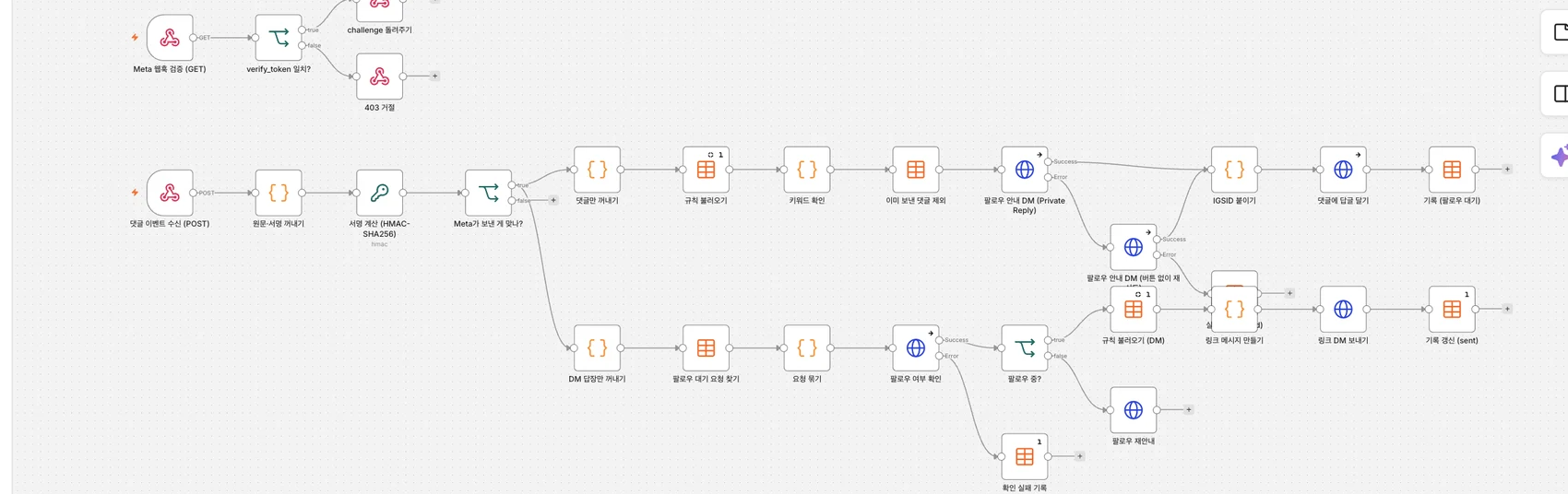
Here's the finished n8n workflow. The top three nodes handle the one-time check where Meta asks "Is this URL really your server?", the middle row receives comments and sends the follow prompt, and the bottom row checks follow status from the person's DM reply.
Step 1. Create a Meta app and add three Instagram API permissions
In Meta for Developers, click Create app.
- Name the app. Matching it to your account name saves confusion later.
- In the use case list, change the filter to All and pick Manage messaging and content on Instagram.
- Connect a business portfolio. If you'll want App Review (Advanced Access) later, you need a business-verified portfolio, so pick that if you have one.
- When you click Create app, it asks for your password again.

Once the app exists, go to Use cases → Customize → API setup with Instagram login. Click Add all required permissions in box 1 and these three permissions are added. They're the only ones this feature needs.
| Permission | Used for |
|---|---|
instagram_business_basic | Basic account info |
instagram_business_manage_comments | Receiving comment webhooks, replying to comments |
instagram_business_manage_messages | Sending private replies (DMs) |
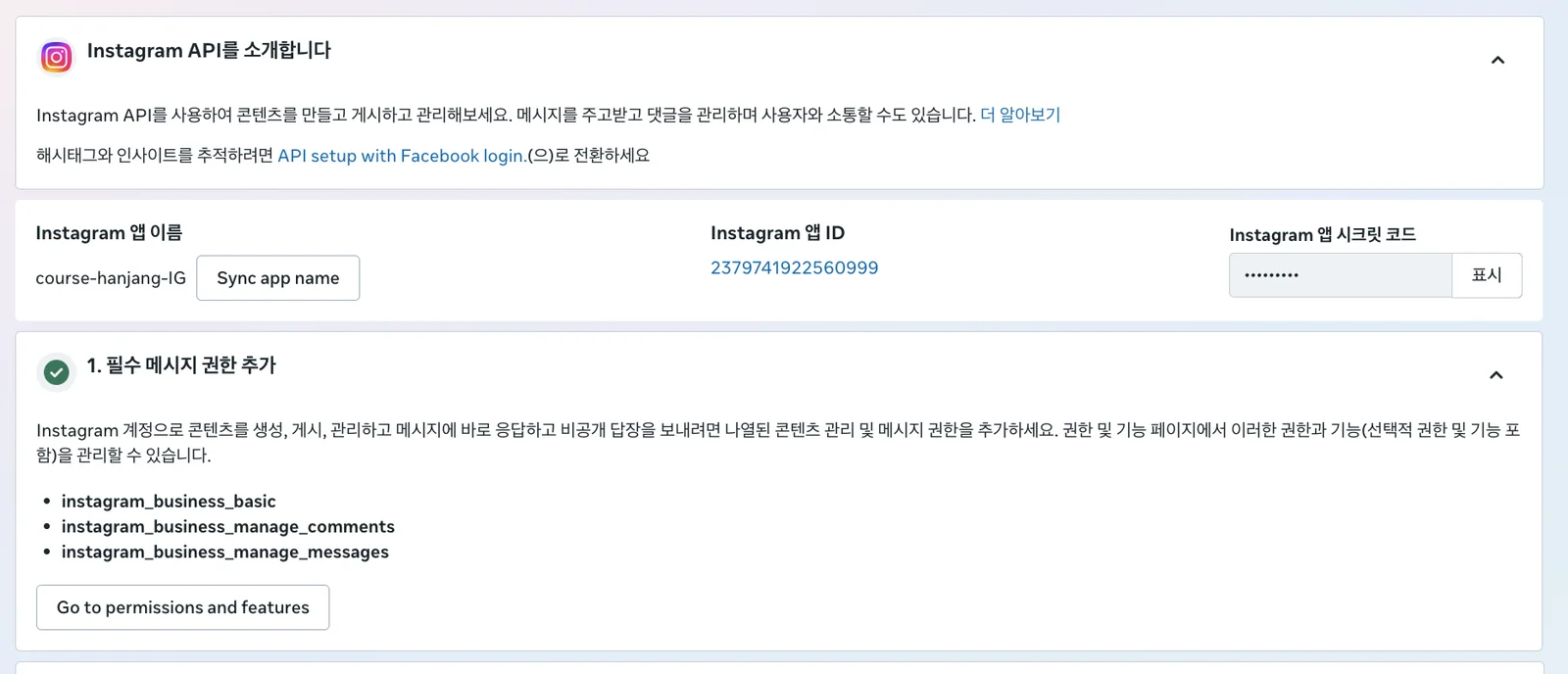
The top of the same screen shows the Instagram app ID and the Instagram app secret. You'll use the secret in Step 4 to verify webhook signatures. These are different from the Facebook app ID, so don't mix them up.
Step 2. Add your Instagram account as an Instagram Tester and accept
For the app to access your account, that account needs a role in the app.
- In the app's left menu, go to App roles → Roles and click Add people.
- Choose Instagram Tester at the very bottom of the role list, enter your Instagram username and add it. The status shows "Pending".
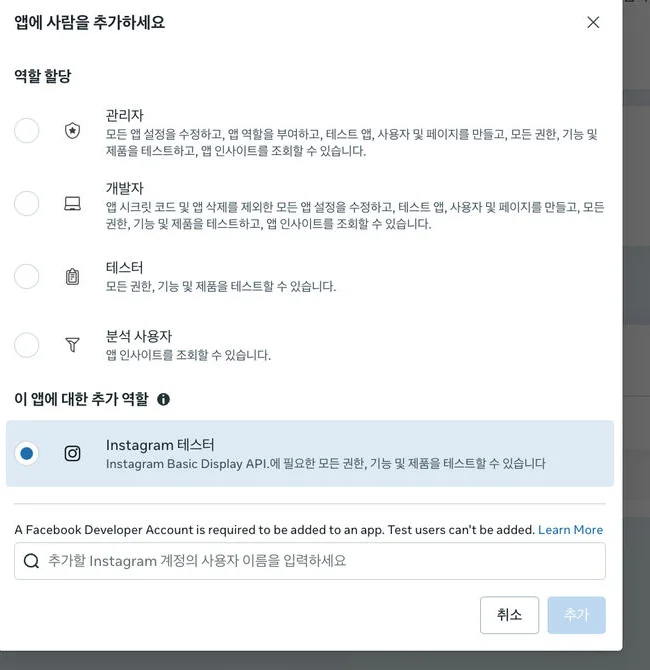
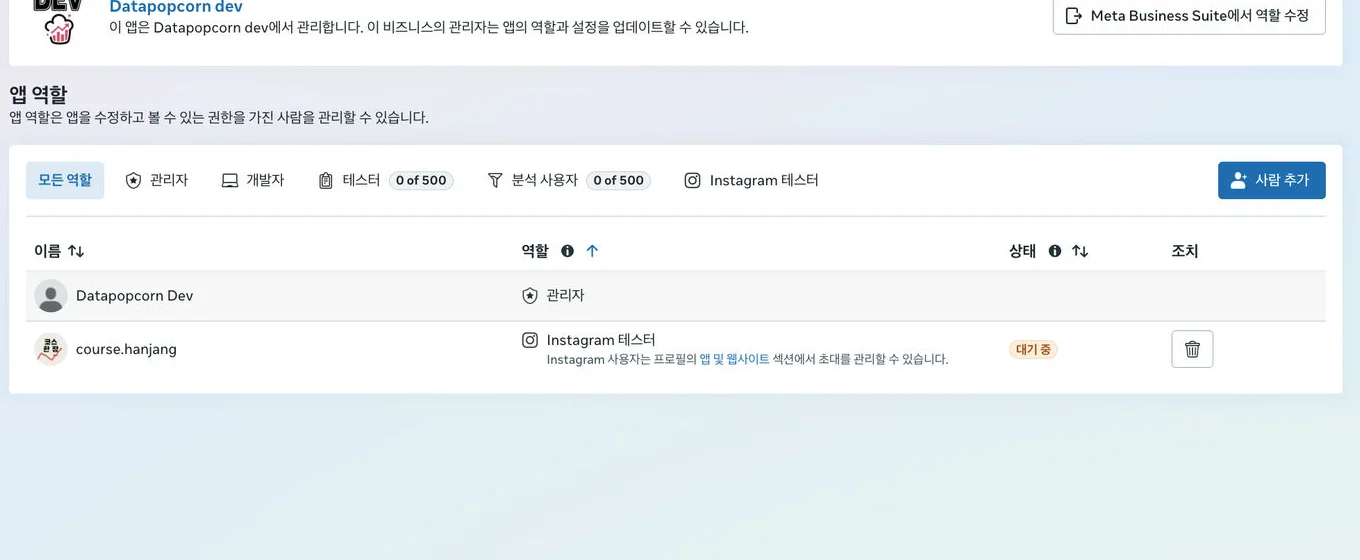
- Log in to Instagram on the web with that account, then go to Settings → Website permissions → Apps and websites → Tester invites and click Accept. The direct URL is
instagram.com/accounts/manage_access/.
The invite doesn't show up under "Connected experiences" in Meta Accounts Center. Look for it in the Tester invites tab in Instagram's own settings.
Step 3. Generate an access token
In box 2 on the API setup screen, Generate access tokens, click Generate token next to your account and an Instagram login window opens.
On the permissions consent screen, you can turn off Access and publish content and Access and manage insights. This feature only uses comments and messages, so it's safer not to grant permissions you don't need in the first place.
Once you allow it, the token is shown exactly once. You have to tick I understand before the token appears and can be copied. Save it to your password manager right away. Also note down the number shown in the same window (your Instagram user ID).
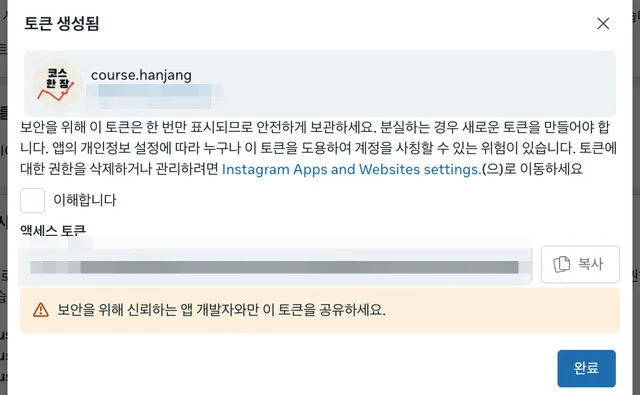
You can check the token straight from your browser's address bar:
https://graph.instagram.com/v24.0/me?fields=user_id,username&access_token=YOUR_ACCESS_TOKEN
If your username comes back, it works. This token expires, so if you keep running this you'll need to refresh it before it does.
Step 4. Create two credentials and two Data tables in n8n
So you never paste secrets directly into the workflow, set up storage first.
Credential 1: token (Header Auth)
- Credentials → Create credential → Header Auth
- Name:
Authorization, Value:Bearer YOUR_ACCESS_TOKEN(one space after Bearer) - Change Allowed HTTP Request Domains to Specific Domains and enter only
graph.instagram.com. This keeps the token from leaking to any other host.
Credential 2: app secret (Crypto)
- Create credential → Crypto → put the Instagram app secret from Step 1 in Hmac Secret.
- It's used to compute the signature that proves a webhook really came from Meta.
Data table 1: dm_rules (which post, which keyword, what to send)
Create four columns, all string type: media_id, keyword, title, link.
Do not make media_id a number. Instagram media IDs are 17 digits long, like 17949931728293330, and storing them as numbers changes the last digits. Importing a CSV may also guess "number", so it's safer to create an empty table and enter rows by hand.
You can look up a post's media_id with your token:
https://graph.instagram.com/v24.0/me/media?fields=id,permalink,caption&access_token=YOUR_ACCESS_TOKEN
Use permalink to identify the Reel, then put its id in media_id. An example row:
| media_id | keyword | title | link |
|---|---|---|---|
| 17949931728293330 | GPX | Seoul Trail Course 15: Noeul & Haneul Park (7.5km) | https://course-hanjang.vercel.app/15 |
The table I actually run has one row per Reel, as below. This screen is from my own account, so the title column is named course_name, but the downloadable workflow JSON uses title. If you're creating the table from scratch, name it title.
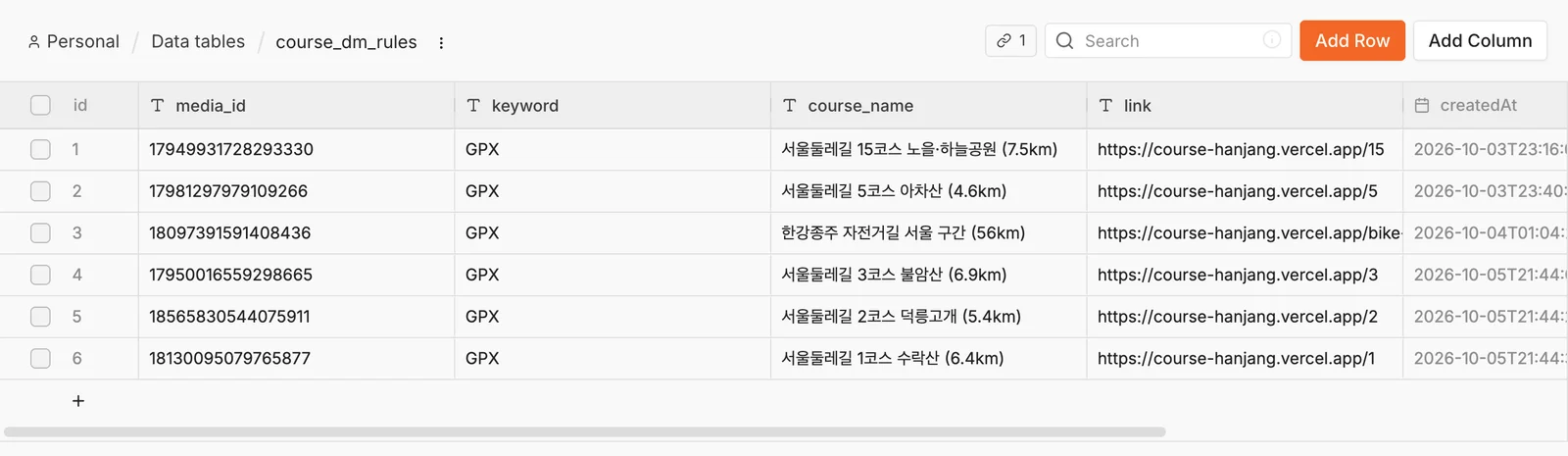
Data table 2: dm_log (send history, for duplicate prevention)
Seven columns, all string: comment_id, media_id, username, comment_text, status, error, igsid.
Don't skip igsid. When someone who got the follow prompt later replies "Done", the workflow uses this value to find their pending request. Without the column, the comment-side DM goes out but the link DM never does.
Step 5. Bring in the workflow and change just three things
You don't need to build all 29 nodes from scratch. I've put the finished workflow file on Groble (a Korean digital-product marketplace) as a free (0 KRW) product. Unzip the download, open the JSON file, copy everything, click an empty n8n canvas and paste. The ZIP also includes a README listing the changes below.
Get the Instagram comment auto-DM workflow for free (Groble)
The node names in the downloadable workflow are in Korean. Below I've translated them and put the original label in parentheses where it helps you find the node.
After pasting, change three things:
- In the verify_token matches? node (
verify_token 일치?), replace the comparison value여기에_내가_정한_verify_token(a placeholder meaning "your verify_token goes here") with a long string nobody could guess. You'll enter the exact same value in Meta in Step 7. - In the seven nodes that use credentials (Compute signature, the two Follow-prompt DM nodes, Reply to comment, Check follow status, Send link DM, Follow reminder), select the credentials from Step 4.
- In the eight Data table nodes, re-select
dm_rulesanddm_log. You have to pick the table from the list once more for the columns to load.
@{계정핸들} in the JSON is the placeholder for your account handle in the follow-prompt message. Put your Instagram account there, and change the default link in the Build link message code node (링크 메시지 만들기) to your own site's listing page.
Here's what each node does. If this is new to you, open the nodes one by one in this order and the structure will click.
| Node | What it does |
|---|---|
Meta webhook verification (GET) → verify_token matches? (Meta 웹훅 검증 (GET) → verify_token 일치?) | The check request Meta sends when you first register the URL. If the token matches, it returns the hub.challenge value as-is; otherwise 403 |
Receive comment event (POST) (댓글 이벤트 수신 (POST)) | Where real comment and DM notifications arrive. The Raw Body option must be on for signature verification to work |
Extract raw body & signature → Compute signature → Really from Meta? (원문·서명 꺼내기 → 서명 계산 → Meta가 보낸 게 맞나?) | Computes HMAC-SHA256 over the received raw body with the app secret and compares it with the X-Hub-Signature-256 header. If they differ, it stops there |
Extract comments only / Extract DM replies only (댓글만 꺼내기 / DM 답장만 꺼내기) | Splits by notification type. The comment branch excludes comments made by your own account, and the DM branch excludes messages you sent (is_echo) |
Load rules → Check keyword (규칙 불러오기 → 키워드 확인) | Passes only if the post is registered in dm_rules and the keyword is present. Case and spaces are ignored |
Skip already-handled comments (이미 보낸 댓글 제외) | Stops if dm_log already has the same comment_id |
Follow-prompt DM (Private Reply) (팔로우 안내 DM (Private Reply)) | Sends a private reply with the follow prompt and a [Followed] button |
Follow-prompt DM, retry without button (팔로우 안내 DM (버튼 없이 재시도)) | If the call above fails, resends just the text without the button. If this also fails, it's logged as failed |
Attach IGSID → Reply to comment → Log (IGSID 붙이기 → 댓글에 답글 달기 → 기록) | Posts the public reply and logs awaiting_follow along with the person's Instagram-scoped ID (IGSID) |
Find pending follow request → Group requests (팔로우 대기 요청 찾기 → 요청 묶기) | Passes only if the person who sent the DM has a pending request. Ordinary inquiry DMs stop here |
Check follow status (팔로우 여부 확인) | Looks up is_user_follow_business on that person's profile |
Following? (팔로우 중?) | If true, sends the link DM and updates the log to sent; if false, sends a reminder DM |
The core DM call is a single request. The first DM, replying to a comment, specifies the recipient by comment ID rather than user ID; follow-up DMs are sent by IGSID.
POST https://graph.instagram.com/v24.0/{your Instagram user ID}/messages
Authorization: Bearer {token}

{"recipient": {"comment_id": "{comment ID}"}, "message": {"text": "Follow us, then tap the button.", "quick_replies": [{"content_type": "text", "title": "Followed", "payload": "FOLLOW_CHECK"}]}}
When the button is tapped, the DM arrives with payload set to FOLLOW_CHECK. Quick replies aren't displayed on desktop, so the prompt also says "If you don't see the button, reply 'Done'", and the DM branch accepts replies that arrive as plain text too.
Step 6. Publish the workflow and test the URL first
Click Publish in the top right. Publishing is what activates the production webhook URL (https://your-n8n-host/webhook/ig-comment-dm).
Before registering it with Meta, check it yourself in the browser:
https://your-n8n-host/webhook/ig-comment-dm?hub.mode=subscribe&hub.challenge=12345&hub.verify_token=YOUR_VERIFY_TOKEN
If the page shows only 12345, it's working. If you deliberately enter the wrong token, you should get forbidden. Once both check out, move on to the Meta side.
Step 7. Register the webhook URL with Meta and subscribe to only the fields you need
In box 3 on the API setup screen, Configure webhooks:
- Enter the webhook URL from Step 6 as the Callback URL and your verify_token as the Verify token, then click Verify and save. Meta sends a GET request to check it, and on success the list of fields appears.
- In the field list, turn on only
commentsandmessagesand leave the rest off. You needmessagesto receive the DM when someone taps the button. Turning on fields likelive_commentsalso catches livestream chat and just inflates your execution count. - On the
commentsrow, click Test → Send to server and Meta sends a signed sample notification. If an execution appears in n8n Executions and the Really from Meta? node passes as true, signature verification is set up correctly. The sample's post ID is fake, so it's normal for it to stop at Check keyword.
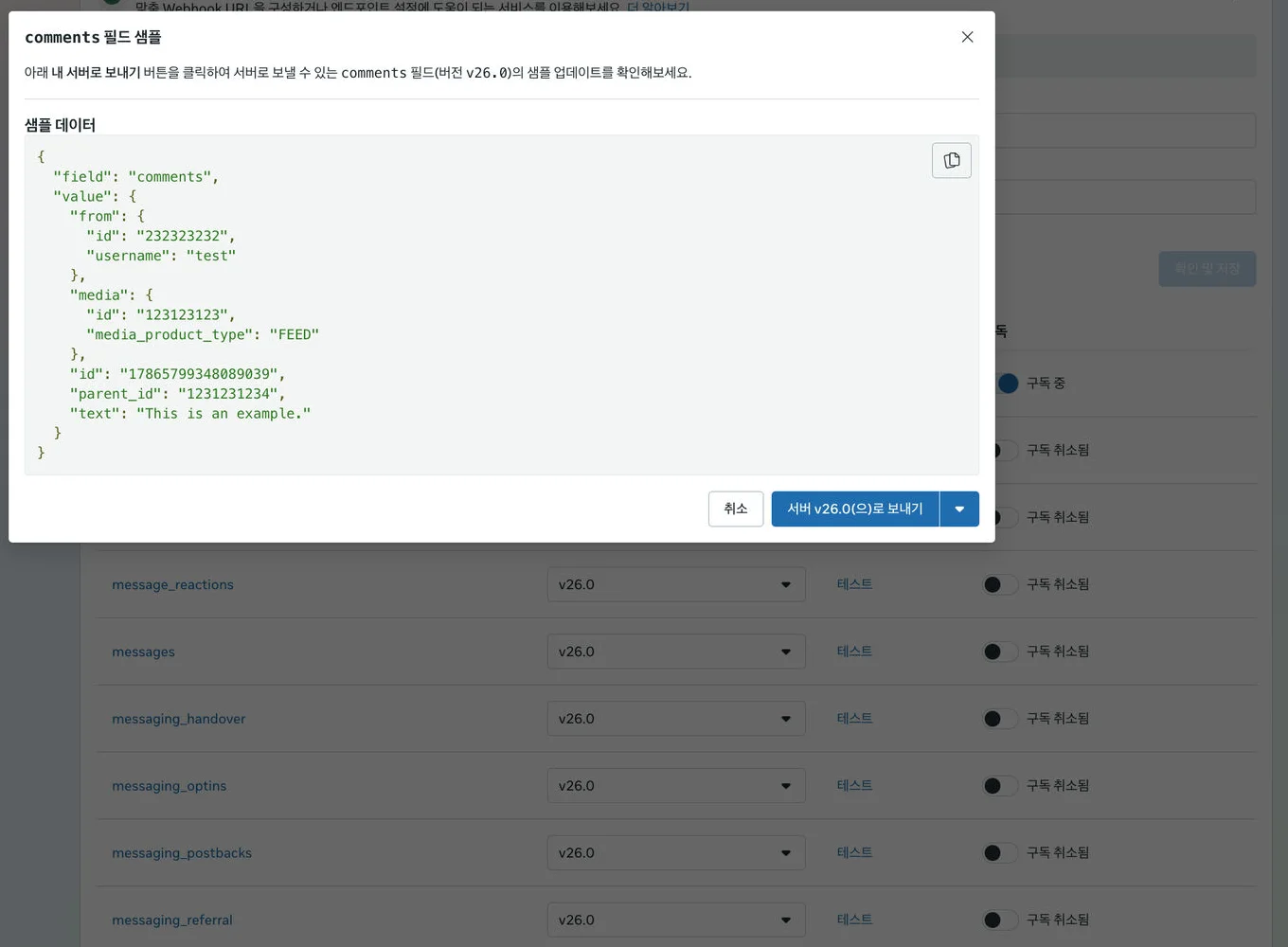
Finally, turn on the subscription so your account sends notifications to this app. This call is a POST, so run it once from an n8n HTTP Request node or a terminal, not the browser address bar.
curl -X POST "https://graph.instagram.com/v24.0/me/subscribed_apps?subscribed_fields=comments,messages&access_token=YOUR_ACCESS_TOKEN"
You're done when you see {"success":true}.
Step 8. Switch the app to Published (Live)
The dashboard says "Apps must be published to receive webhooks." In development mode, only the test-button notifications arrive; real comment notifications don't.
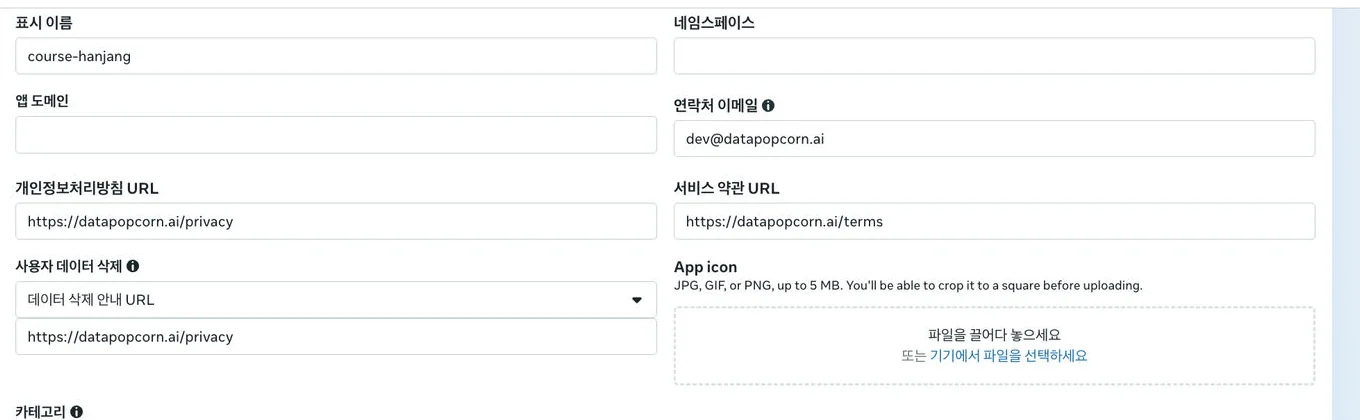
- In App settings → Basic, enter a Privacy policy URL and a Data deletion instructions URL and save.
- In the left menu under Publish, once you see "All required app settings are complete", click Publish.
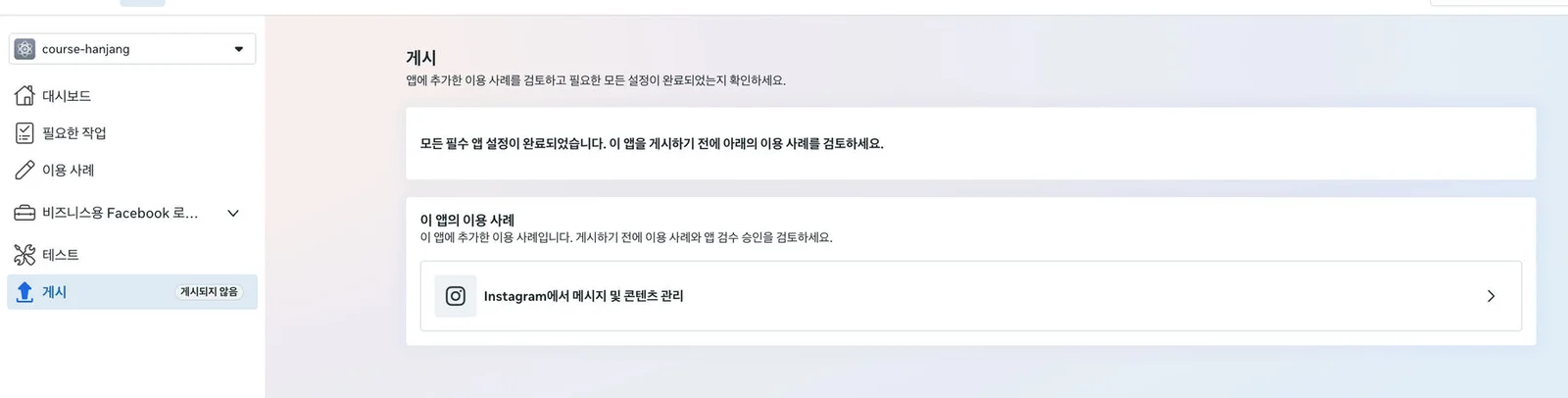
When it's done, the marker next to Publish in the left menu changes to "Published".
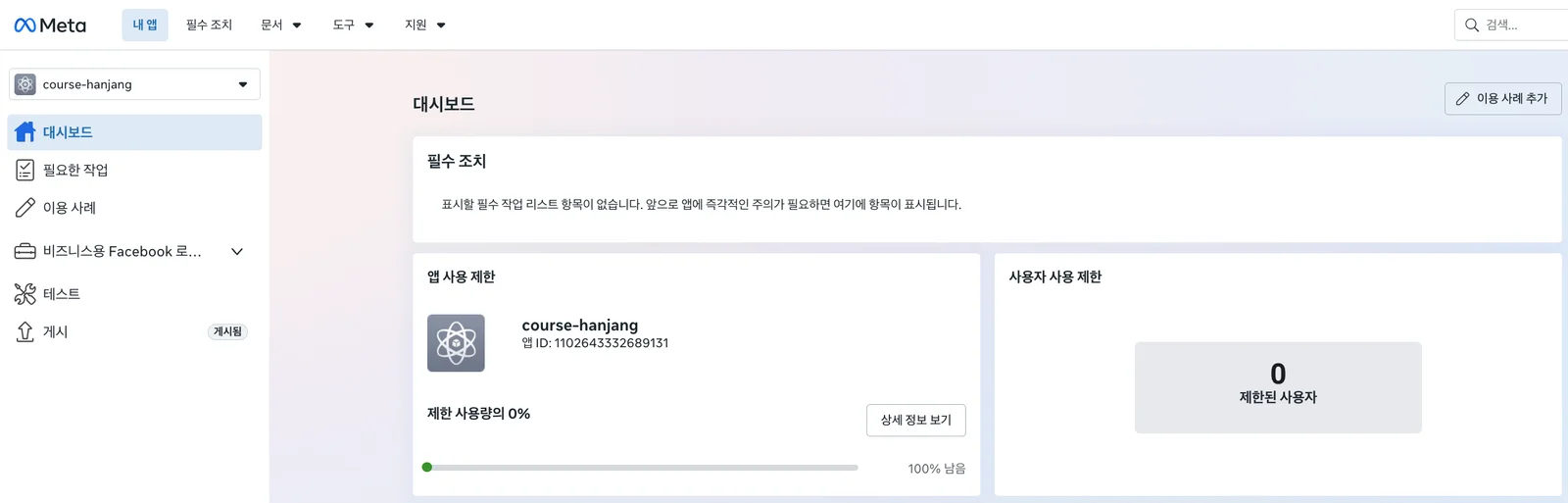
Publishing is not the same as App Review. You can publish without App Review. However, the Meta webhooks docs say comments notifications require Advanced Access, and you only get Advanced Access by passing App Review. I checked how far it actually works with the results in Step 9.
Step 9. Test with a real comment
Now, from an account that isn't yours, leave a keyword comment on a Reel you registered in dm_rules. Comments from your own account are deliberately dropped at Extract comments only, so they won't work as a test.
Here's what happened when I commented GPX on the Seoul Trail Course 15 Reel from a personal account that has no role in the app:
| Time (KST) | What happened |
|---|---|
| 00:06:27 | The personal account posts a GPX comment |
| 00:06:31 | n8n execution starts. Signature check → keyword check → duplicate check all pass |
| 00:06:37 | Private-reply DM sent successfully (message_id returned in the response); "Sent it! Check your DMs." reply posted on the comment |
| 00:06:41 | Another webhook arrives because of the reply I just posted. The author is my own account, so it's filtered out in 27ms |
From comment to public reply took about 10 seconds, and dm_log got one row marked sent. This test was run without App Review, with only the Publish (Live) from Step 8.
October 6 re-test: the full flow including the follow check
The test above was on a version from before the follow-check step was added. With the current workflow, which includes the follow check, I re-tested by commenting GPX on the live Seoul Trail Course 3 (Buramsan) Reel from a personal account (already following). The actual screens are at the top of this post under "What it looks like when it's done".
| Time (KST) | What happened |
|---|---|
| 09:26:17 | The comment notification starts an n8n execution. In 4.8 seconds: follow-prompt DM sent, "Sent you a DM!" reply posted on the comment, awaiting_follow logged in dm_log |
| 09:26:21, 09:26:24 | Two executions from my own reply and DM bouncing back as notifications. Both stop immediately at Extract comments only / Extract DM replies only |
| 09:28:59 | "Done" reply via DM. Check follow status (true) → Course 3 link DM sent → dm_log updated to sent. 3.1 seconds |
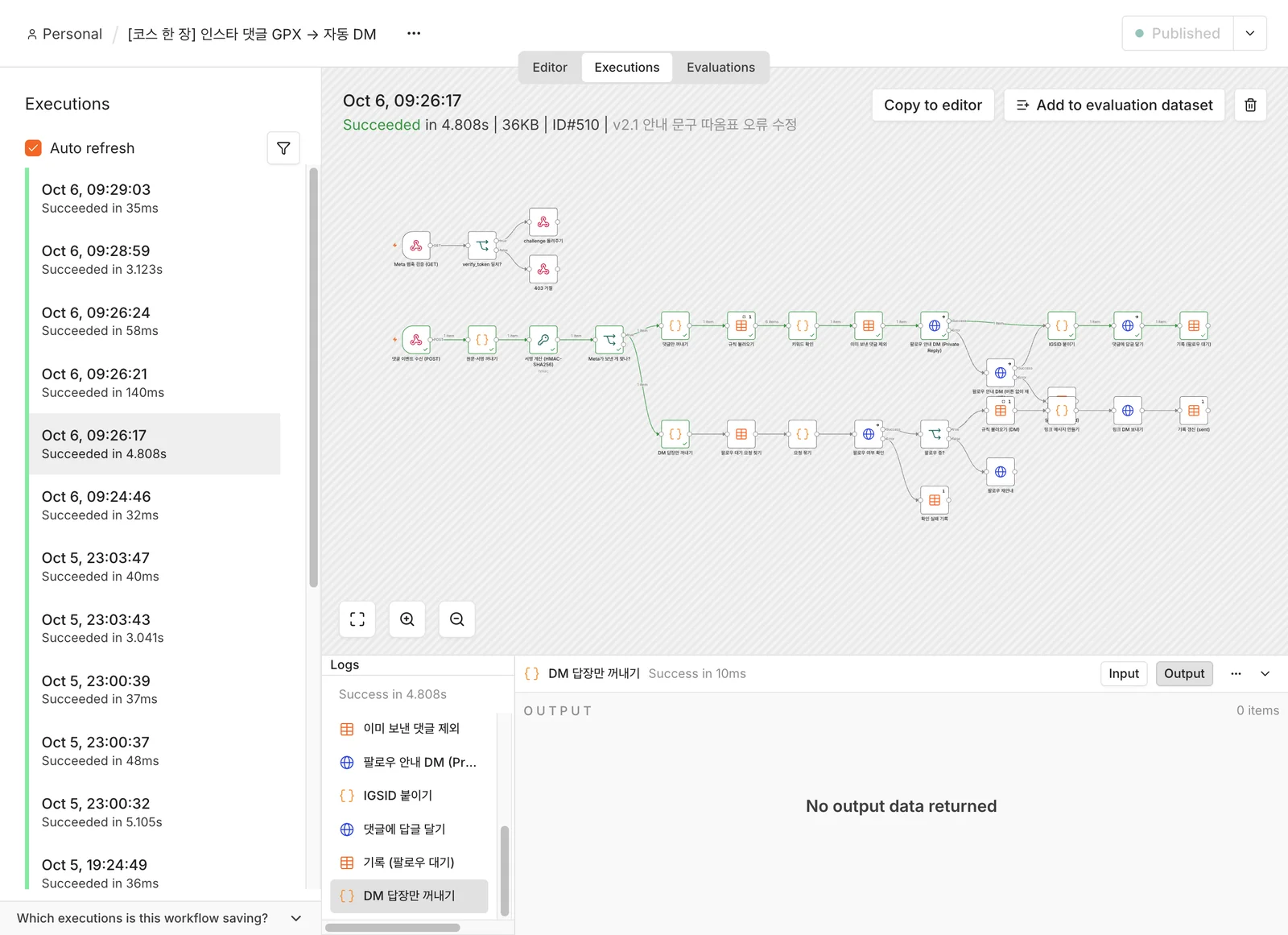
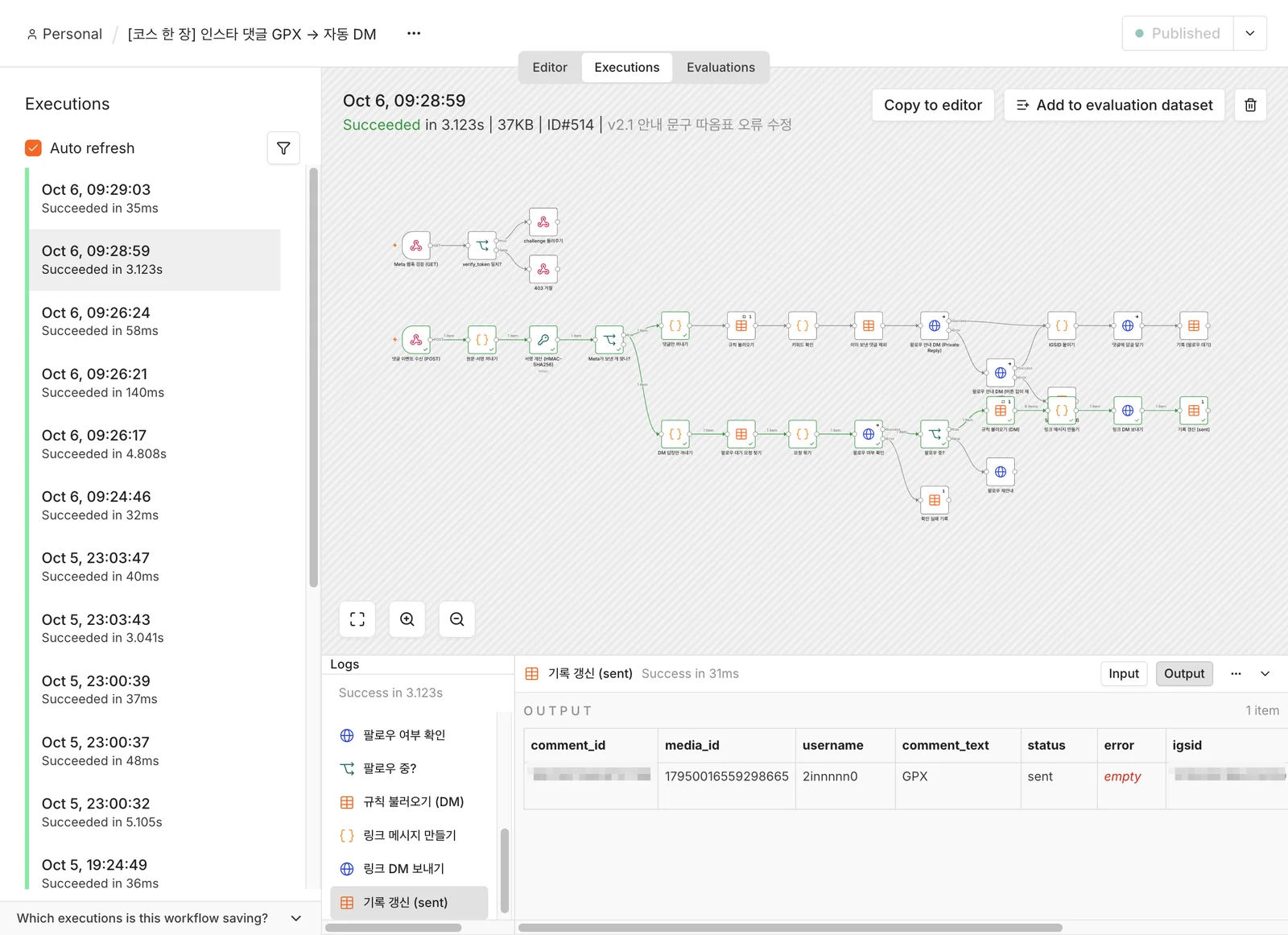
Both runs were with the app only Published (Live), no App Review. If you send "Done" without following, you get a "We can't see your follow yet" reminder; follow and send it again, and the link arrives. Right after following, it can take a few seconds for Meta to reflect it, so I mention that in the reminder message.
That said, Meta's docs still say comments notifications require Advanced Access, and this result was confirmed with a single comment on October 3, 2026. If you plan to run large campaigns on an account with many followers, it's safer to request Advanced Access for instagram_business_manage_comments and instagram_business_manage_messages through App Review in box 5 of the app dashboard. Review requires business verification and a screencast demonstrating the feature.
Where people commonly get stuck
| Symptom | Cause and fix |
|---|---|
| Meta fails to verify the callback URL | Either the workflow isn't published, or you entered the test URL (/webhook-test/). Use the production /webhook/ URL |
| Meta's test notification keeps coming out false at the signature check | If the Raw Body option on the POST webhook node is off, n8n rebuilds the JSON and the raw body changes. Also, you need the Instagram app secret, not the Facebook app secret |
| The DM call fails with a "requested user can't be found" error (code 100, subcode 2534014) | The comment ID isn't a real comment (e.g. a fake test ID), or the comment was deleted. Comments older than 7 days can't be replied to either |
| The same person gets the DM twice | The condition column in dm_log is empty. Open the Skip already-handled comments node and check that Column is set to comment_id |
| A node's Column is stuck on "Loading options..." | Re-select the table once from the Data table list and the columns will load |
media_id is right but the keyword never matches | The media_id column is a number type and the last digits changed. Recreate it as a string |
| The n8n editor shows Offline in the top right and there's no Publish button | The connection between your browser and n8n dropped. If a refresh doesn't fix it, flushing the browser's socket pools (chrome://net-internals/#sockets → Flush socket pools) reconnects it |
| It tries to DM in response to your own auto-reply | Check that the line in Extract comments only that excludes comments whose author ID equals your account ID hasn't been deleted |
Adding it to a new post
Don't touch the workflow. After posting a new Reel, look up its id with the media/ query from Step 4 and add one row to dm_rules; it applies to that post immediately. Comments on unregistered posts are ignored even if they contain the keyword, so to end a campaign, just delete that row.
Wrapping up
All you need is one Meta app, one token, one n8n workflow and two tables. Once it's set up, each new post is one more row in the table, and the send log tells you exactly who got what and when.
When I built this, most of my time went not into the feature itself but into everything around it: the tester invite hides in Instagram's settings rather than Accounts Center, 17-digit media IDs must be stored as text, apps in development mode don't receive real comment notifications, and you can only check follow status after the person DMs you first. Know those four things going in, and you can get your first DM within an hour.
The same structure works no matter what you're sending. For campaigns that send a PDF, a sign-up form or a product page link in response to words like "resource", "apply" or "price", attach the same workflow. If you want to drop the follow gate, delete the Check follow status node and the Following? branch and have it send the link straight away.
Adding other Instagram accounts
One workflow can handle several accounts. Leave the Meta app as it is and just add accounts.
Adding an account to the same app. In App roles → Roles, add the account as an Instagram Tester, log in to Instagram with that account and accept under Settings → Website permissions → Tester invites. Generate a token for that account on the API setup screen and run the subscription call below once with that token, and you're done. Comments from the other account arrive at the same webhook URL, so you don't need to touch the workflow.
curl -X POST "https://graph.instagram.com/v24.0/me/subscribed_apps?subscribed_fields=comments,messages&access_token=THAT_ACCOUNTS_TOKEN"
Each account has its own token. The send-DM API runs with the permissions of the token's account, so you can't DM on another account's posts with one account's token. For one workflow to handle several accounts, create one credential per account and have the DM call nodes pick the right credential for each account. Keep the sharing scope of those n8n Credentials at Personal and separate them per account. Even within the same Meta app, anyone you share the workflow with can see the token.
Distinguishing accounts in the rules table. Right now dm_rules only has media_id, so mixing accounts is fine: media IDs don't collide across accounts. But if you attach two apps (different Meta apps) to the same n8n, media_id alone won't tell them apart, so add an account column to the table and a branch that picks that account's token and credential when building the link.
A practical rule of thumb for many accounts. With 2-3 accounts, it's better to keep a separate workflow per account: credentials stay separate, a problem on one account doesn't affect the others, and it's easy to remove later. Once you're at 10 or more, it pays to merge them into one workflow with credential branching.
What to check. After adding another account, run Step 9 once with it. Just check three things: the tester invite was accepted, the IGSID is saved when a comment arrives, and the link goes out after the follow check.