
Got a Cardputer ADV at the n8n Conference? Try These Before It Goes in a Drawer
At In The Loop 2026 (Berlin, October 13-14), n8n's first official conference, every attendee got a palm-sized computer with a keyboard: the M5Stack Cardputer ADV. This post is my record of plugging one in and working out what it is, how to turn it on and use it, and what it's good for after the event.
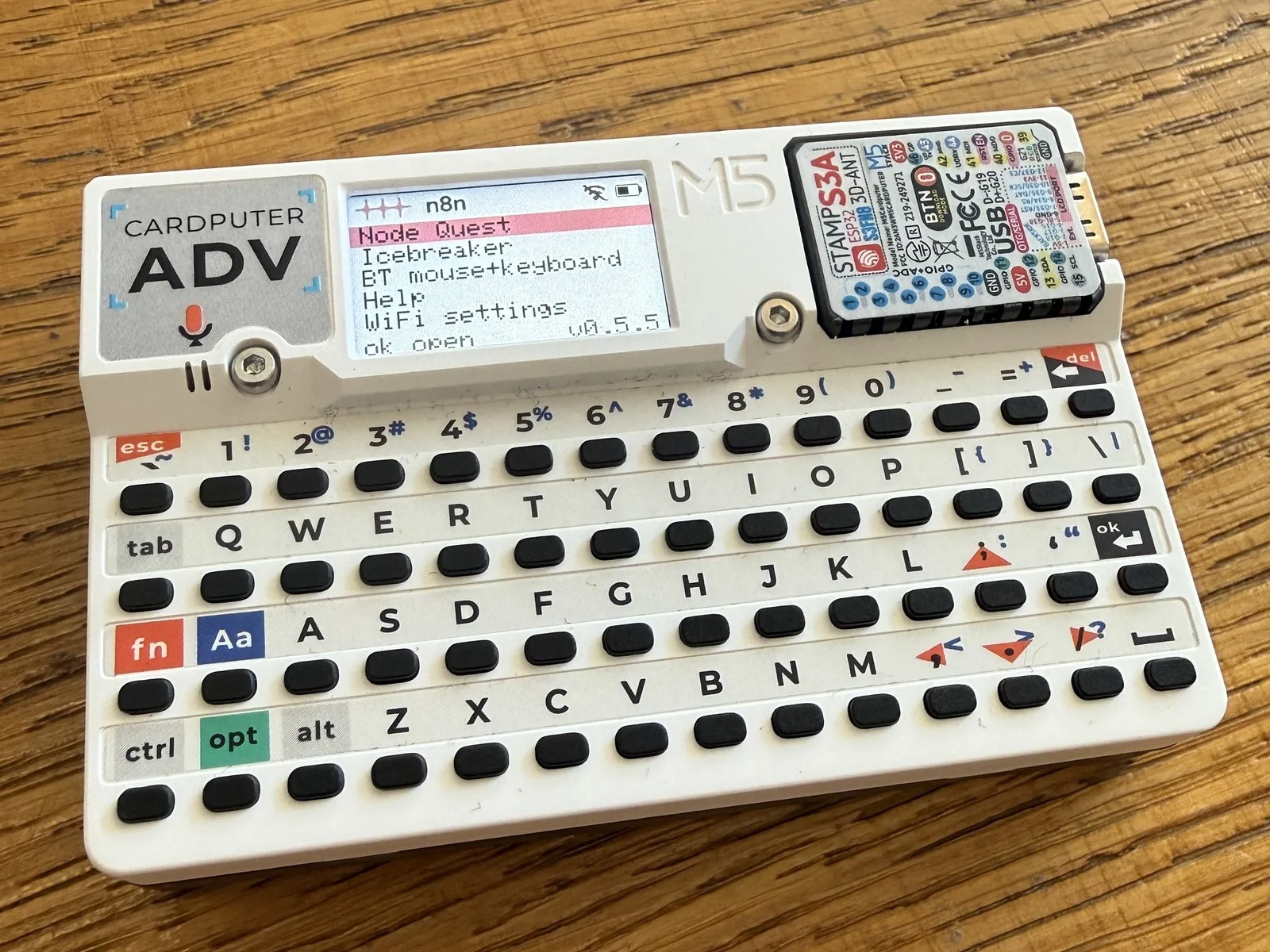
The Cardputer ADV I brought home from the event. Turn it on and the n8n event menu comes up right away.
Who this is for
- Anyone who got a Cardputer (or a similar ESP32 device) at a conference or meetup and isn't sure what to do with it
- Anyone touching an ESP32 board for the first time who wants to start by confirming it's properly connected to their Mac
- Event organizers wondering whether to hand out hardware as swag
You'll need the Cardputer ADV itself, a USB-C cable that supports data, and a Mac (this post is written for macOS). With a charge-only cable, the computer won't detect the device.
What is the Cardputer ADV?
"Cardputer" means "card-sized computer" (Card + Computer). It's made by M5Stack, a development-board company in Shenzhen, China, and the ADV is an improved version released in the second half of 2025. Inside is an ESP32-S3, a microcontroller with Wi-Fi and Bluetooth. It's not a computer running an operating system like a smartphone; think of it as a device that runs one firmware image and only that program.
| Item | Spec |
|---|---|
| Chip | ESP32-S3FN8 (dual-core 240MHz), 8MB flash |
| Display | 1.14-inch LCD, 240 x 135 |
| Input | 56-key keyboard (4 rows x 14 keys) |
| Audio | ES8311 audio codec, MEMS mic, 1W speaker, 3.5mm headphone jack |
| Sensors | BMI270 6-axis motion sensor, infrared (IR) transmitter |
| Expansion | microSD slot, Grove port, 2.54mm 14-pin expansion header on the back |
| Battery | 1500mAh lithium-ion |
| Size and weight | 84 x 54 x 19.6mm, 81g |
| Price | About $30 on the official store |
Specs are from the M5Stack official store. Compared with the previous model (Cardputer v1.1), the audio chip changed, and it adds a motion sensor, a headphone jack, a rear expansion header and a strap hole.
Step 1. Plug it in and identify it
Connect it to your Mac with a USB-C cable and flip the switch on the side. Then check the USB device info in Terminal.
ioreg -p IOUSB -l -w0 | grep -E '"(USB Product Name|USB Vendor Name|idVendor|idProduct|kUSBSerialNumberString)"'
Here's what my device showed (I've removed the lines for other USB devices):
"idProduct" = 4097
"USB Product Name" = "USB JTAG_serial debug unit"
"kUSBSerialNumberString" = "70:AF:09:DF:3A:14"
"USB Vendor Name" = "Espressif"
"idVendor" = 12346
The numbers are printed in decimal, which is confusing. Converted to hex:
idVendor 12346=0x303A: the USB vendor ID of Espressif, the company that makes the ESP32 chip. The device brand is M5Stack, but USB reports the chip maker's name.idProduct 4097=0x1001: the ID used by the USB port built into the ESP32-S3 (USB Serial/JTAG). It means the chip speaks USB directly, without a separate USB bridge chip.- Serial number
70:AF:09:...: this chip's MAC address. It's different on every device.
Find the port name like this:
ls /dev/cu.*
/dev/cu.Bluetooth-Incoming-Port
/dev/cu.debug-console
/dev/cu.usbmodem1101
The one starting with cu.usbmodem is the Cardputer. The other two are ports every Mac has, so don't pick them when flashing firmware later. (If you use wireless earbuds, you may see one more port with their name.)
Step 2. Read the logs to see what the device is doing
ESP32 firmware usually writes logs over USB serial. On a Mac you can read them briefly with cat. This command reads for 6 seconds and stops:
cat /dev/cu.usbmodem1101 & sleep 6; kill $!
My device, sitting in my office in Seoul, kept printing this:
[sdk] joining 'memento.mori'
[sdk] wifi disconnected, reason 201
[sdk] wifi disconnected, reason 201
reason 201 is an ESP32 Wi-Fi error code meaning "couldn't find the network it's trying to join (NO_AP_FOUND)". The firmware was built to auto-connect to a Wi-Fi network saved in advance at the venue, so even after leaving Berlin it keeps looking for that network. In the next step we'll switch it to your home or office Wi-Fi.
Step 3. Basic controls and changing the Wi-Fi
The device you got at the event comes with an app loader (Cardputer Loader 0.5.5) built by n8n ambassadors. The controls are documented in the Cardputer Flasher guide. This site isn't an official n8n or M5Stack site; it's a web install page that n8n ambassador Lars Emil Christensen built for the event on his own domain. This was the URL shared at the venue.
- Use the arrow keys (
;,./) to move through menus andokto open an app. - Press the button on the back (BtnG0) to return to the main menu from anywhere. It works even when an app freezes. If you remember only one thing, make it this.
escis usually "back" too, but apps may use it for something else.
To change the Wi-Fi:
- Open WiFi settings at the bottom of the menu. It scans nearby networks for about 6 seconds.
- Pick a network with the arrow keys and press
ok, then type the password and pressokagain. - Press
rto rescan. For hidden networks, enter the name first under Other network at the bottom of the list. - A black Wi-Fi icon in the top right means connected; gray with a pink slash means not connected.
Step 4. Try the three event apps
Here's a video of me launching and using the three apps below. The small screen is magnified on the right side of the video.
The loader includes three apps, all made by n8n ambassadors for this event.
Node Quest: an RPG that teaches n8n
A small RPG made by Greg Evseev. You walk around a village talking to people, they give you a 3-question n8n quiz, and if you get them all right you earn XP. It has 11 levels (1 tutorial plus 10 main), 50 tasks and 190 questions. You can play it all the way through offline; Wi-Fi is only used to post your score to the leaderboard.
;,./: move up, left, down, rightok: talk to the person next to you; on the last page, start the quiz1-4: choose an answeresc: world map
It's perfectly usable for reviewing basic concepts like "What's a trigger?" in an n8n class.
When I played it, I noticed even the area names come from n8n. Enter a portal and you can travel to places like Crossroads of If, Filter Marsh, Expression Springs, HTTP Harbor and Webhook Gate. The tutorial quiz starts with controls questions like "Which key shows the next page?" (answer: ok), and as the areas get bigger, nodes like HTTP Request come up. Holding fn while pressing an arrow key lets you dash a long way at once, which speeds up getting around the map. Quests you've already cleared don't give extra XP if you replay them.
Icebreaker: a game where your penguin grows when you meet people
A networking game made by Fahmi Fahreza and Dominik Vogt. One person presses C to show a 4-character code, the other presses E and enters it, and both devices show a MATCHED! screen while the penguin grows one stage. Then both devices show the same icebreaker question. A code can only be used once within 60 seconds, so you actually have to be face to face.
This app syncs with the event server over Wi-Fi. I haven't confirmed whether the server is still up now that the event is over.
When you open the app, you see the penguin with a code, enter, sync and help menu on the right, and your level and number of people met at the bottom. My penguin was at LV4 thanks to a few matches at the venue. One letdown: there's no screen where you can browse the icebreaker questions that come up during matches. Once the event is over, there's no other device to match with, so you can't see any more questions.
BT mouse, keyboard and clicker: the most useful app after the event
Made by Lars Emil Christensen, this app turns the Cardputer into a Bluetooth mouse, keyboard and presentation clicker. You don't need to install anything on the other computer.
- Open the app and, in your computer's Bluetooth settings, pick the name shown on screen (
Cardputer+ 4 characters). - Each press of
esccycles through mouse, keyboard and clicker modes. - In clicker mode, any key on the left half of the keyboard goes to the previous slide and any key on the right half goes to the next. It works in PowerPoint, Keynote, Google Slides and PDF viewers.
- Mouse mode moves the pointer as you tilt the device. Before using it, hold it the way you'll hold it and press any key to calibrate; if the pointer drifts on its own, press
cto recalibrate.
Bluetooth and Wi-Fi share the same radio chip, so Wi-Fi is off while this app is running.
When I connected it to my phone, the controls worked, but it wasn't comfortable enough to use as an everyday mouse or keyboard. Think of it as a backup for when your keyboard suddenly dies; the really useful part is the presentation clicker in Step 6 below.
Open Help in the menu and it shows a QR code that leads to the usage page (cardputer.larsemil.ai/help). Scan it with your phone to open the guide I mentioned in Step 3.
Step 5. Swap the firmware or restore the event version
The Cardputer works by replacing its firmware wholesale, so flashing another program erases the event loader. On the other hand, you can reinstall the event loader from the web anytime, so feel free to experiment.
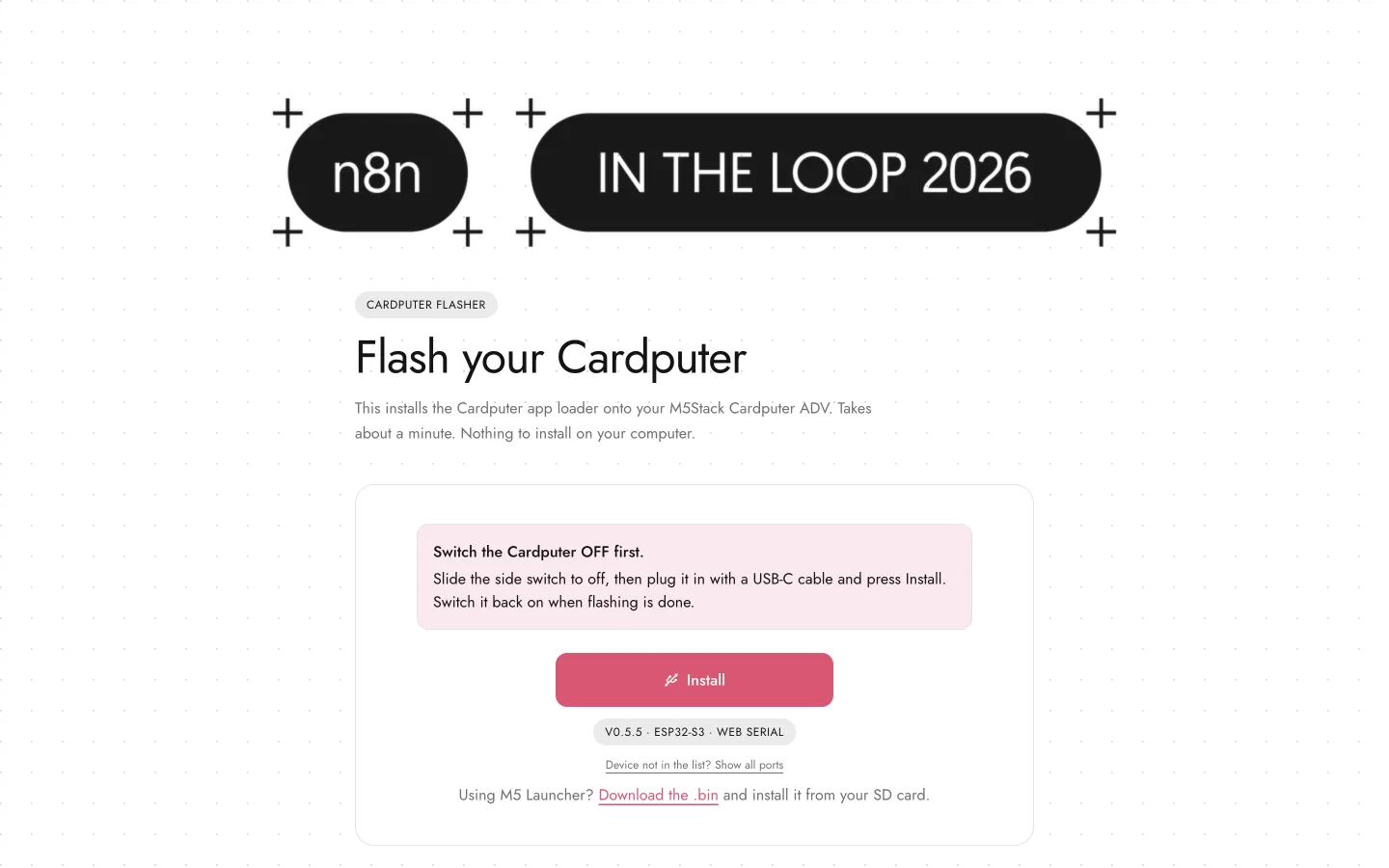
To reinstall the event loader:
- Go to cardputer.larsemil.ai in Chrome or Edge. It needs Web Serial, which lets the browser use USB serial, so Safari won't work.
- Plug in the USB-C cable with the side switch turned off. Flashing runs on USB power.
- Click Install, and in the port picker choose
USB JTAG/serial debug unit (cu.usbmodem...). Don't pickcu.Bluetooth-Incoming-Portorcu.debug-consolefrom Step 1. - Wait about a minute, then turn the switch back on. Don't unplug the cable while it's flashing.
If you look at the page's code, it works simply. The port picker is filtered to show only devices with Espressif's vendor ID (0x303A), and the firmware file is downloaded from the author's GitHub repo and written over the whole flash starting at address 0. The repo contains only the finished firmware files, with no source code or license published, so think of it as a way to restore the original state rather than something to modify.
According to the official M5Stack docs, there are four ways to flash other firmware (Cardputer-Adv docs).
| Method | Good for | Notes |
|---|---|---|
| UiFlow2 | First-time coders | Block coding and MicroPython, written in a web browser |
| Arduino IDE | People who've used Arduino | Uses the M5Cardputer library |
| PlatformIO | People who develop in VS Code | Official docs include a sample config |
| ESP-IDF | People who want deep access to chip features | The factory firmware source is public |
If you want to switch between several firmware images, another option is to first install M5 Launcher, which lets you pick and run firmware from an SD card. The Flasher page also lets you download the event loader as a .bin file, so you can add it as one of Launcher's menu entries.
Step 6. Decide what to use it for after the event
In the end, a device like this only comes out of the drawer once you've decided what it's for. Here's where I think it's useful right away:
- A clicker for teaching: exactly the clicker mode from Step 4. Any key on either half of the keyboard works, so it's easy to advance slides without looking.
- An n8n webhook button: an ESP32 on Wi-Fi can send HTTP requests, so you can build firmware that calls an n8n webhook with one keypress. It's a good fit for one-button workflows like "clock in" or "meeting started" alerts. I'll verify how to build it and write it up separately.
- A sensor hub: plug a temperature/humidity or fine-dust sensor into the Grove port and send the readings to n8n, and you've got a small IoT project. I've written up how to combine ESP32 and n8n in An IoT automation portfolio with ESP32 and n8n.
A quick thought: why do overseas conferences hand out hardware?
At developer conferences outside Korea, you get devices like this fairly often. The one I remember is the GitHub Universe badge. In 2023 they gave out an RP2040-based e-ink badge made with Pimoroni, and in 2024 a version with the chip upgraded to the RP2350. Both were name badges that were also boards you could program in MicroPython. But I hardly remember ever getting something like that at a conference in Korea.
Thinking about why, I see two reasons overlapping:
- Cost: the Cardputer ADV retails for around $30, and In The Loop had up to 1,200 people. A simple calculation puts that in the tens of millions of won. On top of that, importing hundreds of devices with Wi-Fi and Bluetooth to hand out means dealing with Korea's radio certification (KC conformity assessment) or an exemption process.
- Usefulness: I think this is the bigger reason. If you just hand out devices, most of them go home and end up in a drawer.
What made this n8n event different was the software more than the device. Four ambassadors built the event loader and three apps, so at the venue you could learn the product with Node Quest and meet people with Icebreaker, and afterwards use it as a presentation clicker. I think the key to hardware swag isn't the cost of the device but designing "a reason to pull this out during the event" along with it. Events in Korea could start by attaching one such reason to the phones or badges people already have, instead of an expensive device.
Troubleshooting
| Symptom | Cause and fix |
|---|---|
No usbmodem in ls /dev/cu.* | Most likely a charge-only cable. Switch to a data cable and plug directly into the Mac without a hub. |
reason 201 repeats in the logs | It can't find the saved Wi-Fi. Follow Step 3 and pick the Wi-Fi where you are now in WiFi settings. |
| The Flasher can't find the device or stops partway | Try again with the side switch turned off. If it still doesn't show up, click "Show all ports" under Install. |
| The screen is off after flashing | Check that the side switch is on and that the cable is a data cable. |
| An app freezes | Press the back button (BtnG0) to return to the menu. |
| Bluetooth won't reconnect | After reflashing, remove the Cardputer from your computer's Bluetooth list and pair it again. |
| The mouse pointer moves on its own | Hold the device still and press c to recalibrate. |