A Tour of n8n's New Website: The Rebrand (Logo, Typeface, Color) and How to Apply It to Your Own Materials
Visit n8n.io today and the old landing screen (dark background, orange lightning bolt) is gone. Instead, a workflow draws itself node by node on a light dot grid. At its In The Loop conference in Berlin on October 14, 2026, n8n unveiled a new logo, a new typeface and a refined pink, and switched the homepage to the new brand. In this post I put the before and after side by side, tour the new site section by section, compare how far the rebrand has reached the Cloud and self-hosted product screens, and then walk through updating your own materials with the official brand guidelines.
Who this is for
- Anyone who has put the n8n logo or UI in course materials, slide decks or YouTube thumbnails
- Anyone who wants a quick read on what n8n is emphasizing on its new homepage
- Anyone who hands design work to an AI agent and wants it to follow the official brand rules
All you need is a browser. To try generating a draft with an AI agent in Step 8, you'll want access to one of Claude, ChatGPT, Codex or Cursor.
I captured the homepage myself on October 27, 2026 (Korea time). The "before" screens come from an October 11, 2026 snapshot on the Internet Archive (Wayback Machine). n8n iterates constantly, so the copy and examples may change after this.
Step 1. Compare the before and after screens
First, the old homepage. There was an In The Loop ticket banner at the top, a dark background, an orange gradient button and a big lightning-bolt image.
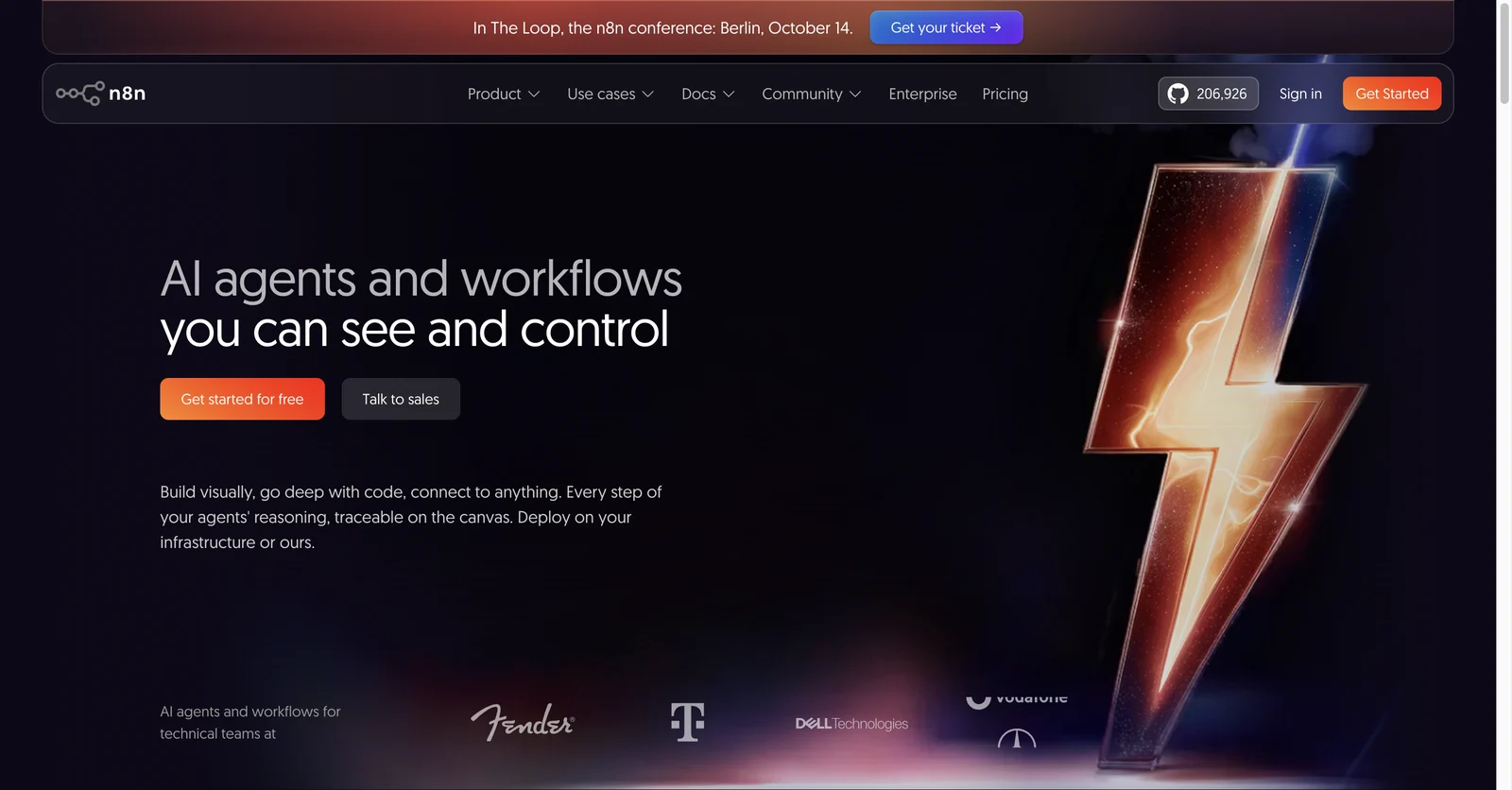
Before (2026-10-11, Wayback Machine). The headline was "AI agents and workflows you can see and control".
Here's the homepage now.
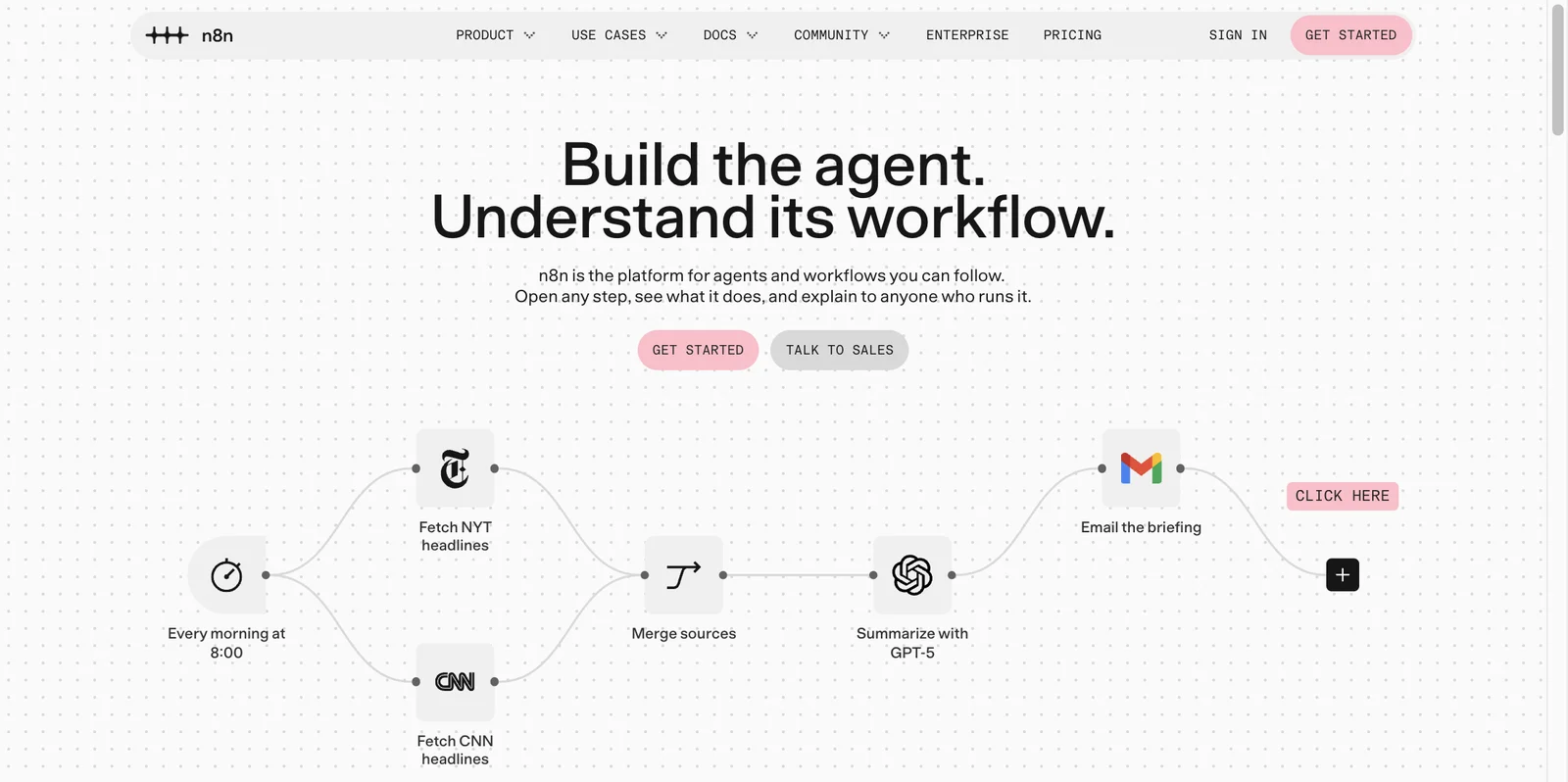
After (2026-10-27). The headline is "Build the agent. Understand its workflow."
Comparing the two, the differences come down to four things.
| Item | Before | After |
|---|---|---|
| Logo | Round nodes joined by lines | A new symbol: one horizontal line with three cross-shaped connection points on it |
| Background and color | Dark navy background, orange gradient buttons | Light gray (#FAFAFA) dot grid, pink (#FF91AC) buttons |
| Type | The previous web font, buttons in normal case | New typeface n8n Baumer, buttons and menus in uppercase monospace |
| Hero | Lightning-bolt image and customer logos | A workflow built from real nodes |
In an October 20 post on the official blog, n8n founder Jan Oberhauser explained that the old logo was about the idea of connecting nodes, while the new one is meant to show the movement that connections create rather than the connection itself. In today's n8n, a person makes a decision mid-workflow, an agent takes action, and a model interprets information, so what happens between the nodes matters more.
The same post says "This is a zhush, not a rebuild." and confirms that the community, the Community Edition, model choice and the pink all stay. The name and the license haven't changed; the look has.
Jan said the same thing in a post on the n8n community forum, Our brand refresh, and why the logo changed. It ends with a video about how the new brand was made. It only had English subtitles, so I added Korean subtitles and uploaded it. It's 95 seconds long and shows the new logo and typeface in motion.
The original is The n8n brand just got a zhuzh on n8n's official channel. The Korean subtitles are an unofficial translation by DataPopcorn and have not been reviewed by n8n.
Step 2. Extend the hero workflow yourself
The first thing to try on the new landing screen is the + button at the far right. It has a pink CLICK HERE label next to it.
- Open n8n.io and wait a few seconds. Starting from the trigger, the nodes are drawn one at a time.
- Click the
+button at the far right. - The view slides sideways and the next nodes are appended.
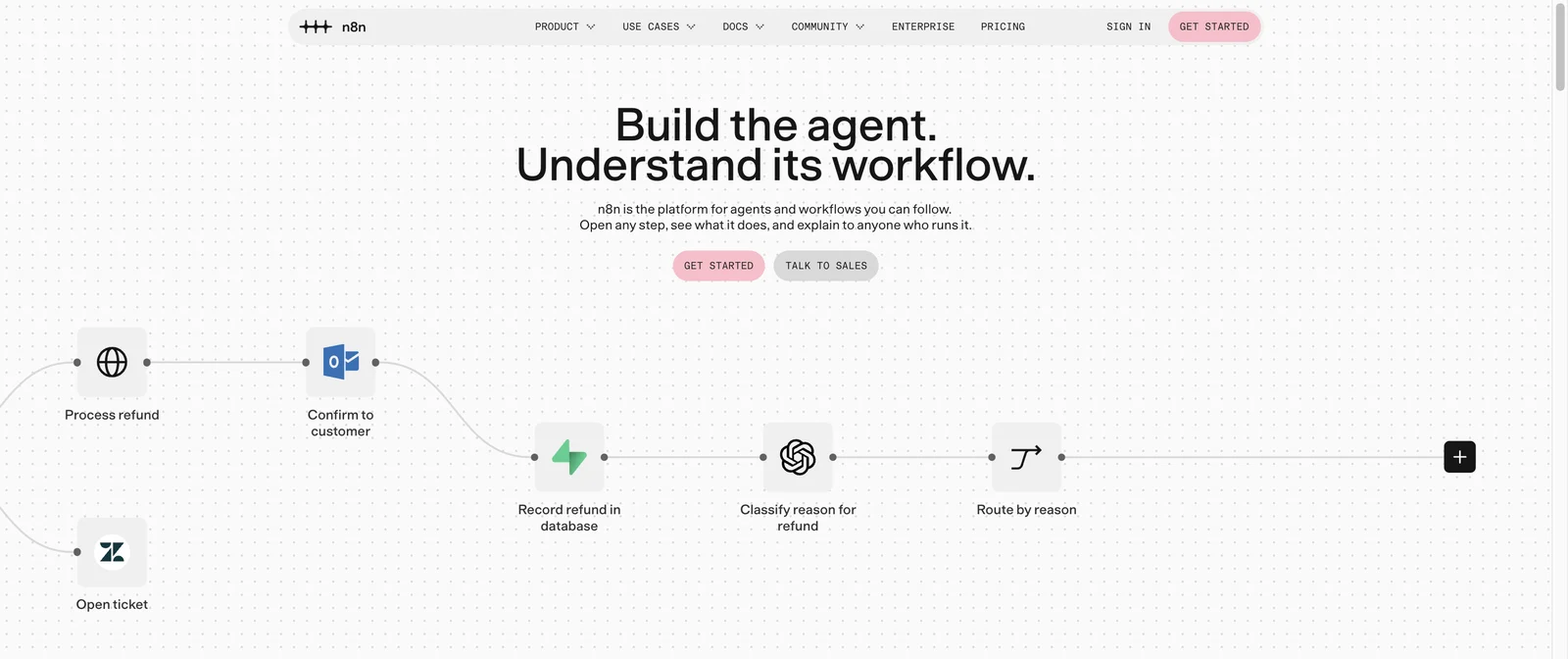
In the refund-request workflow, clicking + added the "Record refund in database", "Classify reason for refund" and "Route by reason" nodes.
The example changes every time you reload. I saw three examples myself:
- A news briefing that collects NYT and CNN headlines every morning at 8, summarizes them with GPT-5 and sends them via Gmail
- A refund flow: when a refund request comes in, look up the order, get approval in Slack, then process the refund if approved or open a Zendesk ticket if not
- A flow that classifies customer-support requests and alerts the team when one is urgent
The line under the headline reads "Open any step, see what it does, and explain to anyone who runs it." Putting a real workflow on the landing screen instead of an illustration is that sentence in action.
Step 3. Use the role-based tabs to find an example close to your work
Below the customer logos, a dark card shows four name tags. The tabs rotate automatically, and you can also click one.
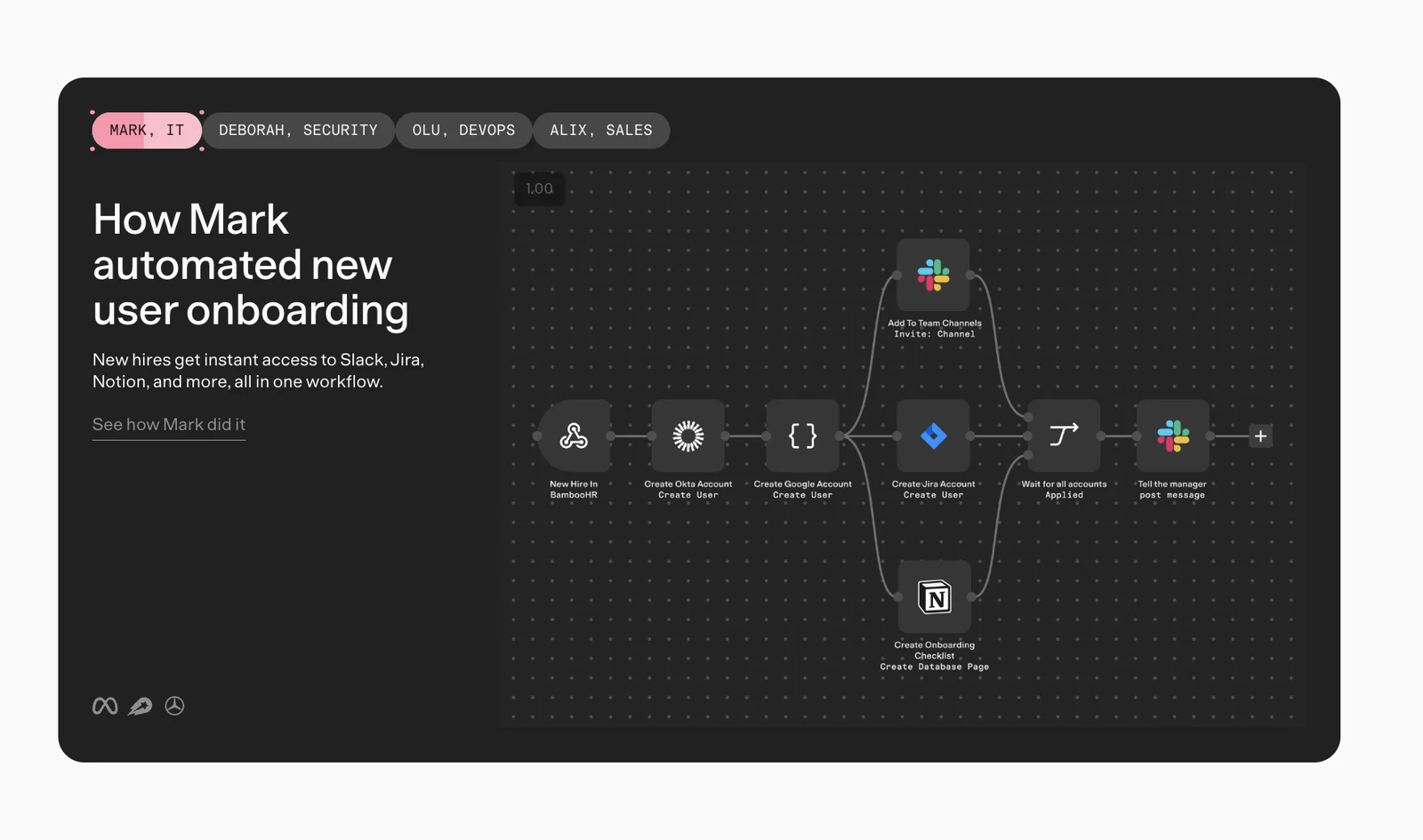
| Tab | Use case | Summary of the on-screen description |
|---|---|---|
| MARK, IT | New-hire onboarding | Grant a new hire access to Slack, Jira, Notion and more in one workflow |
| DEBORAH, SECURITY | Threat checks | Look up suspicious indicators across several security tools, bundle them into one report and have AI summarize it |
| OLU, DEVOPS | Alert triage | When an alert arrives, an AI agent investigates and routes it to the right people and tools by severity |
| ALIX, SALES | Lead qualification | An AI agent replies to new messages, qualifies the lead and updates the lead record |
These four make good starting points for a course or an internal explainer. Because each one is labeled with a role, they map straight onto the question "What could our team automate?"
The stats strip underneath lists 208.6k GitHub stars (a top-50 project), a 4.7/5 rating on G2 and a community of 250,000+. The GitHub button on the old screen showed 206,926, so the project gained more than 1,600 stars in the roughly two weeks between the two snapshots.
Step 4. Watch the same workflow change in the connectivity and trust sections
The next section is titled "The USB-C for your AI stack". It says you can connect 500+ built-in integrations, any API over HTTP, and any agent or coding assistant over MCP. App icons such as Slack, Supabase and Postgres float across the screen.
The "See + understand + trust your agents" section below it is the one worth the closest look in this whole tour. Click each of the three items on the left, and the same invoice-processing workflow on the right switches between three versions.
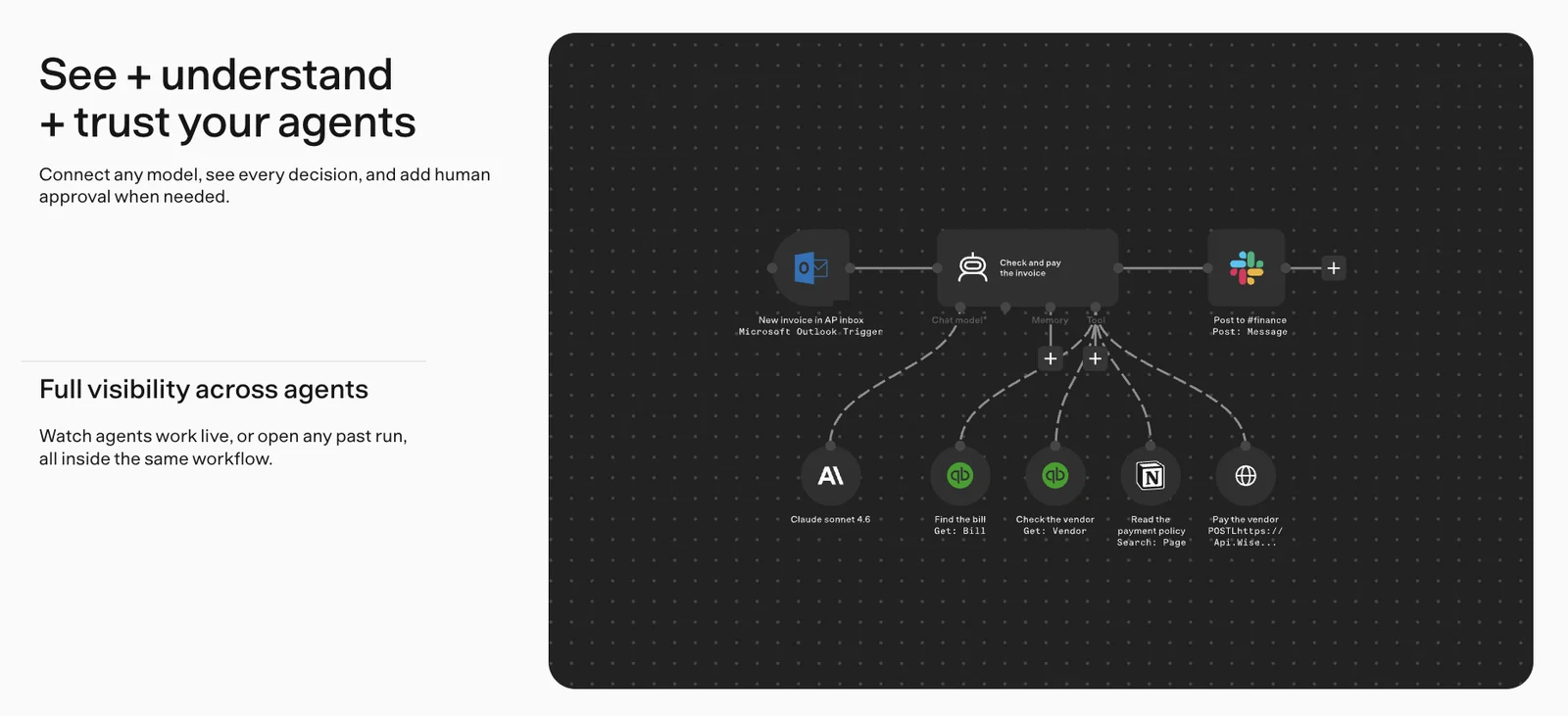
Full visibility across agents: watch the agent work in real time or open past executions. The model is Claude Sonnet 4.6 and the tool is a QuickBooks lookup.
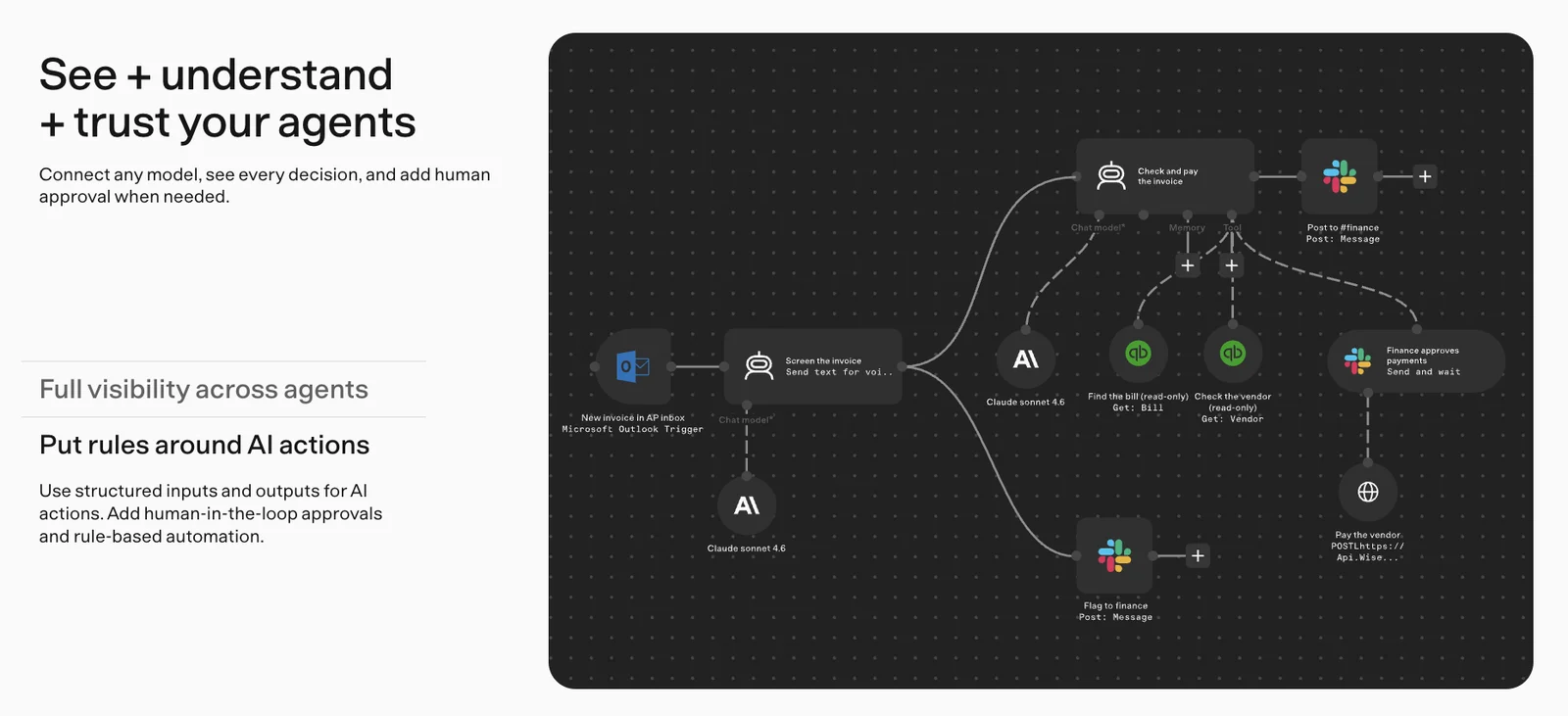
Put rules around AI actions: a step that screens invoices is added up front, and before payment a "Finance approves payments" node waits for approval in Slack. It's an example of adding structured inputs/outputs and human-in-the-loop approval.
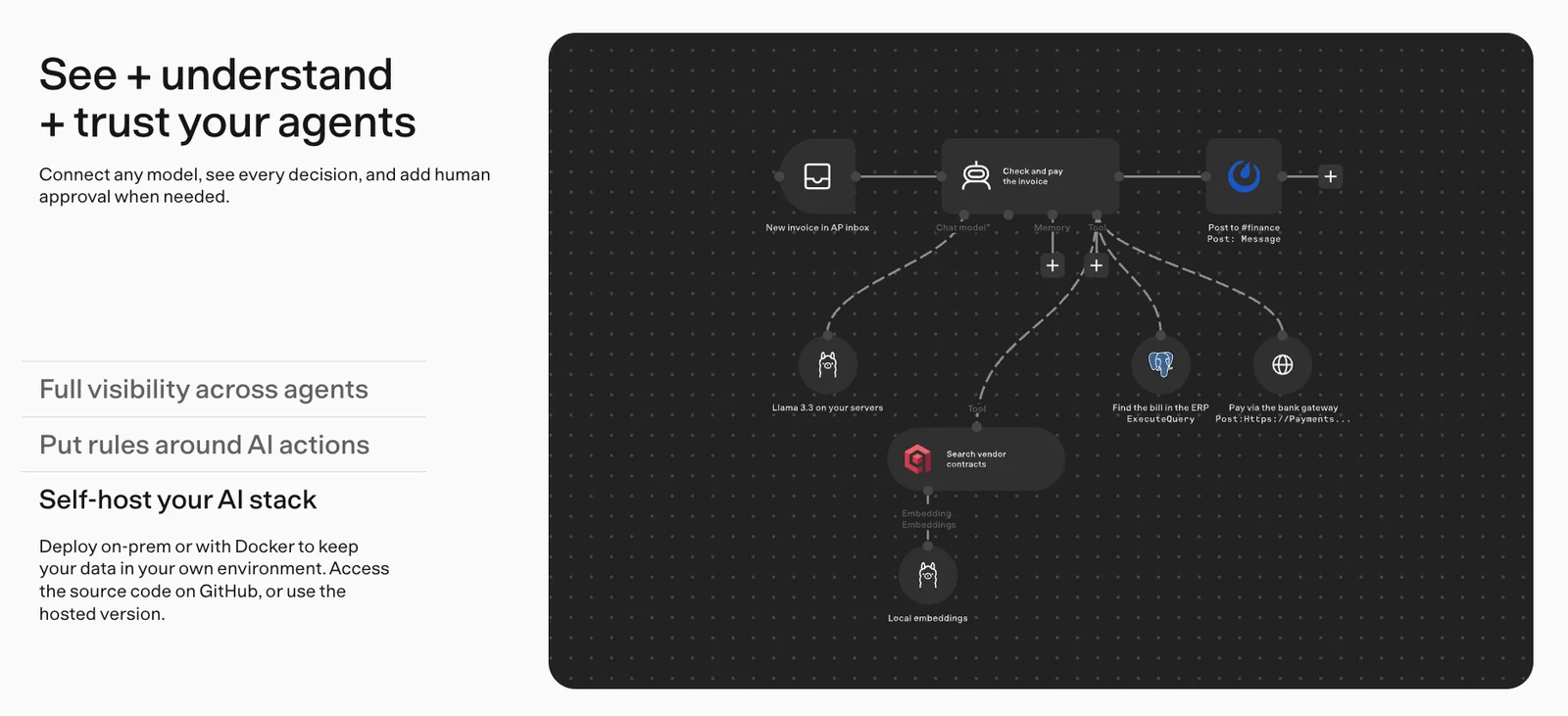
Self-host your AI stack: the model becomes "Llama 3.3 on your servers", the embeddings become local embeddings, and the lookup target becomes an internal ERP. This is the case where you install on Docker or your own servers and keep data in your environment.
Since it shows the same task in sequence as "see it, put rules on it, move it to your own servers", you can reuse these three screens in that order when you're making the case for AI agents at your company.
Step 5. Check the documentation, recovery and versioning section
Click through the three items in the next section, "Built by you + readable by anyone", the same way.
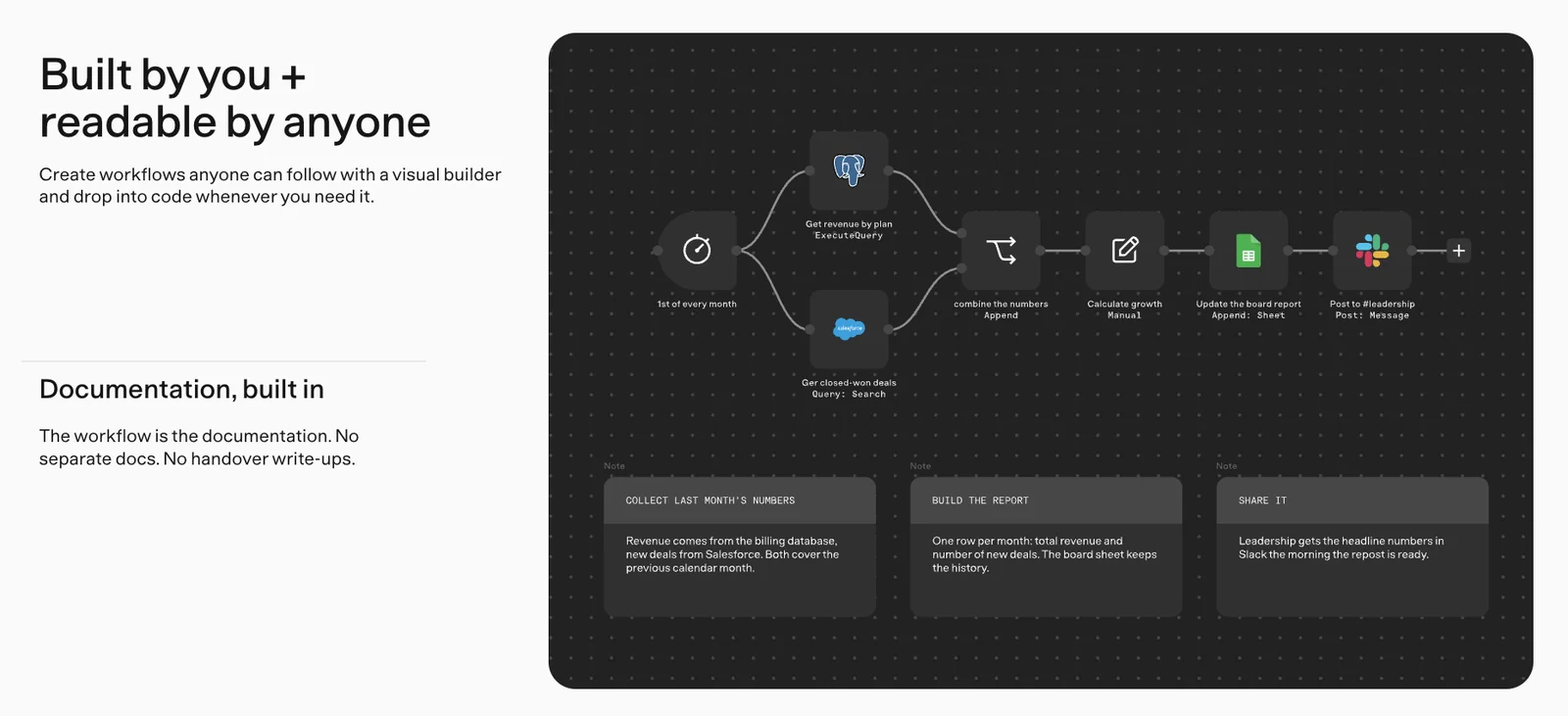
Documentation, built in: three sticky notes sit under the workflow ("gather last month's numbers", "build the report", "share it"). As the caption "The workflow is the documentation." says, the message is that you don't need a separate handover document.
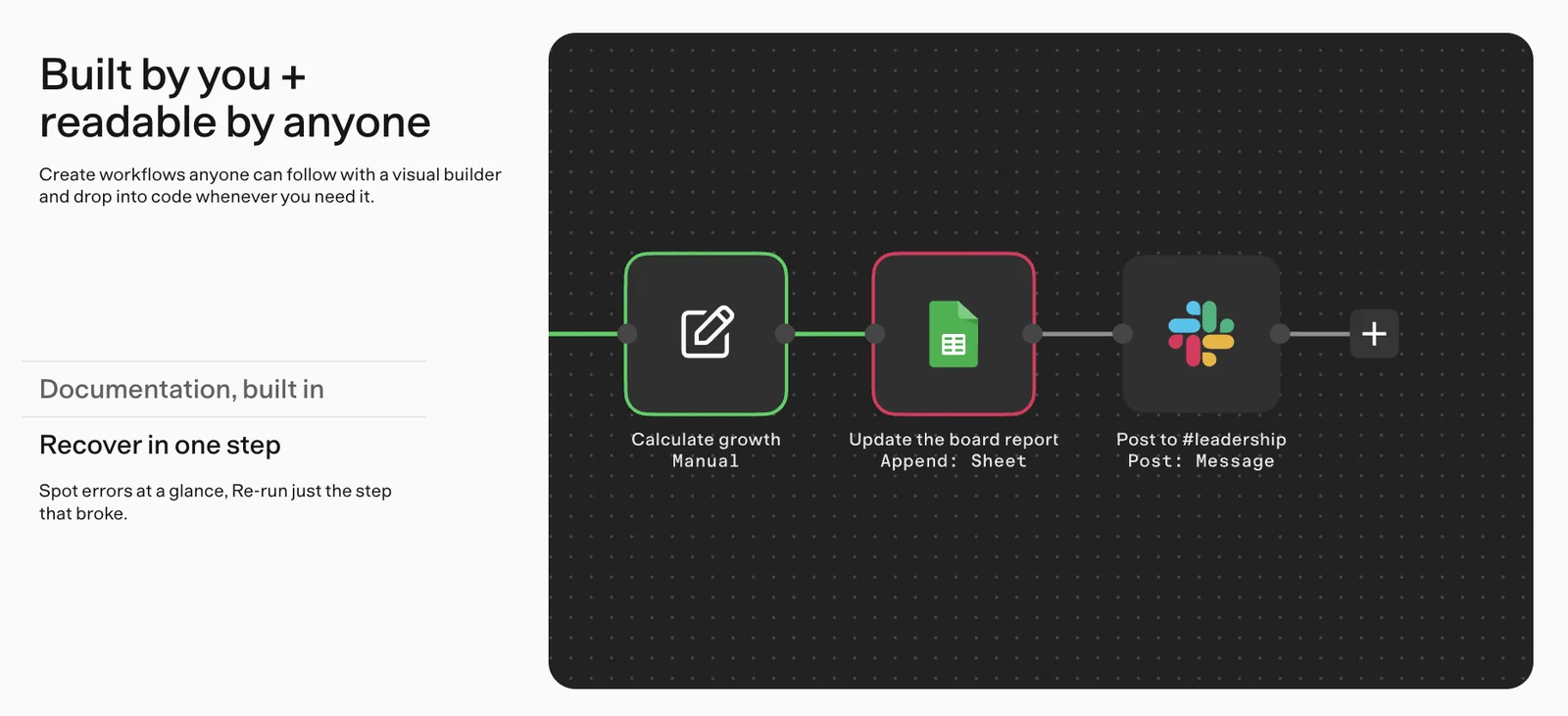
Recover in one step: the failed Google Sheets step is outlined in red. The description says you can spot the error at a glance and rerun only the failed step.
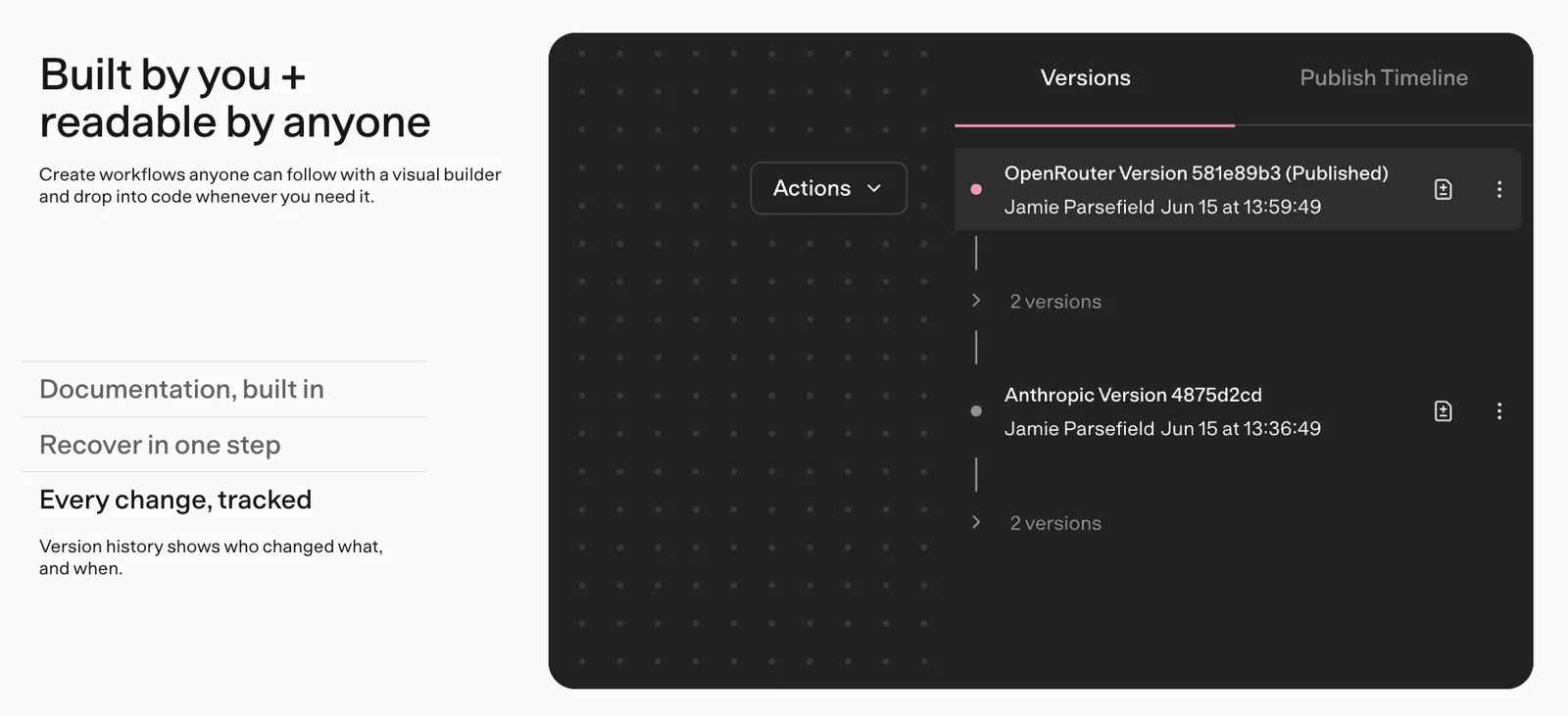
Every change, tracked: a version history showing who published which version and when.
The following "Move fast + break nothing" section boils down to two lines: rerun past executions or mock data to test without waiting on external systems, and use logs to see what happened.
Step 6. The enterprise section and the hidden Easter egg in the footer
The enterprise section is laid out as four cards.
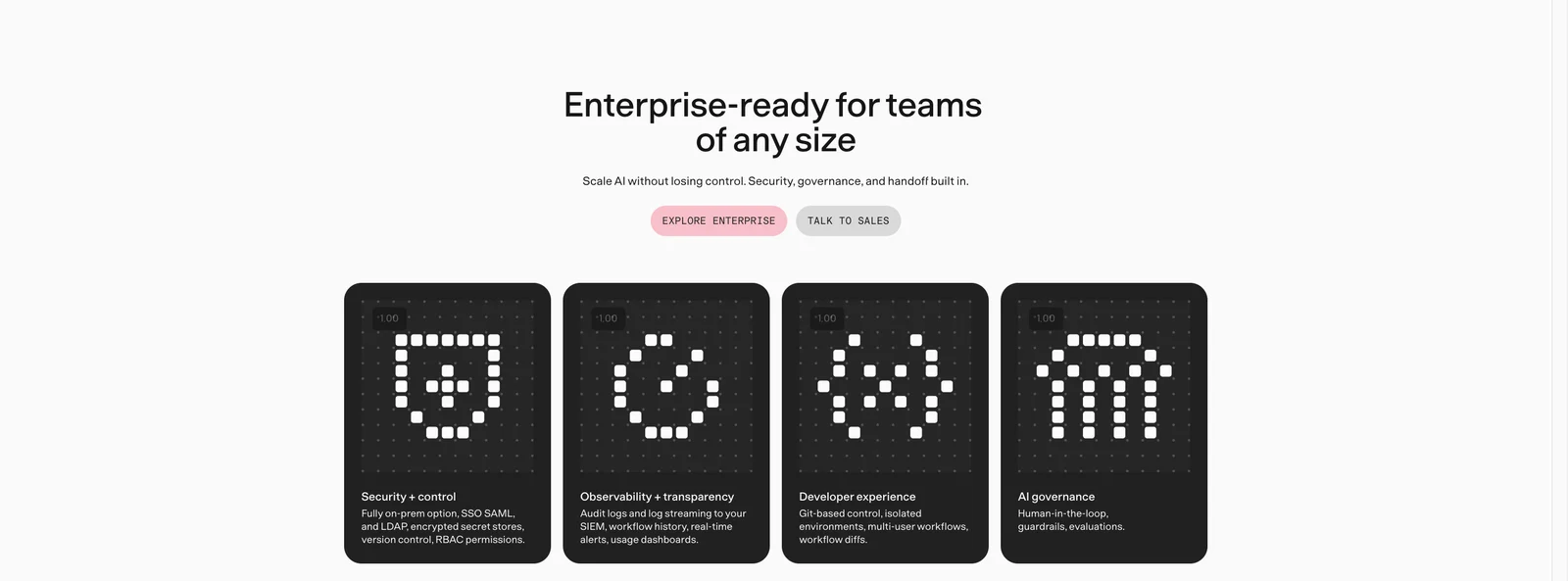
| Card | Features listed on screen |
|---|---|
| Security + control | Fully on-prem option, SSO SAML, LDAP, encrypted secret store, version control, RBAC permissions |
| Observability + transparency | Audit logs, log streaming to SIEM, workflow history, real-time alerts, usage dashboard |
| Developer experience | Git-based management, isolated environments, multi-user workflows, workflow diffs |
| AI governance | Human approval, guardrails, evaluations |
Below that are two case studies: Huel (1,000 hours saved through an AI-first culture) and Vodafone (£2.2M impact in security operations).
Finally, scroll all the way down to the dark footer and move your mouse over the dot grid. White cells light up and fade along your cursor's path.
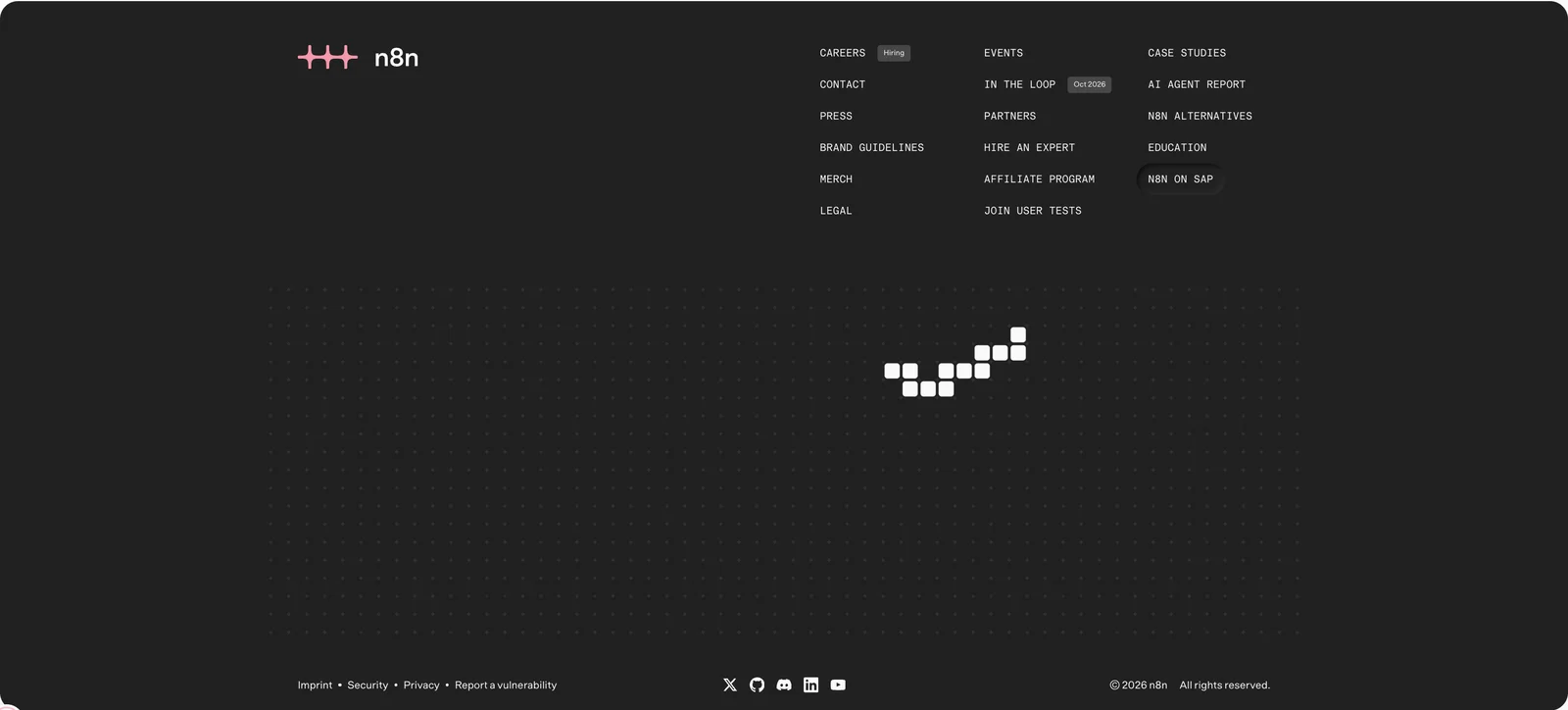
n8n's community announcement also mentioned that the new brand has small playful touches scattered around, like the new website footer. This is where they've tucked away the slightly playful personality described in the brand notes.
Step 7. Compare how far Cloud, self-hosted and the Creator Portal have changed
A new homepage doesn't mean all of n8n changed at once. On the same day (October 27), I opened the n8n screens DataPopcorn uses and compared logos and colors.
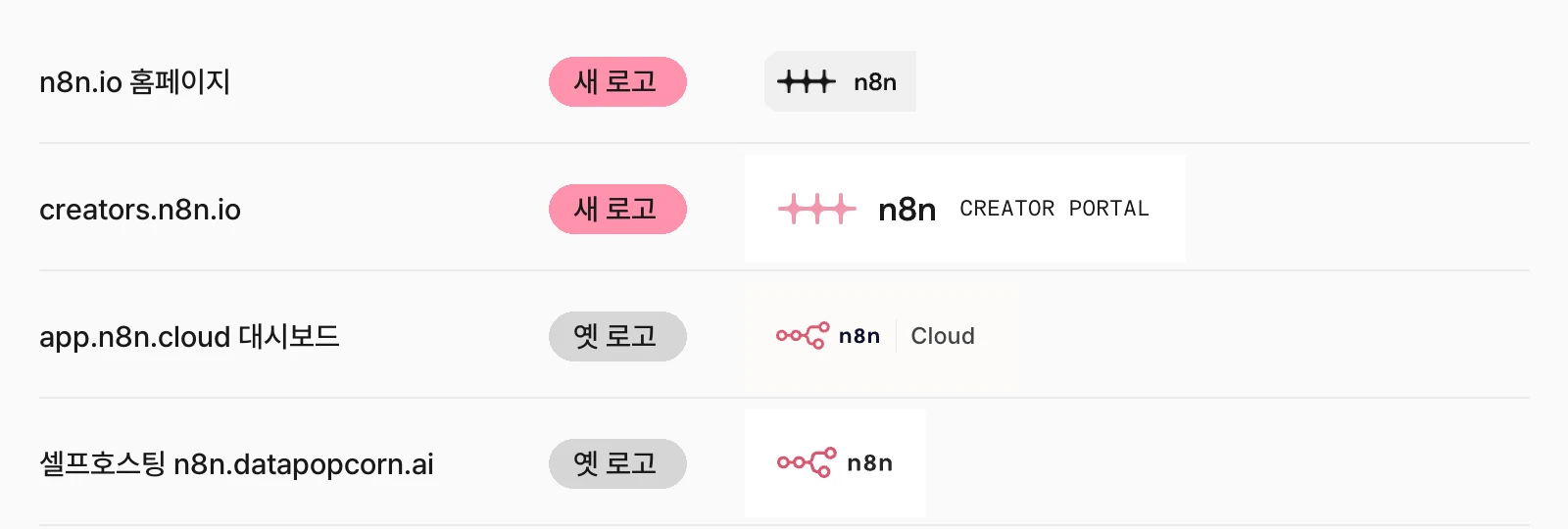
| Screen | Address | Logo | Color and buttons | Status |
|---|---|---|---|---|
| Homepage | n8n.io | New logo | Light dot grid, pink, uppercase monospace | New brand applied |
| Creator Portal | creators.n8n.io | New logo | Dot-grid header, pink buttons and pills | New brand applied |
| Cloud admin | app.n8n.cloud | Old logo | Orange buttons and usage bars | New layout, old brand |
| Self-hosted n8n | n8n.datapopcorn.ai | Old logo | Orange send button | Old brand |
7-1. Creator Portal: already on the new brand
The Creator Portal, where you submit templates, already has the same new brand as the homepage. The new pink symbol and uppercase monospace CREATOR PORTAL sit in the top left, the header has a dot-grid background, and the Share new template button and the review-status pill (IMPLEMENT CHANGES) are all pink.
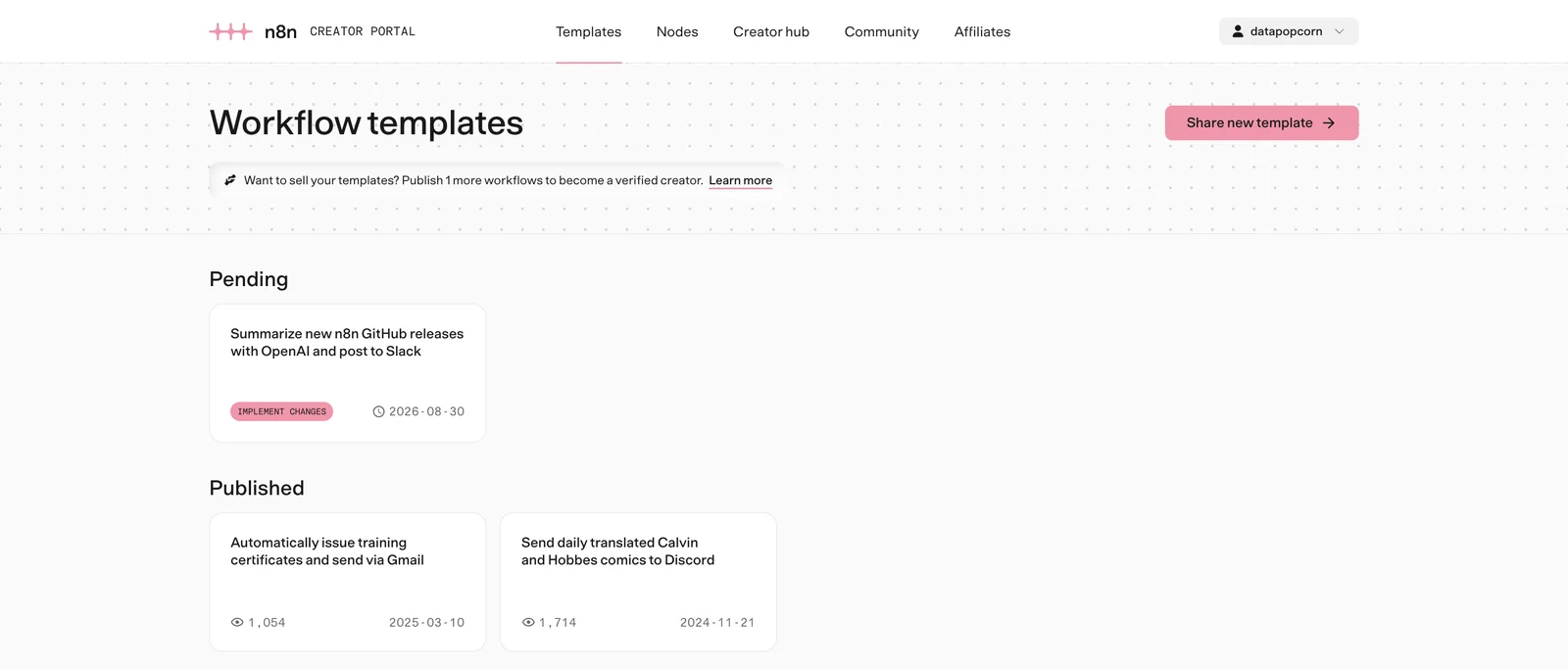
The template screen for the DataPopcorn account, showing 1 in review and 2 published.
7-2. n8n Cloud admin: new layout, old logo
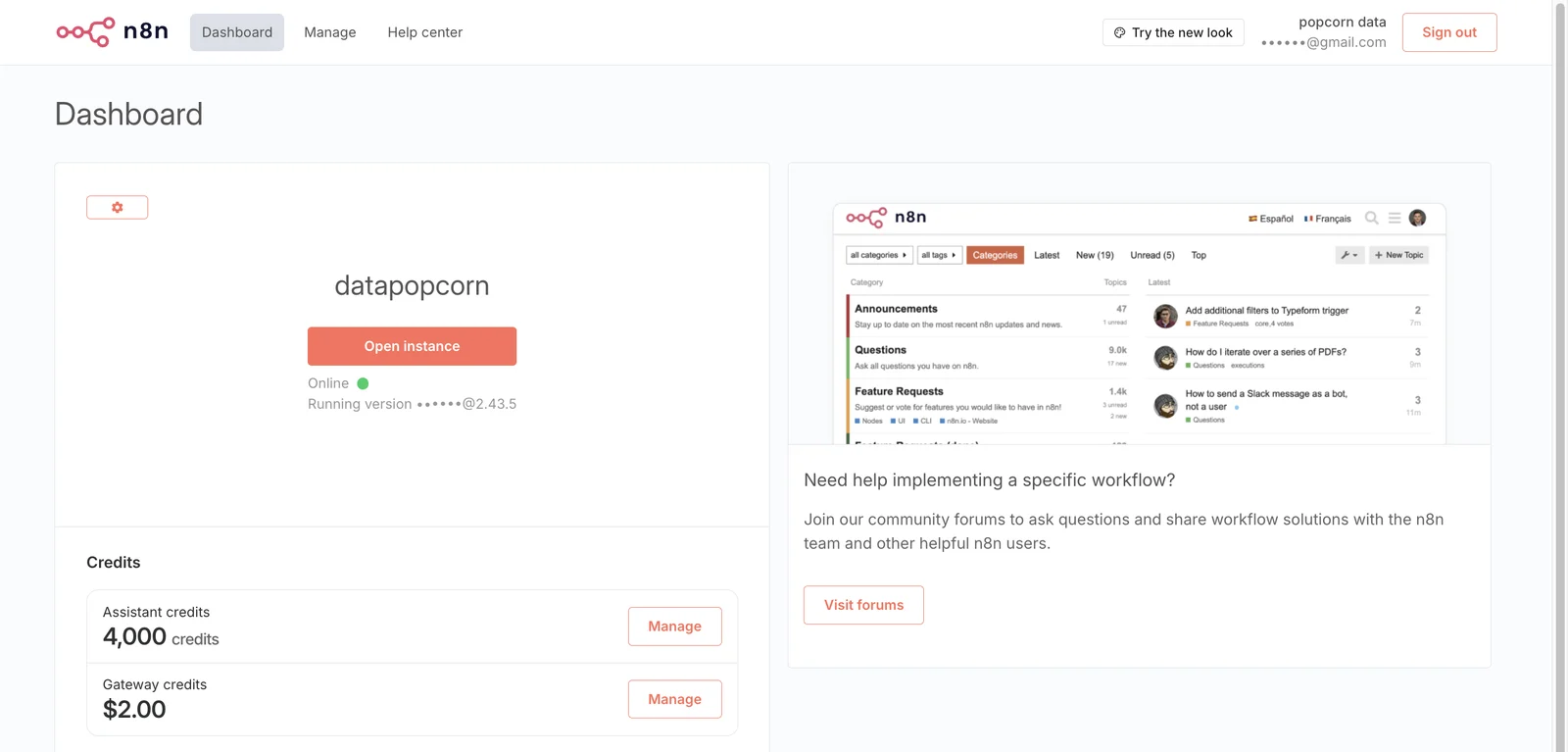
The app.n8n.cloud admin has a new layout organized into Overview, Instance settings, Assistant credits, Gateway credits, Billing and Export. A Switch to classic UI button at the bottom lets you move between the old and new screens. But the logo in the top left is still the old node logo, and the Open instance button and execution-count bar are still the old orange.
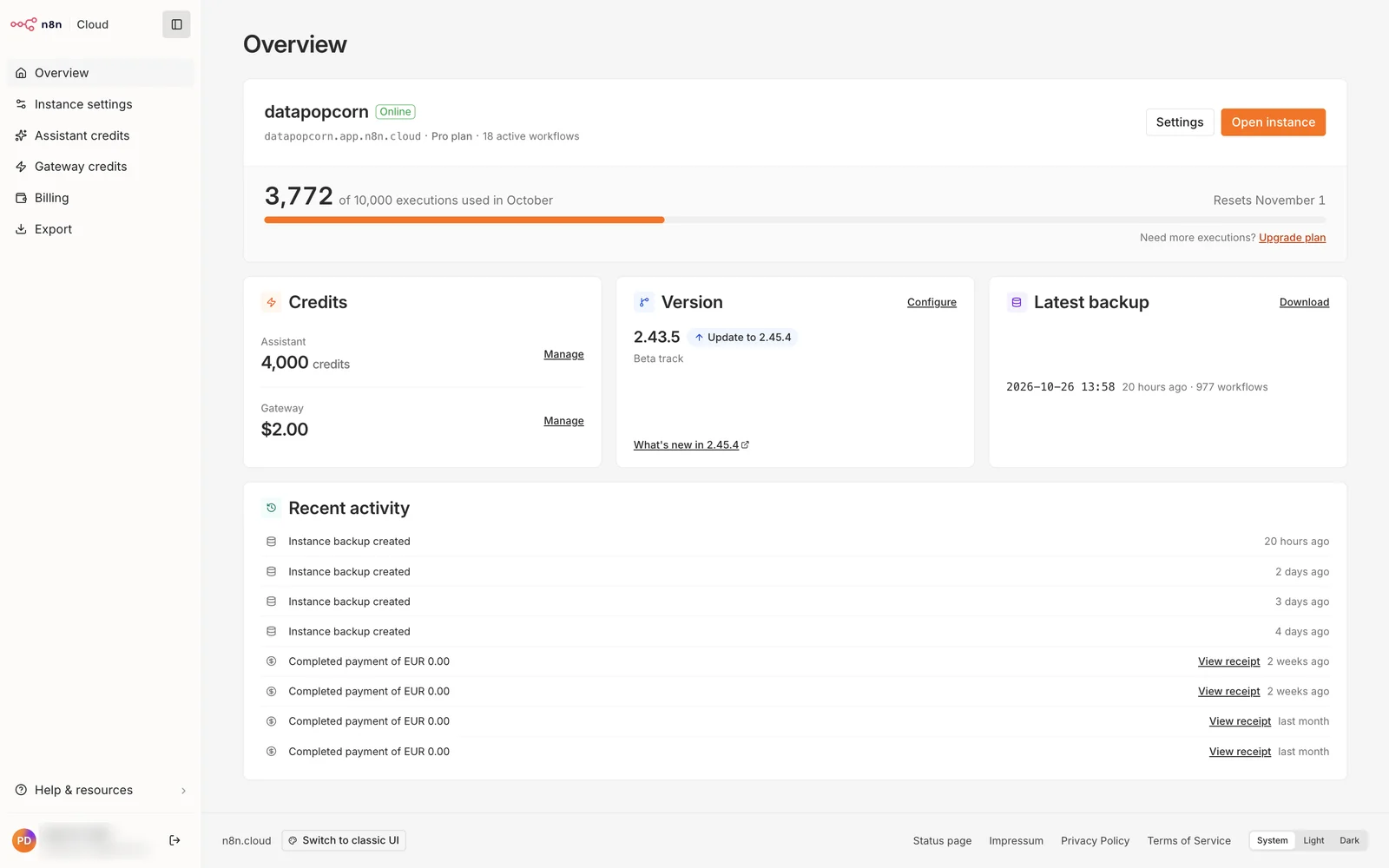
The instance version was 2.43.5, with a notice that an update to 2.45.4 was available. I've hidden the account email.
I also clicked Switch to classic UI to check the old screen. The menu runs horizontally across the top and there's a community-forum card, but the logo and orange buttons are the same as on the new screen. In other words, both are still on the old brand. Afterwards I switched back with Try the new look.
The Cloud n8n editor you reach via Open instance (datapopcorn.app.n8n.cloud) also has the old node logo in the top left.
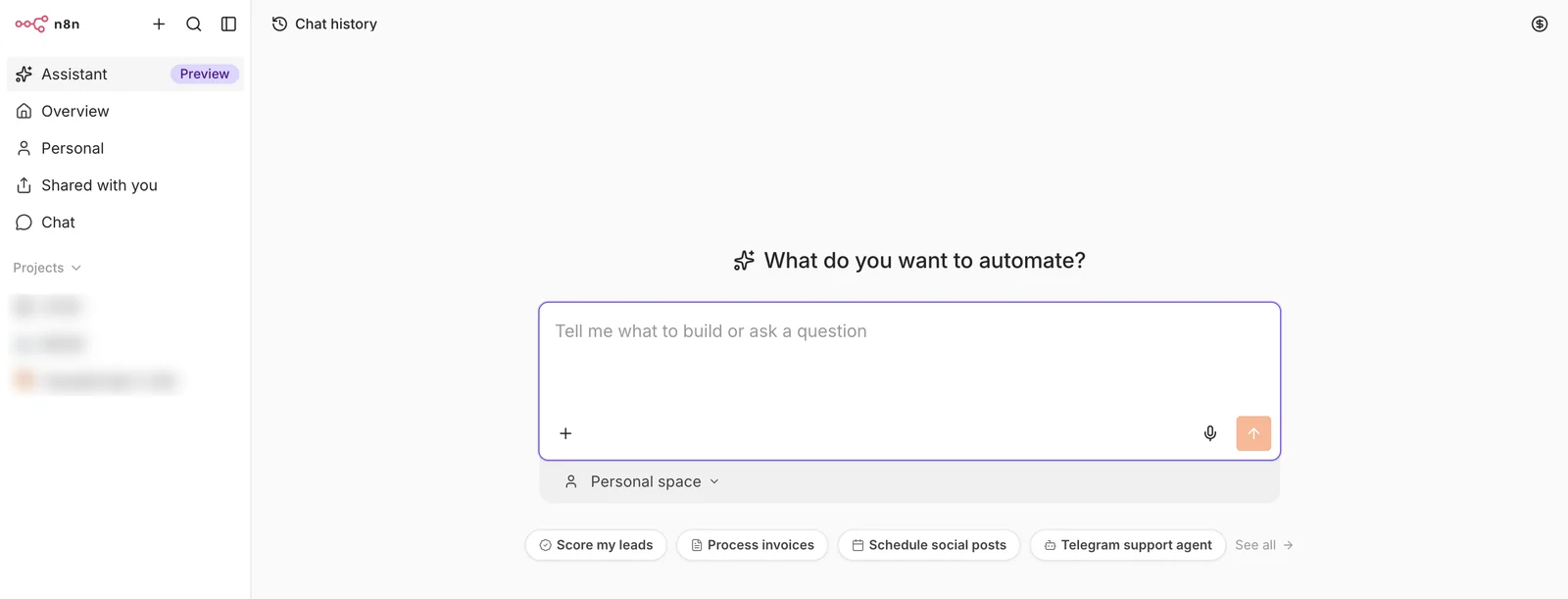
Project names are hidden.
7-3. Self-hosted n8n: still the old look
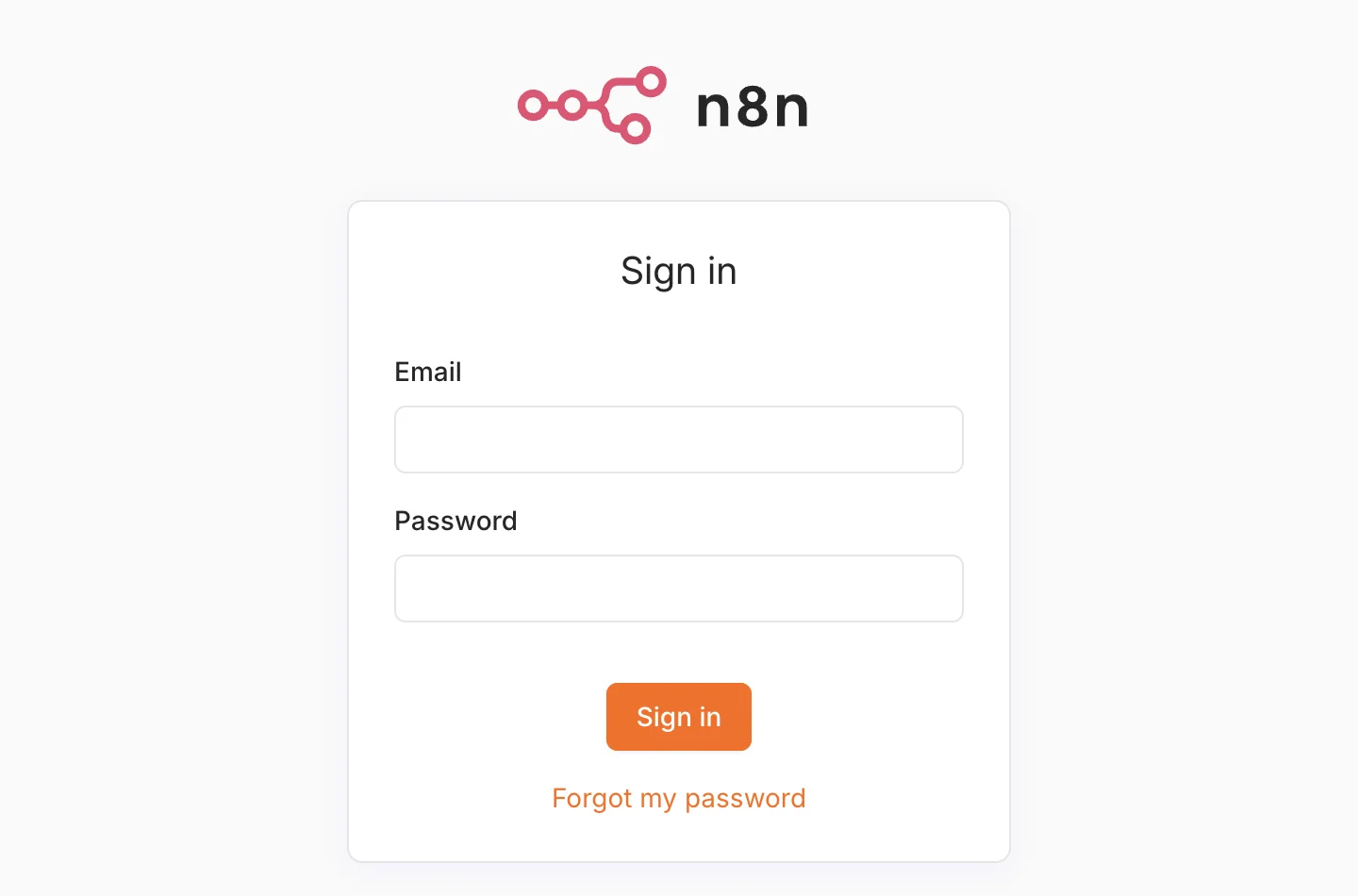
DataPopcorn's self-hosted server (n8n.datapopcorn.ai) also has the old logo. Even the sign-in screen still shows the old logo and an orange Sign in button.
After signing in, the first screen is the Assistant (Preview), asking "What do you want to automate?", and the send button is orange. The help menu showed Update (1 version behind).
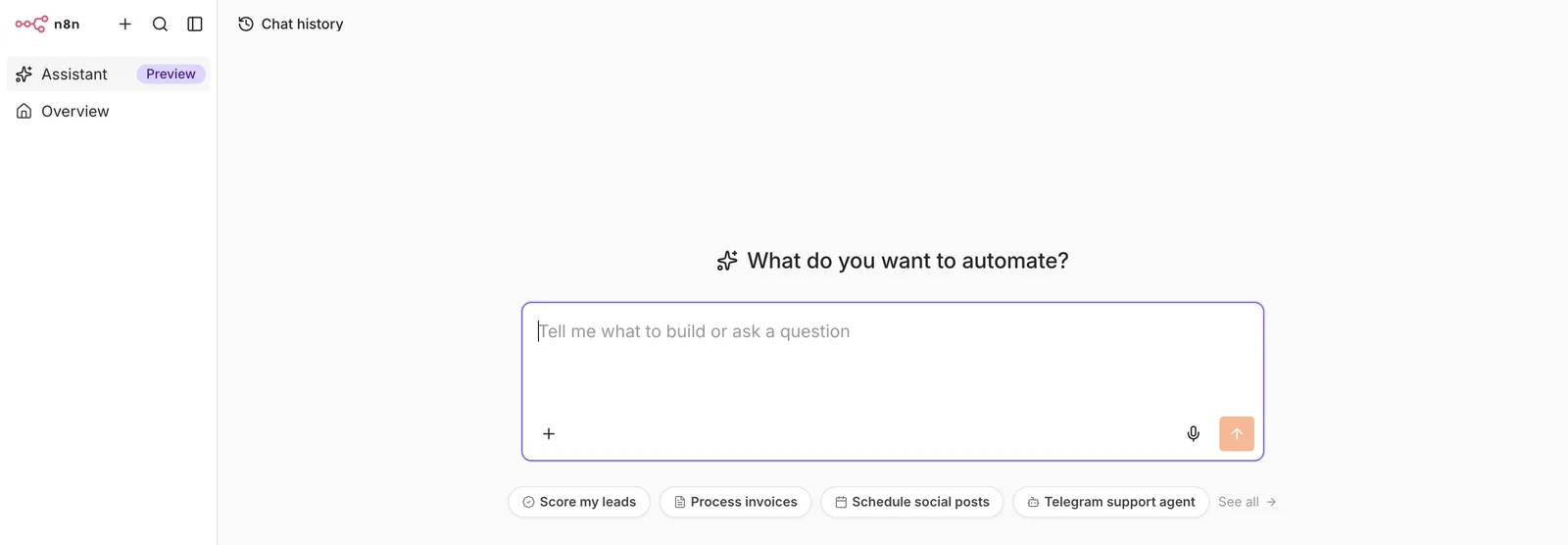
Putting the Cloud editor and the self-hosted editor side by side on the same day, both are on the old brand; the differences are in the menus.
| Item | Cloud editor (Pro plan) | Self-hosted editor |
|---|---|---|
| Logo | Old node logo | Old node logo |
| First screen | Assistant (Preview), "What do you want to automate?" | Same Assistant (Preview) screen |
| Below the input | Personal space picker for where to save | None |
| Left menu | Overview, Personal, Shared with you, Chat, Projects, Admin Panel | Only Overview, Templates, Insights, Help, Settings |
| Updates | Admin shows an update notice from 2.43.5 → 2.45.4 | Help menu shows 1 version behind |
The menu differences depend on plan, license and account permissions, so they're unrelated to the rebrand.
To sum up: the new brand landed first on outward-facing sites like the homepage and the Creator Portal, and hasn't reached the product screens where you actually build workflows. n8n's official post says the new brand will show up across the product, website, community and events in turn, so the product screens will likely change soon. Cloud should change when n8n updates it, but self-hosted will most likely change only when you upgrade yourself after a version with the new logo ships. When the product screens change, I'll add new captures to this post.
Students will see the new logo on the homepage and the old one in their own n8n. Until the product screens change, a one-line note like "Same n8n, the logo is in the middle of changing" heads off a lot of confusion.
Step 8. Bring your materials in line with the new brand using the official guidelines
From here on, it's hands-on. If you have course thumbnails, slides or handouts with the n8n logo or colors, this rebrand just made them look dated.
8-1. Open the guidelines site
Click BRAND GUIDELINES in the homepage footer or go straight to guidelines.n8n.design. The left menu has Overview, TOV (tone of voice), Logo, Colors, Typography, The Grid, Graphic Devices and Build with AI.
The old n8n.io/colors and n8n.io/typography URLs returned 404 when I checked on October 27. If your materials or bookmarks use them, switch to the new guidelines URL.
8-2. Download the logo files
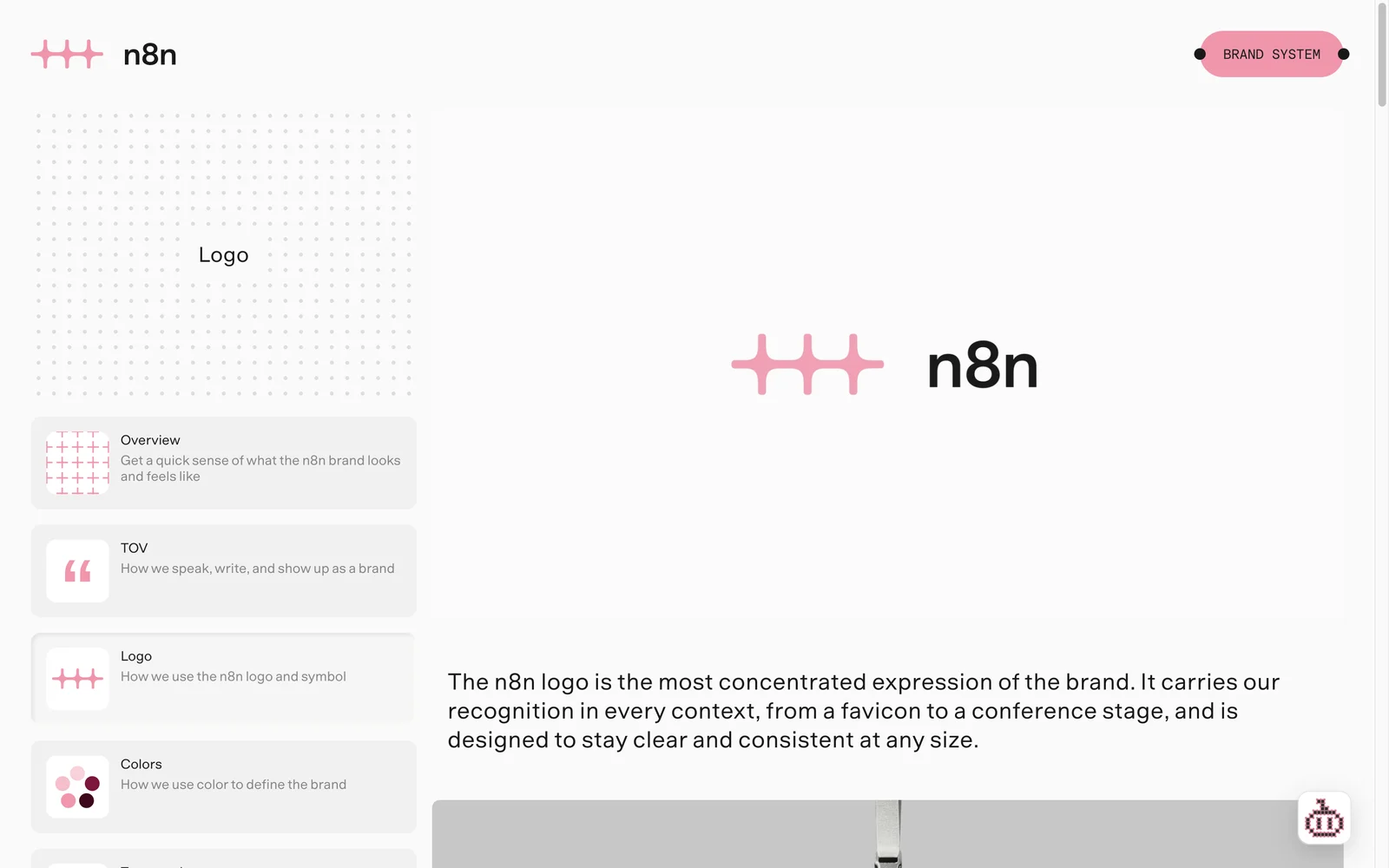
Near the bottom of the Logo page you can download the symbol alone, or the full logo (symbol plus wordmark), as SVG and ZIP. Here are just the rules you'll use right away when making materials:
- The symbol is made of 8 connection points plus 8 nodes hidden in the negative space. It stands for the 8 in n8n.
- On light backgrounds use the pink symbol with black text (
n8n-logo-black-accent); on dark backgrounds use the pink symbol with white text (n8n-logo-white-accent). - On a pink background, don't use the pink logo; use the black one.
- When pairing with a partner logo, join them with a
+and put the n8n logo on the left (horizontal layout) or on top (vertical layout).
8-3. Check the colors and typeface
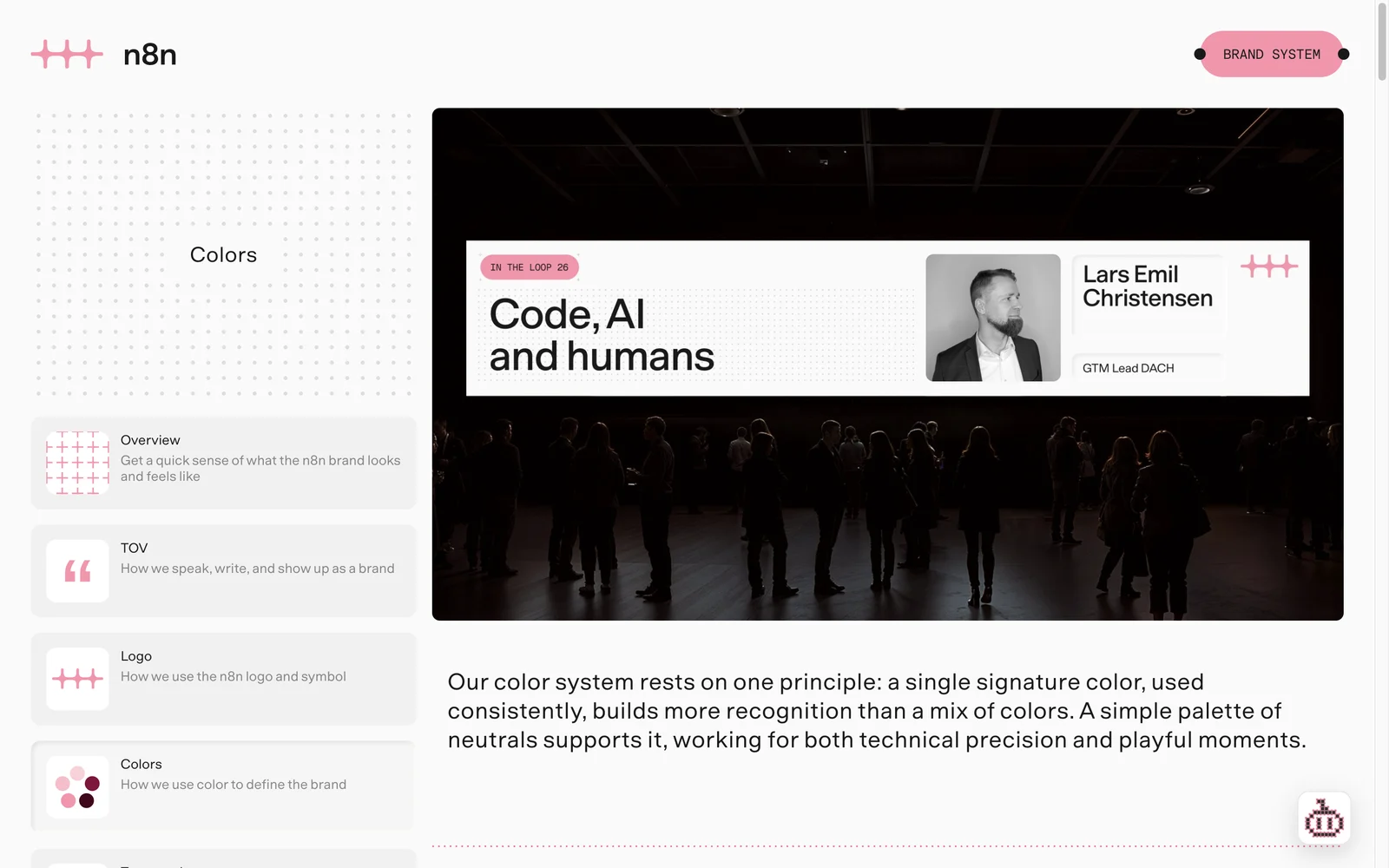
| Use | Value |
|---|---|
| Signature pink (Accent) | #FF91AC |
| Core Black | #191919 |
| Core White | #FAFAFA |
| Grays | 12 steps from #F8F8F8 to #242424 |
The typeface is n8n Baumer, a customized version of EK Baumer. It uses an alternate lowercase "a" without the tail by default, and only two weights: Regular (400) and Medium (500).
8-4. Connect n8ndesign.md to your AI agent
Under Build with AI in the guidelines, you can download a file called n8ndesign.md. This one file contains the colors, type, spacing, logo usage and tone-of-voice rules in a format that's easy for an AI agent to read. The version I downloaded was V5 (updated October 19, 2026).
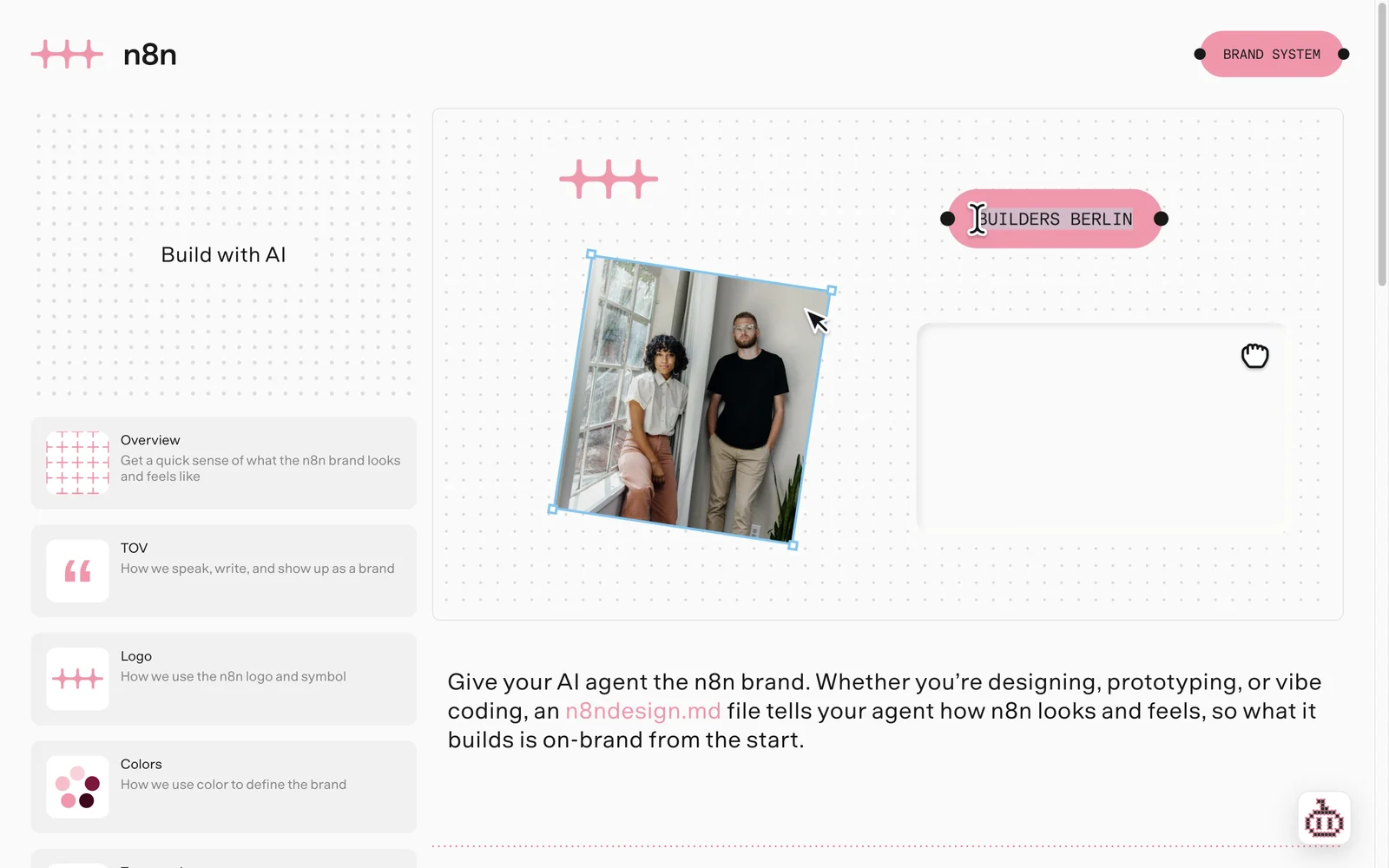
- Download the file with the
DOWNLOAD N8NDESIGN.MDbutton and put it in your project folder. - Pick the tab for your tool (Claude, ChatGPT, Codex, Cursor) and connect it as instructed. For Claude, add a single line
@n8ndesign.mdtoCLAUDE.md. - Paste in the instruction the guidelines provide.
Before you design or build any UI, read n8ndesign.md and follow it exactly: colors, spacing, type and logo usage. If something isn't covered, ask me instead of guessing.
- Generate a draft with one of the guidelines' example prompts. I adapted the social-card prompt to the topic of this post.
Make a 1080×1080 social card announcing [news], on-brand per n8ndesign.md. Use pink for one accent only.
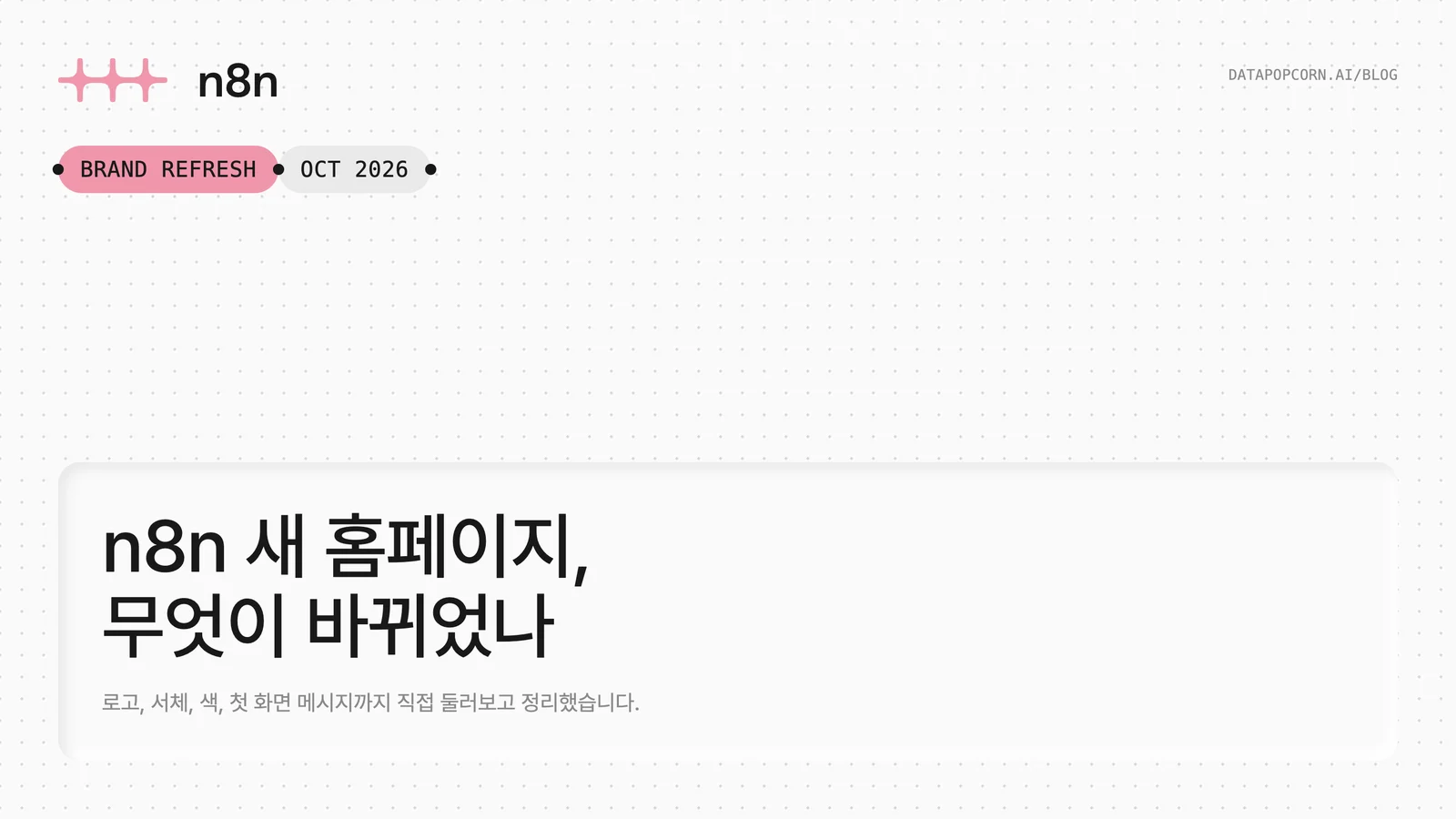
The card below is what an AI agent produced after reading n8ndesign.md and getting the prompt above. The cover image for this post was made the same way.
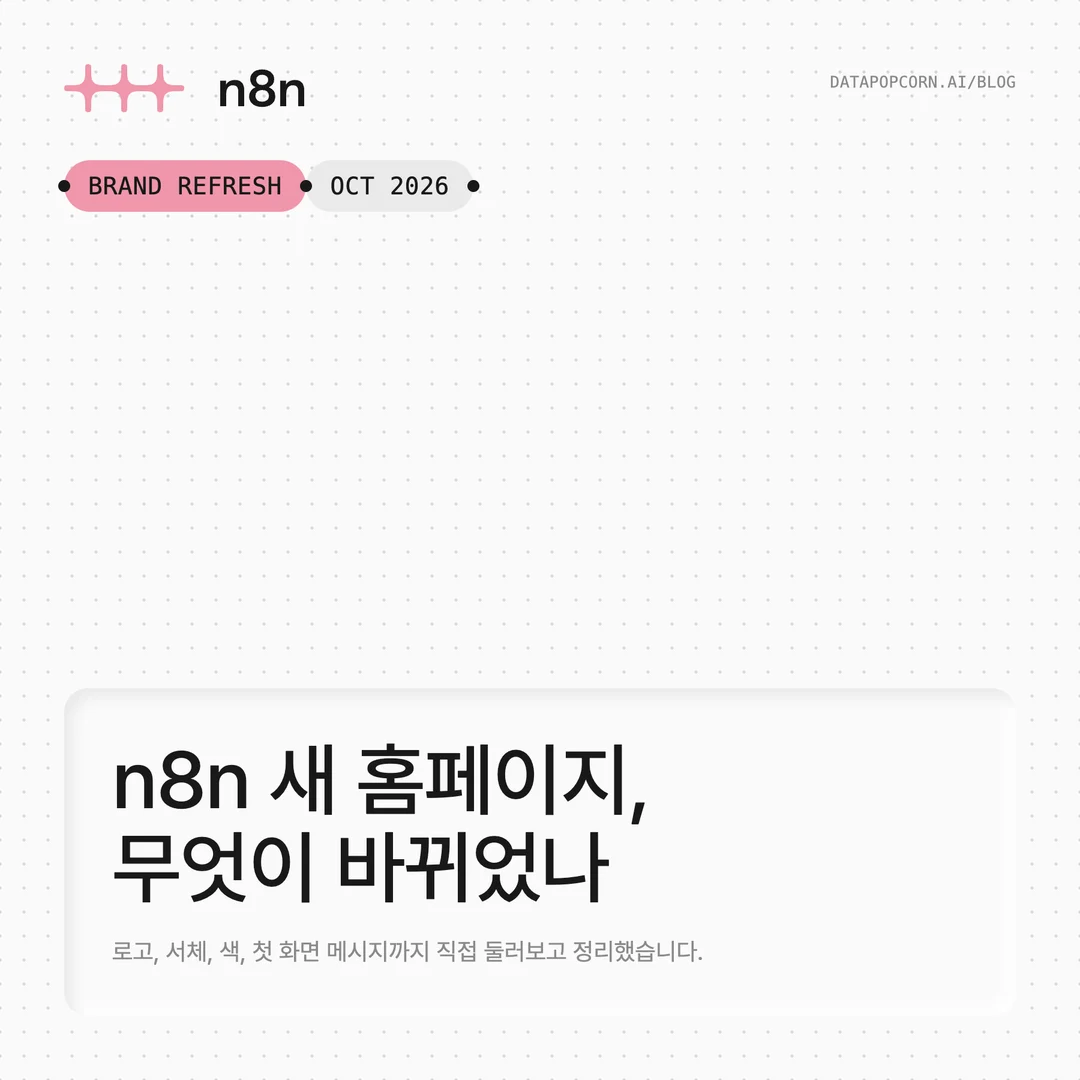
Here's what the agent handled by following the file's rules:
- It didn't draw the logo itself; it downloaded the official SVG (
n8n-logo-black-accent.svg) from the guidelines URL. The very first rule in n8ndesign.md is "never generate the logo". - Following the rule that pink text on a light background has insufficient contrast (2.03:1), it used pink only as the background color of the first pill.
- It joined the two pills with a dot and set the pill text in uppercase monospace, a device that echoes the node connection points in the n8n UI.
- The title panel uses the guidelines' Deboss M values (8px inner shadow, 12px blur) to look pressed into paper.
n8n Baumer has no Korean glyphs, and I couldn't find a font download link on the guidelines site. So I used Pretendard for the Korean title and body, and a generic monospace font for the uppercase English in the pills. For Korean-language materials, the practical rule is "English follows the brand rules; Korean uses a sans-serif of similar weight."
Common problems and fixes
| Symptom | Cause | Fix |
|---|---|---|
Saved n8n.io/colors or /typography links don't open | The brand pages moved to the new guidelines site | Use guidelines.n8n.design or BRAND GUIDELINES in the footer |
| The hero workflow is different every visit | Each visit shows a different example workflow | Reload until you get the example you want; capture after all nodes have been drawn |
| The use-case tab switches to someone else before you capture | The tabs rotate automatically | Click the name tag you want to pin it, wait a few seconds, then capture |
| The AI draws a look-alike n8n logo | It doesn't know where the official files are | Connect n8ndesign.md and tell it to use the SVG from the guidelines |
| Pink text on a light background is hard to read | 2.03:1 contrast isn't enough for text | Use pink only for fills (backgrounds, shapes) and #191919 for text |
| Korean text doesn't render in the n8n typeface | n8n Baumer has no Korean glyphs | Substitute a similar sans-serif such as Pretendard for Korean |
| The homepage has the new logo but my n8n shows the old one | As of 2026-10-27, the rebrand hasn't reached the Cloud or self-hosted product screens | Not a bug. For self-hosted, watch for the new-version announcement and upgrade |
| The old logo is still on course thumbnails and handouts | The brand changed on October 14, 2026 | Download the logo pack from the guidelines and swap it in; join co-branded logos with + |
- When the new logo will reach the Cloud and self-hosted product screens is still unknown. As of October 27, both show the old logo. I didn't confirm the exact version number of the self-hosted server this time.
- I didn't count how many example workflows the hero cycles through. This post only lists the three I saw myself.
References
- Why we refreshed the n8n brand (n8n blog, 2026-10-20)
- Our brand refresh, and why the logo changed (n8n community, 2026-10-20)
- n8n Brand System (official brand guidelines)
- n8n.io snapshot from 2026-10-11 (Wayback Machine)