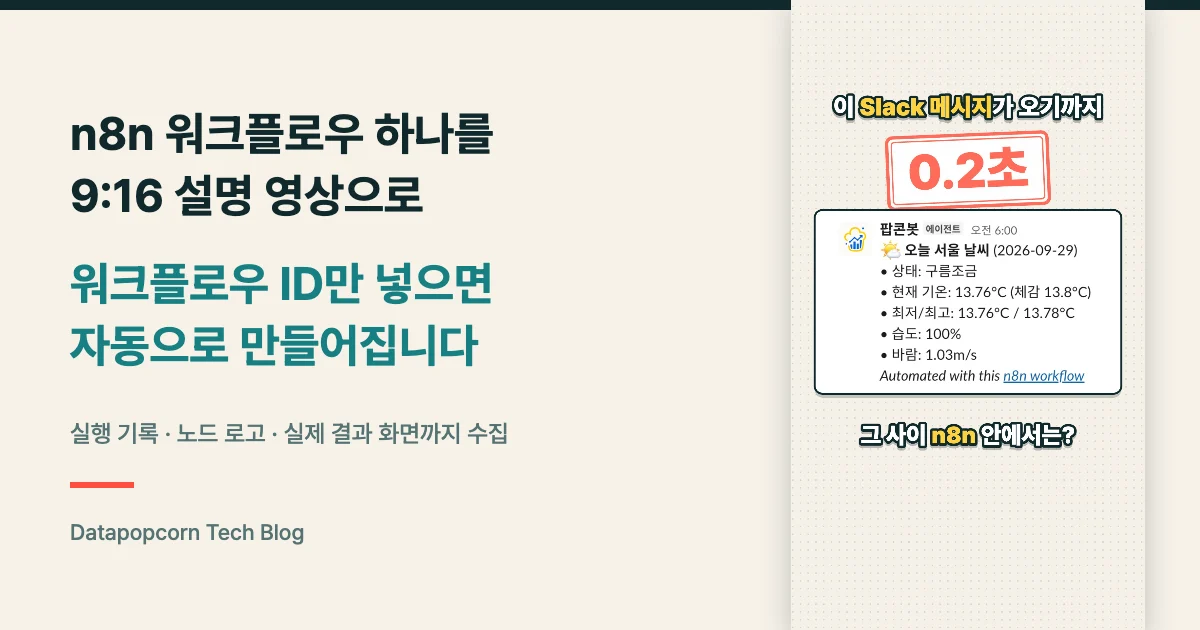
Paste an n8n Workflow Link, Get a Vertical Video of How It Actually Ran
After you build an n8n workflow, you still have to show the result on a blog, on YouTube or in a course, and redoing screen recordings or slide captures takes a lot of effort. In this post I share how I turn a single n8n workflow link into a vertical explainer video of how that workflow actually ran. Both videos below were made without any human editing, just by passing in the workflow link. It scrapes the execution log, node icons and real result screens directly from n8n, then renders the video from a single intermediate file called spec.json. The key is not rewriting code for every workflow.
Background
Once you have a few automations running, there's one question you always get: "So how does this thing actually work right now?"
Most of the time the answer is screenshots. You capture the n8n canvas, then crop a few shots of the execution view. That explains it, but the result is always static images. When someone asks to see it as a video, you have to record all over again.
So I kept running into the same three problems.
First, you have to redraw the logos. If you roughly mock up the OpenWeatherMap or Slack logo as text, the video ends up looking less like an explainer and more like "a deck someone forced together".
Second, you have to make up the description of the output. If you don't know the actual text that gets sent, you end up with generic captions like "passes it to the next step".
Third, you repeat the same work for every workflow. If you made a video for a 3-node workflow, you have to rewrite the script for a 7-node one.
Goal
The goal is to get rid of all three at once. It fits in one sentence:
If a workflow has already run, make a 9:16 video explaining that run from nothing but the workflow ID.
The "already run" condition matters. This tool doesn't trigger a new run. If the workflow sends a Slack message, a new run would actually send that message again. Instead, it only reads execution logs that already exist in n8n.
How it works
The whole thing has three layers. Collect, turn it into spec.json, then read that file and render.
Splitting this into two parts was the key decision. The collector only knows about n8n, and the renderer only knows about spec.json. So no matter how many workflows you add, you only ever change the renderer code once.
1. A workflow isn't a document, it's an API response
In a logged-in browser session, n8n serves its own REST API directly. So there's no need to open the workflow and read it by eye.
// Workflow definition: node coordinates, connections, node types
const wf = await fetch(`/rest/workflows/${workflowId}`).then(r => r.json()).then(r => r.data);

// Only successful runs from the execution list
const runs = await fetch(`/rest/executions?limit=25&filter=${encodeURIComponent(
  JSON.stringify({ workflowId })
)}`).then(r => r.json());

// Expand a single execution to get per-node execution times
const detail = await fetch(`/rest/executions/${id}`).then(r => r.json());
// detail.data.runData = { 'nodeName': [{ executionTime, startTime, data: { main: [[...]] } }] }
There's one thing to watch out for. n8n sends execution data in a flattened (flatted) format. All the values live in one array and point to each other by string index, so if you read it as-is, you see numeric strings like "12" instead of node output. You have to resolve the indexes recursively to get the real JSON. If you don't, you'll wrongly conclude that "the node has no output".
2. Picking which execution to explain
If a workflow is turned on, executions pile up. You can't just pick any of them for the video. The rule is "the execution where the most nodes actually ran".
That's because that execution captures the real flow end to end. Pick a run that errored out or got blocked at a branch, and the graph comes out empty. For the morning briefing, I picked the scheduled run at 06:00 on 2026-09-29 (#68974). In that run, 3 of the 4 nodes ran and 1 (the error alert) didn't.
I decided it was better to show that as-is. For a workflow with an error branch, showing "no error this time, so this path wasn't taken" helps even someone seeing the workflow for the first time understand its structure.
3. Pull the logos from the canvas instead of redrawing them
The first version drew node icons on the canvas by hand. They looked similar but weren't the real app logos, so viewers couldn't tell at a glance which service each one was.
If you inspect the n8n UI in the DOM, every node already has an SVG icon rendered. I loop over [data-test-id="canvas-node"] and grab each SVG wholesale. If the color comes through as currentColor, I compute the actual rendered color and substitute it as a literal.
// .n8n-node-icon > svg inside canvas-node
let svg = icon.outerHTML.replaceAll('currentColor', actualRenderedColor);
The result is pixel-identical to the n8n UI. It's no longer "a similar logo"; it's the actual icon. For nodes that can't be found on screen, it falls back to the iconUrl in /types/nodes.json.
4. Inputs and outputs are already in the execution log
This is the most important part. What makes an explainer video convincing is showing what actually went out in that run, not a sample screen.
The input comes from binary in runData. If a file flowed through the workflow, you can read its mimeType, size and filename directly. In the Calvin and Hobbes workflow, the comic GIF downloaded that day was picked up as the input, and that comic appears as-is in the opening scene and on the card for the node that handles the image. For the output, if the last node is Slack, the message contains channel and ts. From those two values I build the Slack message URL, find the message in a real browser and screenshot it.
I refined one thing here. Slack messages can be long. Capturing a message taller than the screen as-is cut off the Slack header (search bar, channel name). So I added three things:
- Scroll aligned to the top of the panel so the header isn't cut off
- If the message is taller than the screen, reduce the page zoom so it fits entirely
- If there's empty space with no message on the right, crop it out pixel by pixel
When the capture fails, the screen honestly says "Expected result (reconstructed)". Passing off a reconstructed screen as the real result turns it into marketing material nobody can verify.
5. Merge everything into one spec.json
Once collection is done, everything known about the workflow is extracted into spec.json.
{
  "meta": {
    "workflowId": "gdtZQi48u2rUx0c3",
    "workflowName": "[AI Assistant] Morning Briefing (Weather, News, FX AI Summary → Slack)",
    "executionId": "68974",
    "executedAt": "2026-09-28T21:00:58.066Z"
  },
  "nodes": {
    "n1": {
      "name": "Fetch Seoul Weather",
      "type": "n8n-nodes-base.openWeatherMap",
      "typeLabel": "OpenWeatherMap",
      "x": 544, "y": 336, "w": 96, "h": 96,
      "outputs": 2,
      "outLabels": ["success", "error"],
      "ran": true,
      "icon": "icons/n1.svg"
    }
  },
  "result": {
    "label": "Actual result · Slack capture",
    "src": "media/output-slack.png"
  }
}
The renderer knows nothing about OpenWeatherMap or Slack. It only reads this file. Node positions use the canvas coordinates as-is, branches are drawn from outputs and outLabels, and nodes with ran: false are dimmed. When I explain a different workflow later, only the numbers in this file change.
This structure also made it easy to change the output size. The first render with the same settings was 19.9MB. That was too big to put in the repo, so I added an output-size option to the engine and re-rendered at 720×1280 / 1.15Mbps. The layout stays in 1080×1920 logical coordinates; only the output is scaled down. The result is 3.0MB.
6. Encode right in the browser
The renderer doesn't use a separate build tool. All it needs is to draw each frame onto a browser canvas. Encoding uses WebCodecs, and the container uses an mp4 muxer.
const enc = new VideoEncoder({ output: (c, m) => mux.addVideoChunk(c, m) });
enc.configure({ codec: 'avc1.640033', width: 720, height: 1280, bitrate: 1150000, framerate: 30 });

for (let i = 0; i < frameCount; i++) {
  draw(i / fps);
  const px = ctx.getImageData(0, 0, 720, 1280);
  const frame = new VideoFrame(px.data, { format: 'RGBA', codedWidth: 720, codedHeight: 1280 });
  enc.encode(frame, { keyFrame: i % 60 === 0 });
  frame.close();
}
There was a reason for this too. I tried rendering with the Remotion CLI, but launching Chromium was blocked in this environment. Rendering in a browser tab makes that problem disappear entirely, and lets me preview and verify frames in the same code.
7. Don't trust a successful render
This is the part I most want to stress. "Render complete" is not verification. Even if the code finishes without errors, if the animation timing is off, the screen can freeze for seconds or go black.
So right after rendering, two checks run automatically:
- Sample a frame every 0.5 seconds; if two consecutive samples are nearly identical, it's a freeze, and if overall brightness is below a threshold, it's a blackout
- Check a contact sheet (many frames stitched into one image) by eye
Without this step, you report "0 errors when running the code" as success. That's not verification, that's reading a log.
Results
Both workflows were made with the same code.
| Comic translation → Slack | Morning briefing (weather → Slack) | |
|---|---|---|
| Nodes | 9 of 10 ran | 3 of 4 ran |
| Node shown as not run | Image-extraction failure alert | Weather-lookup failure alert |
| Reference execution | #63854 (2026-09-19) | #68974 (2026-09-29 06:00) |
| Processing time shown | 9 steps, 7.645s | 3 steps, 0.240s |
| Input screen | The actual comic GIF received | None (scheduled run) |
| Result screen | Actual Slack capture | Actual Slack capture |
| Web MP4 | 44s · 720×1280 · 5.8MB | 20s · 720×1280 · 3.0MB |
Neither video had frozen or black frames.
I originally built this tool around a workflow that translates Calvin and Hobbes comics and posts them to Slack. The morning briefing was the second case, run afterwards by passing in nothing but the workflow ID. I didn't modify the collection code for that workflow; the only refinements were to the Slack capture's scrolling and whitespace handling, shared by both. In other words, the "all you need is the ID" goal held up on the second workflow too.
What I learned
Showing the paths that didn't run reveals the structure
The morning briefing has an error path that sends an alert if the weather lookup fails. That path wasn't taken in this run. At first I considered showing only the nodes that ran, but leaving the un-run node visible and dimmed worked better. That way viewers also understand the structure: "if it fails, it goes this way".
Say which execution the timings come from
The 7.6-second total shown in the Calvin and Hobbes video didn't come from a single run. It was a manual execution, so the earlier nodes reused results from a previous run, and times from different executions were mixed together. You can't tell that from the screen alone. Now I always add "based on execution #number" under the timing, and mark any value that didn't come from the same execution.
Auto-generated captions need one human read
I set the default caption template to 결과를 ${서비스}(으)로 보냅니다 ("sends the result to ${service}"), and it produced awkward sentences like "결과를 Slack(으)로 보냅니다". In Korean, the particle for "to" depends on whether the previous word ends in a final consonant, and because the service name was in English, the code couldn't decide. I fixed it by switching the particle to "에". This is the kind of thing only a human read catches. Treat auto-generated captions as a way to set direction, nothing more.
The resolution can be right while the picture is wrong
When I first uploaded the web version, it came out zoomed into just the top-left corner of the frame. The file really was 720×1280 and had shrunk to 3MB, but the drawing code was resetting the scale to 1:1 on every frame. Only the 720×1280 region of a screen drawn at 1080×1920 was being cropped out. I had only checked the video resolution and file size, so I didn't notice until after publishing. Now I extract frames directly from the rendered MP4 and compare them side by side with the original layout.
How you can use this
Since it's split into three layers, it's also clear how to assemble it in your own environment.
Layer 1: collector. From the workflow ID, scrape four things: the workflow definition, the list of successful executions, the actual execution data, and the node icons pulled from the canvas. If the workflow ends in Slack, also pull channel and ts from the last node's output.
Layer 2: spec.json. Write what you collected above as JSON. The skeleton of the picture is four keys, nodes, edges, steps and result, while meta, intro and outro hold the source attribution and on-screen text. Use the n8n canvas coordinates for node positions as-is.
Layer 3: renderer. Set up a 9:16 canvas, write JS that draws each frame, and encode with WebCodecs + an mp4 muxer. Add the frozen/black-frame checks at the end.
There are three prerequisites: a browser session logged in to your n8n instance, an agent that can drive a browser, and an environment to run Node locally. For the server, a short static server using only the Node standard library is enough.
I've bundled these three layers into a skill for my browser agent (Aside). So the request is just one line with the workflow link. It reads the n8n host and workflow ID from the link, so it works the same way with n8n Cloud or a self-hosted n8n, as long as you're logged in in the browser.
https://your-n8n-host/workflow/WORKFLOW_ID Make an explainer video from this workflow
I haven't released this skill as an installable package yet. For now, the approach is to use the structure and code snippets above as a reference and reassemble them for your own environment.
To sum up, the value of this approach is in the structure, not the video. Once collection, organization and rendering are cut apart by a single spec.json, "making one more explainer video" becomes regenerating JSON rather than changing code. The more things you need to explain, the bigger that difference gets.
Next steps
- Extend the Slack capture to other destinations like Gmail and Notion, so the "result posted to a channel" can be attached automatically
- Switch auto-captions to rules that draw from the execution data. Right now most of them are plain sentences like "Here's how it arrives in Slack"
- Add voice narration and caption timing to the videos. Right now there are only sound effects
- Add aspect ratio to the engine so a 16:9 version can be generated from the same
spec.json