How to Use the Pickle AI Agent: From Install to Your First Task, Compared with Grok Bot, Muse and Dots
Follow this guide and you'll install Pickle on your phone (iPhone or Android), connect just one Google Calendar, check the disclosure settings and usage limit, and hand it two first tasks whose results you verify yourself. Pickle is a personal AI agent you can use for free in Korea. I got this week's schedule summarized in under a minute and research on 3 workshop venues in a little over 2 minutes. That said, 1 of the 3 venues had the wrong address and price.
October 26, 2026, Galaxy S22+ (Android 16), Pickle app 1.1.16, a free Korean account. I started with sign-up already done, so there are no screenshots of the sign-up screens. I drove the screen and took captures over ADB (Android Debug Bridge) from a PC, but you can do exactly the same thing by tapping with your finger. The screenshots show the Korean UI.
Pickle is an agent with its own browser and phone number
Pickle goes a step beyond a chatbot that answers questions. According to its official help pages, Pickle works on websites like a person, using a real web browser, and places phone calls itself where the web won't do. Connect your email and calendar and it reads them to find things to take care of before you ask; if your friends use Pickle too, your Pickles coordinate plans with each other.
For users in Korea, the biggest difference is price. In Pickle's words, every account in Korea is free, and instead there's a daily usage limit that resets at 4 a.m. every day. The old paid plan (Pickle Plus) is no longer sold. It's made by Pickle, Inc., a startup from Y Combinator's Winter 2025 batch, which started out with AI avatars for video calls and then pivoted to personal agents.
What you need
- An iPhone (iOS 17 or later) or an Android phone (screenshots are from Android; Pickle is for ages 18 and up only)
- One Google account to connect (I recommend starting with just the calendar)
- A browser on a PC to check the results against
Step 1. Install from the App Store or Play Store and sign up
- Install "피클: 나만의 AI 에이전트" ("Pickle: My Own AI Agent," publisher Pickle, Inc.) from the App Store on iPhone or the Play Store on Android. iPhone requires iOS 17 or later. As of October 26 it's a new app with 500+ downloads and 8 reviews on the Play Store, so check the publisher name so you don't confuse it with similarly named apps.
- Open the app and follow the prompts to sign up. After sign-up,
My Pickle → My accountshows your name, Pickle ID, phone number and date of birth, so have that information ready.
Step 2. Read what Pickle can do in the first chat
Once you finish signing up, Pickle sends an introduction in the default chat. The three key points: "I have my own computer, so I can do things like book train tickets, file taxes and place orders on Coupang (Korea's biggest online marketplace)," "I can make calls for you from my number," and "if you connect them, I'll manage your email and calendar too." Right below are suggested connection cards (Apple Calendar, Google Calendar, Gmail).
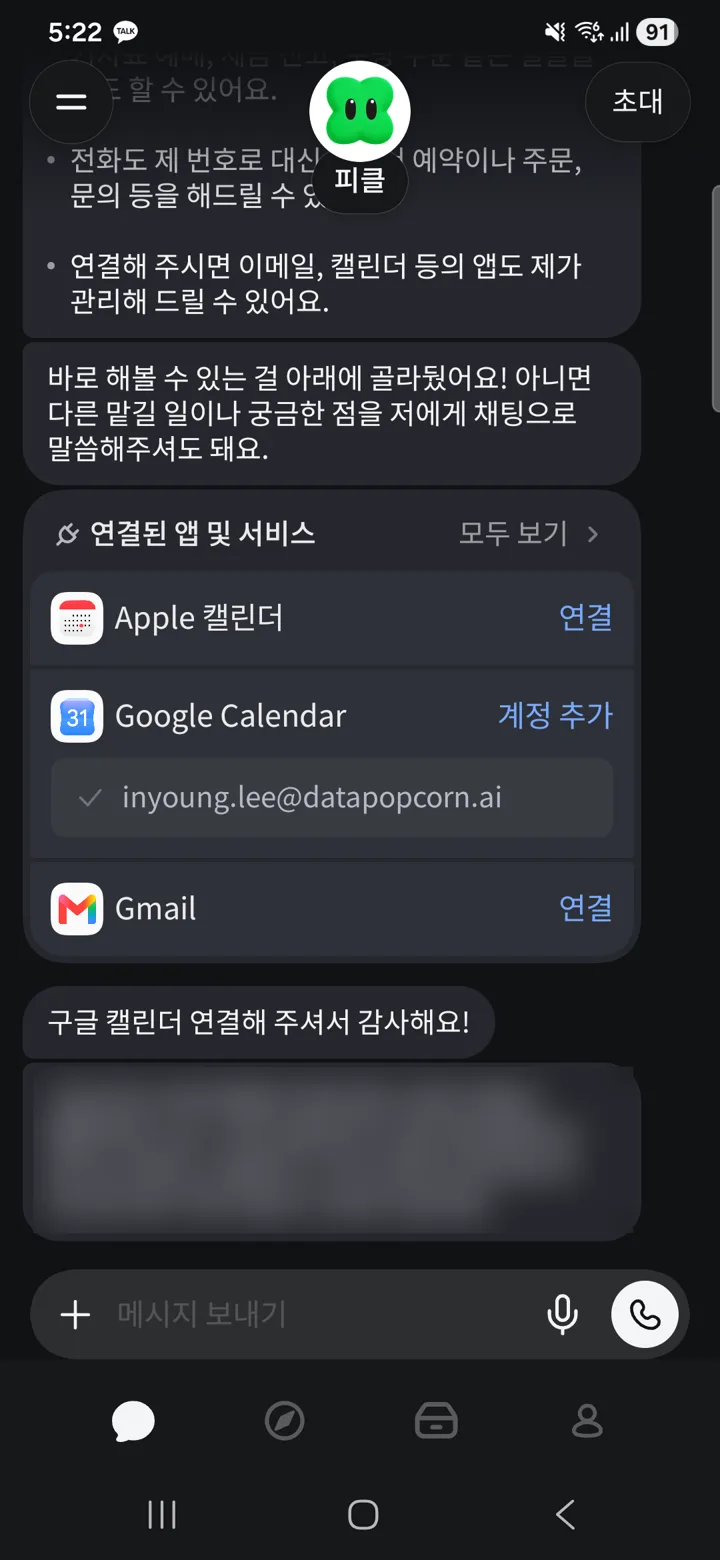
Step 3. Connect just Google Calendar first
Don't connect your email, shopping sites and Gov24 (the Korean government's online services portal) all at once. Start with the calendar. The official help page says that when you add a connection, Pickle reads that account's content broadly, and what it reads can stay in conversations, memory and task history. A calendar exposes a relatively narrow slice of your data, and you can verify the results right away.
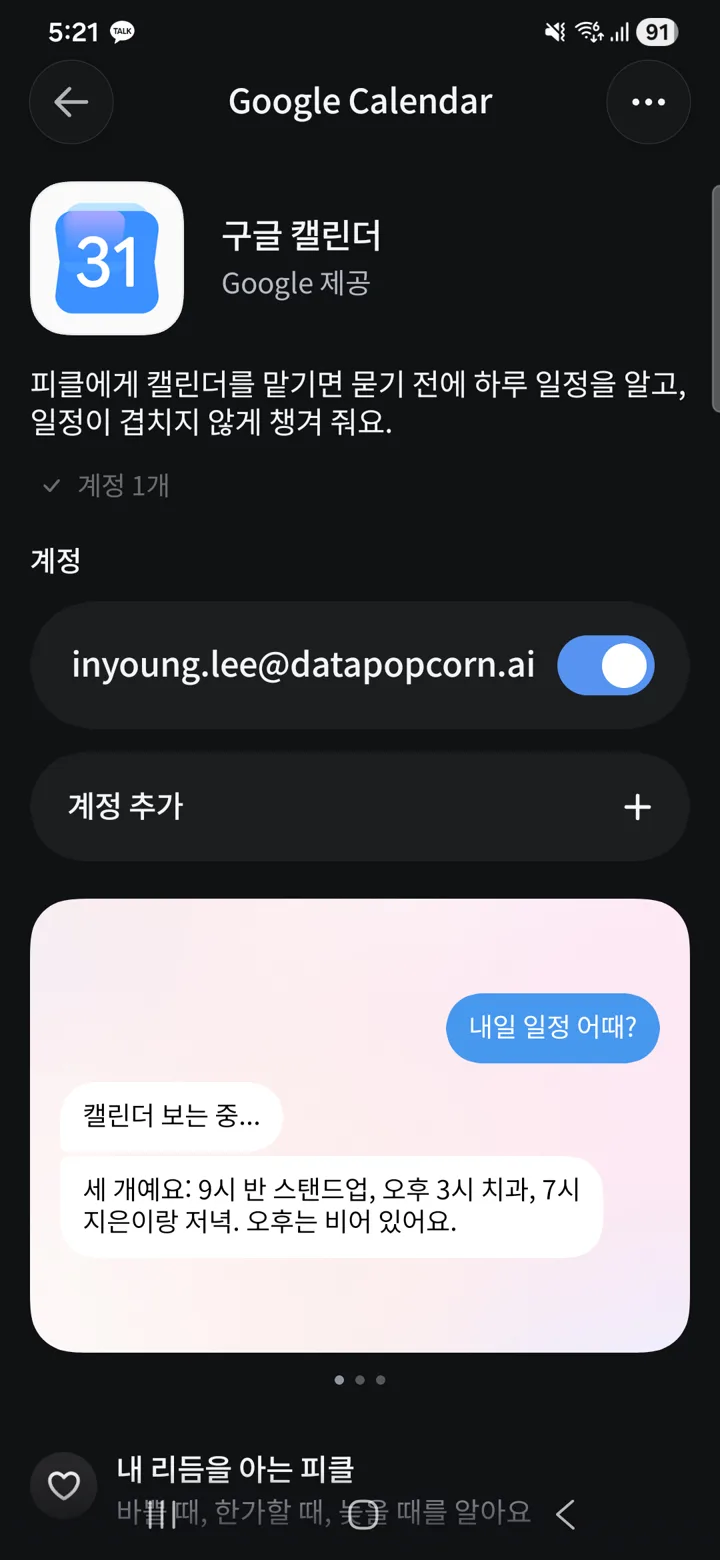
- Tap
Google Calendaron the connection card in the chat, or go toMy Pickle → Apps and services connected to Pickle → +. - After you sign in to Google and grant permissions, the switch next to the account turns on.
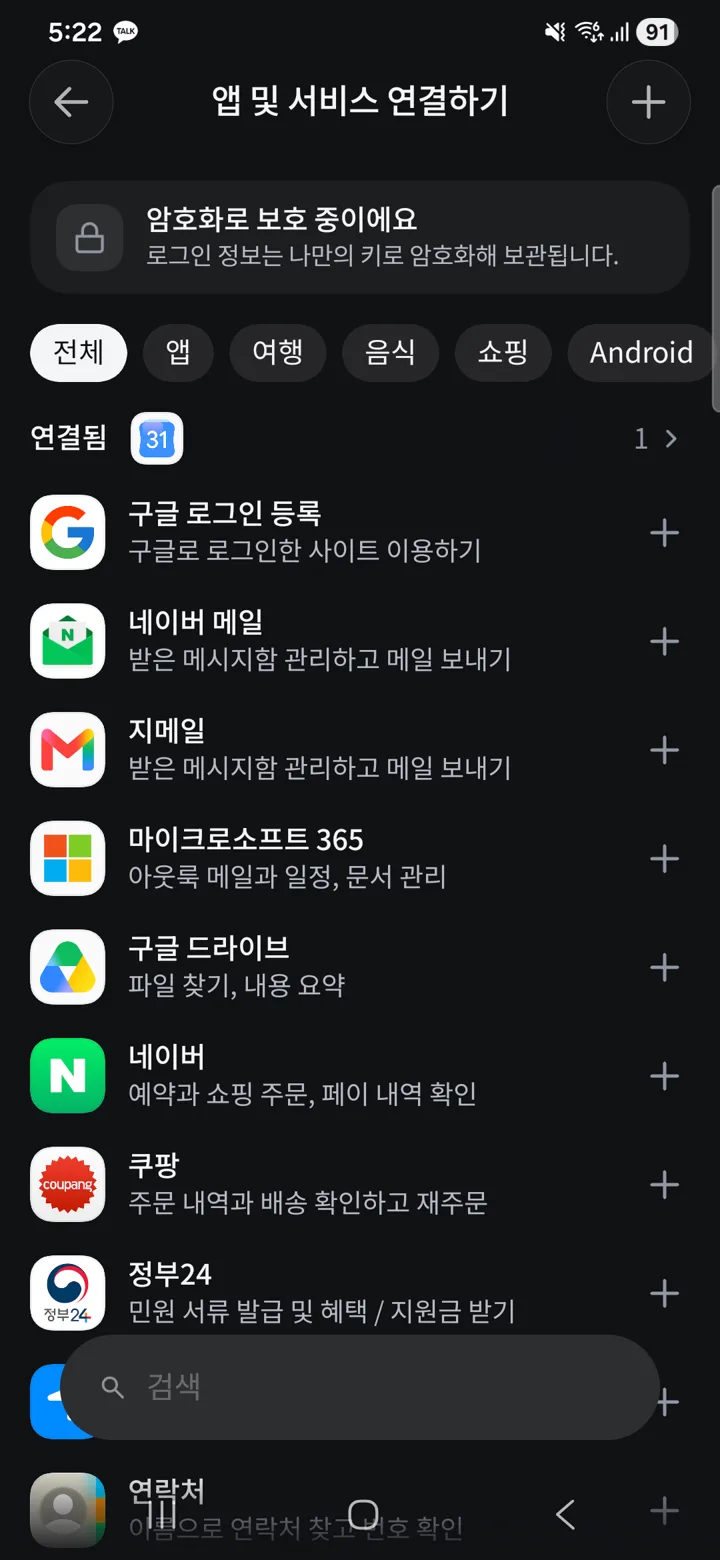
The connection list includes Google sign-in, Naver Mail (from Naver, Korea's largest search portal), Gmail, Microsoft 365, Google Drive, Naver, Coupang, Gov24, Location and Contacts, and the Android tab separately lists your phone's location, contacts, calendar and photos. Having Naver, Coupang and Gov24 on the default list is what sets it apart most from agents built outside Korea.
A few seconds after connecting, Pickle messaged me first. It pointed out two events tonight and said it had "set up reminders so you don't miss" two deadlines next month. I'll check where those reminders were set up in Step 8.
Step 4. Check the usage limit in the My Pickle tab
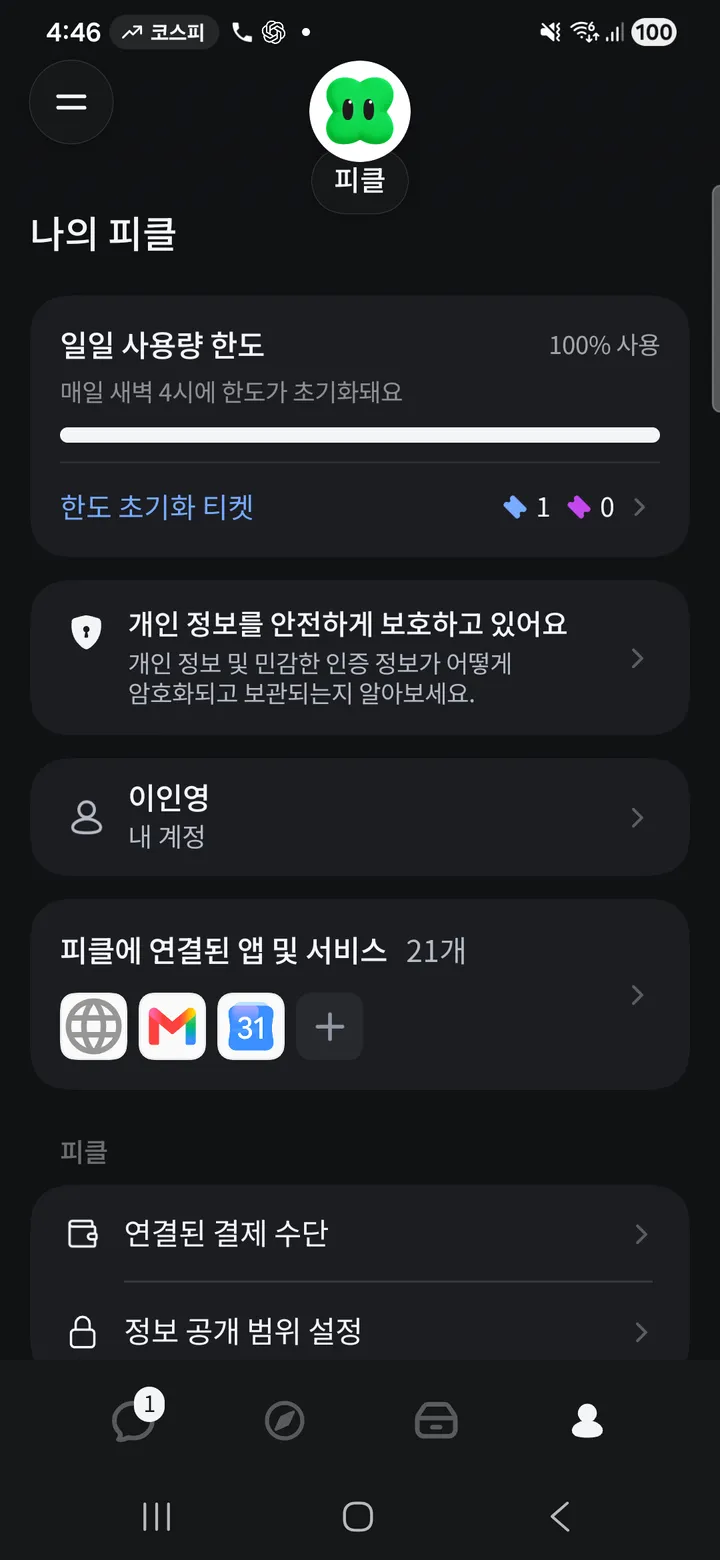
The person icon at the bottom is the My Pickle tab. The top card is the daily usage limit, which goes back to 0% at 4 a.m. every day. When you use it all, the input box turns off; if you don't want to wait, you use a limit reset ticket. I had 1 full reset ticket as a sign-up gift, and every time you invite a friend, you both get 1.
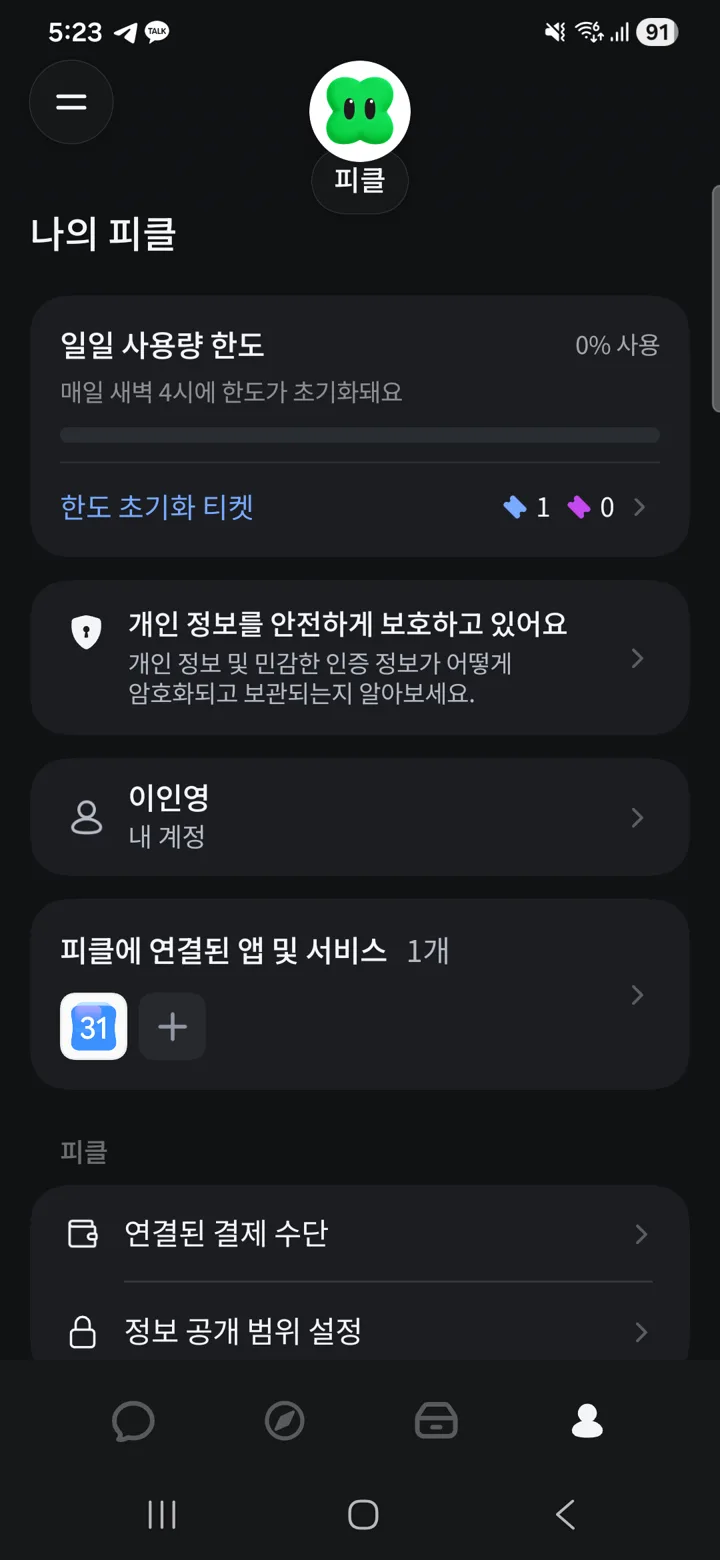
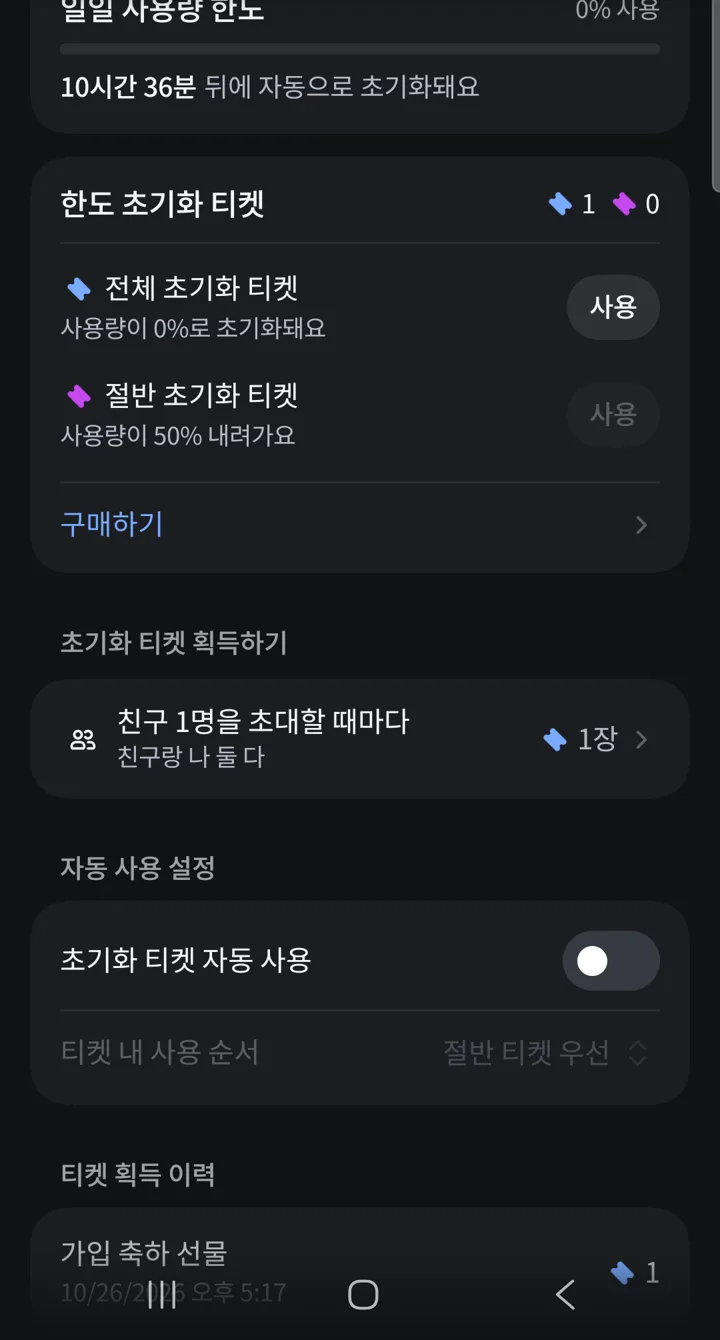
Auto-use for reset tickets is off by default. Tickets are scarce, so it's better to leave it off.
Step 5. Set your disclosure settings first
Because Pickle can talk to your friends' Pickles, there's a separate screen for deciding how much your Pickle can say about you. Go to My Pickle → Disclosure settings.
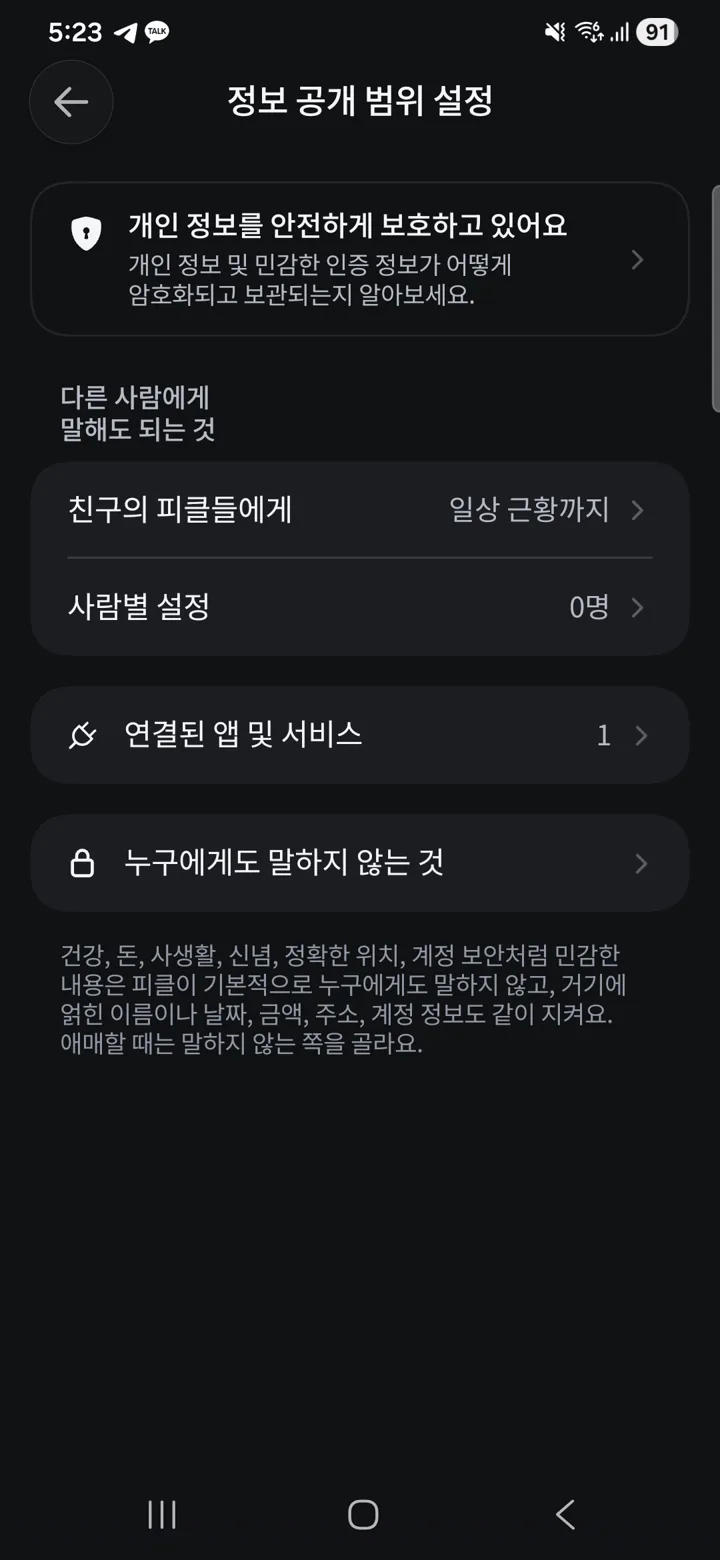
The default is "To friends' Pickles: up to everyday updates." Under Connected apps and services you can decide per app whether it's okay to share with other people, and Things never shared with anyone says that sensitive things like health, money, private life, beliefs, exact location and account security are never shared with anyone by default. If you don't have friends on it yet, leave it as is and revisit Per-person settings when you add a friend.
Step 6. For the first task, have it summarize this week's schedule
I sent this in the default chat input box.
Give me an at-a-glance summary of my schedule this week. Also tell me about any days with overlaps or that are packed.
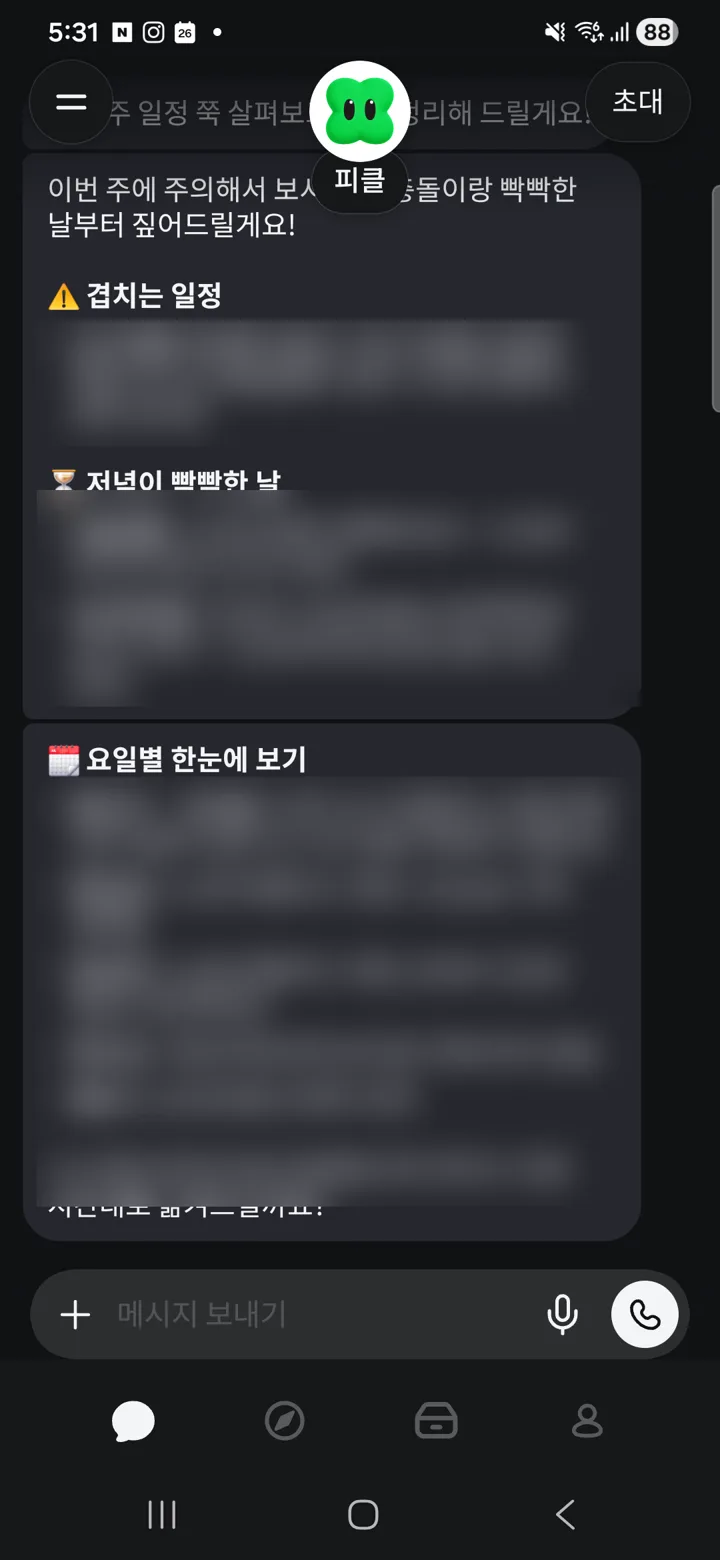
The answer came in under a minute. It split things into three groups, "overlapping events," "days with packed evenings" and "day-by-day overview," found that a Sunday night lecture and a daily routine event overlapped at exactly the same time, and asked, "Want me to move it?" When I checked against my calendar, every date and time was right.
When I tried OpenAI Dots, a similar schedule briefing took about 4 minutes. Dots pulled in email and Notion and attached what I'd need to prepare; Pickle only had the calendar connected, so it only summarized the schedule. With different connections, speed alone isn't a fair comparison.
Step 7. For the second task, have it research the public web, then verify
I gave it the same research I used in my Muse guide. I included conditions not to use my personal accounts and not to make any bookings or inquiries.
Don't use my personal accounts like email or calendar; research using only public web information. Find 3 rental spaces in Seoul where I could hold a hands-on AI workshop for about 20 people, and compare location, capacity, published price and source link in a table. Don't book or contact anyone, and if the price isn't published, write "not published."
While it works, "Searching the web," "Reading page" and "Thinking" take turns under Pickle's avatar. About 2 minutes 15 seconds later, a table arrived. You have to swipe the table sideways to see the price and source columns.
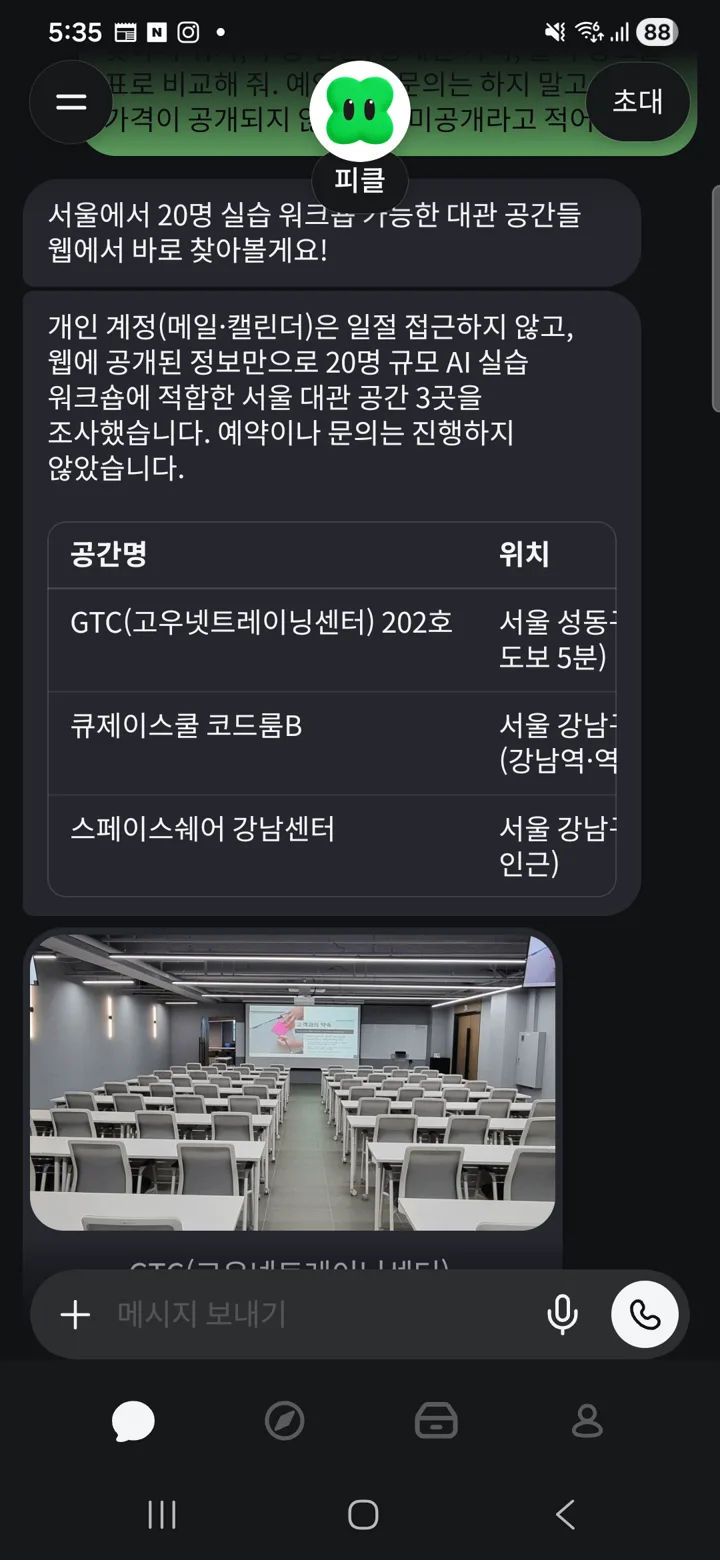
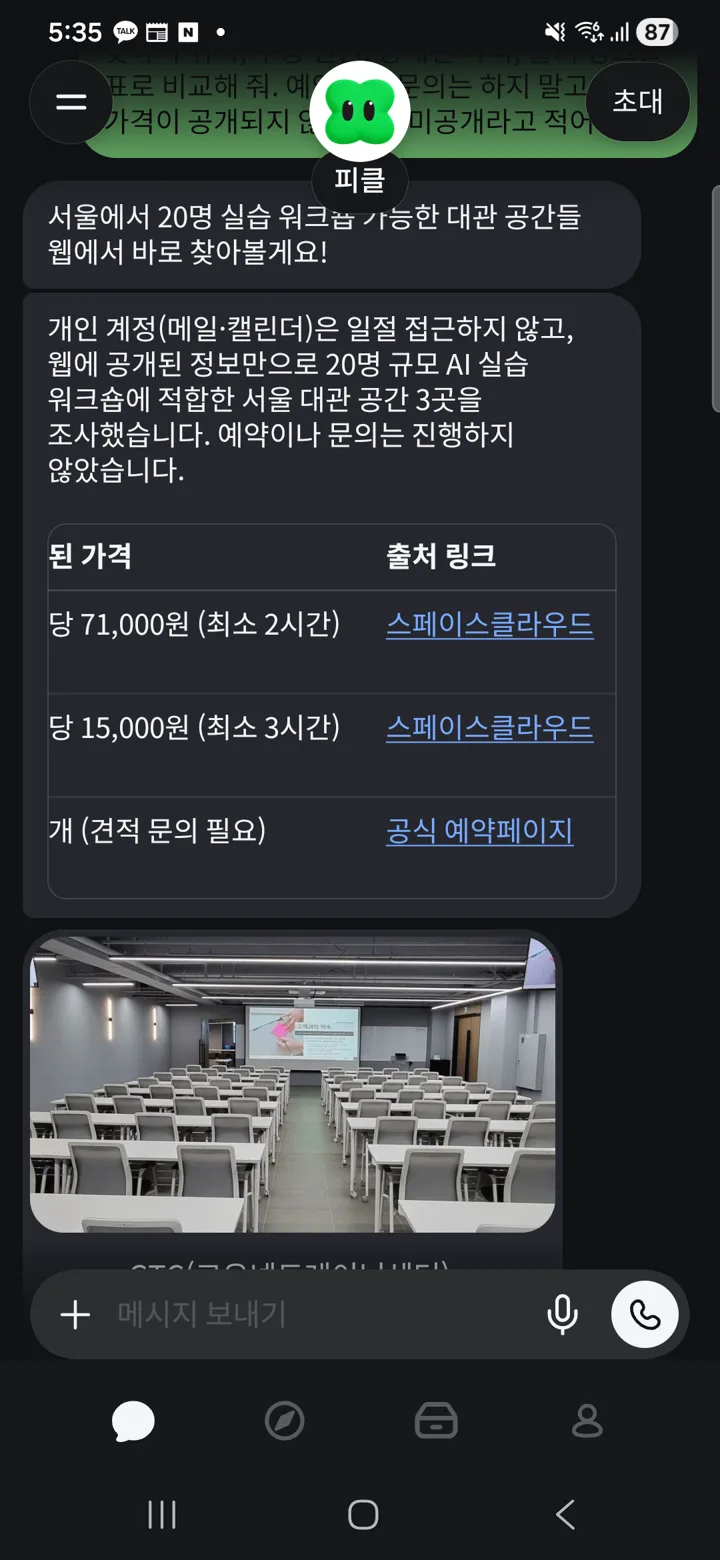
Below the table were notes on each space's setup for hands-on work, and a SpaceCloud (a Korean venue rental platform) link card for the first space.
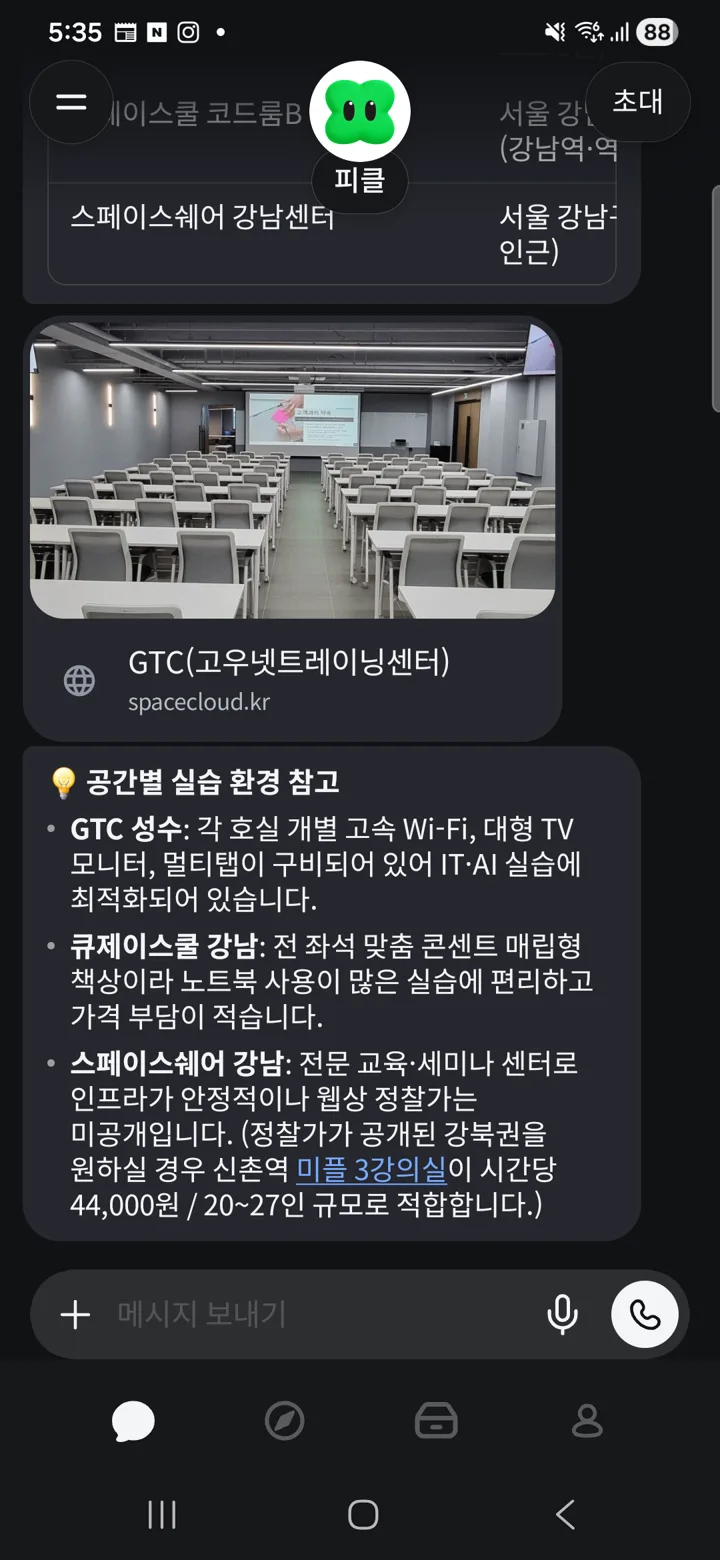
I opened each source and checked.
| What Pickle wrote | What the source actually says |
|---|---|
| GTC (Gounet Training Center) Room 202, Seongsu, up to 20 people, KRW 71,000 per hour (2-hour minimum) | Address, capacity, price and minimum hours all match the SpaceCloud listing |
| QJ School Code Room B, 9 Teheran-ro 10-gil, Gangnam-gu, up to 20 people, KRW 15,000 per hour | Address, 20-person room and KRW 15,000 per hour confirmed on the SpaceCloud listing. Couldn't confirm the "3-hour minimum" |
| SpaceShare Gangnam Center, 382 Gangnam-daero, Gangnam-gu, 20 to 30 people, price not published | Wrong. The address on the official location page is 499 Gangnam-daero, Seocho-gu, and the official rental rate table publishes a 24-person conference room at KRW 400,000 for the morning and KRW 600,000 for the full day (VAT excluded) |
2 of the 3 were right, and 1 had both the address and the published-price status wrong. The "not published" in particular looks plausible because it reuses the exact wording from my prompt. When you get a table, click each source link at least once. It did follow my conditions: the first line of Pickle's answer said, "I didn't access any personal accounts and didn't make any bookings or inquiries."
Step 8. Check the tasks Pickle scheduled on its own
Pickle saying it had "set up reminders" in Step 3 bothered me, so I asked.
Earlier you said you set up reminders for November 6 and 16. Where did you set them up? Did you create new events in my Google Calendar?
The answer: "I didn't add or touch anything in your Google Calendar; I set them up as scheduled reminders inside Pickle." It also explained that it had moved the dates up so it would message me in chat two to four days ahead rather than on the deadline itself.
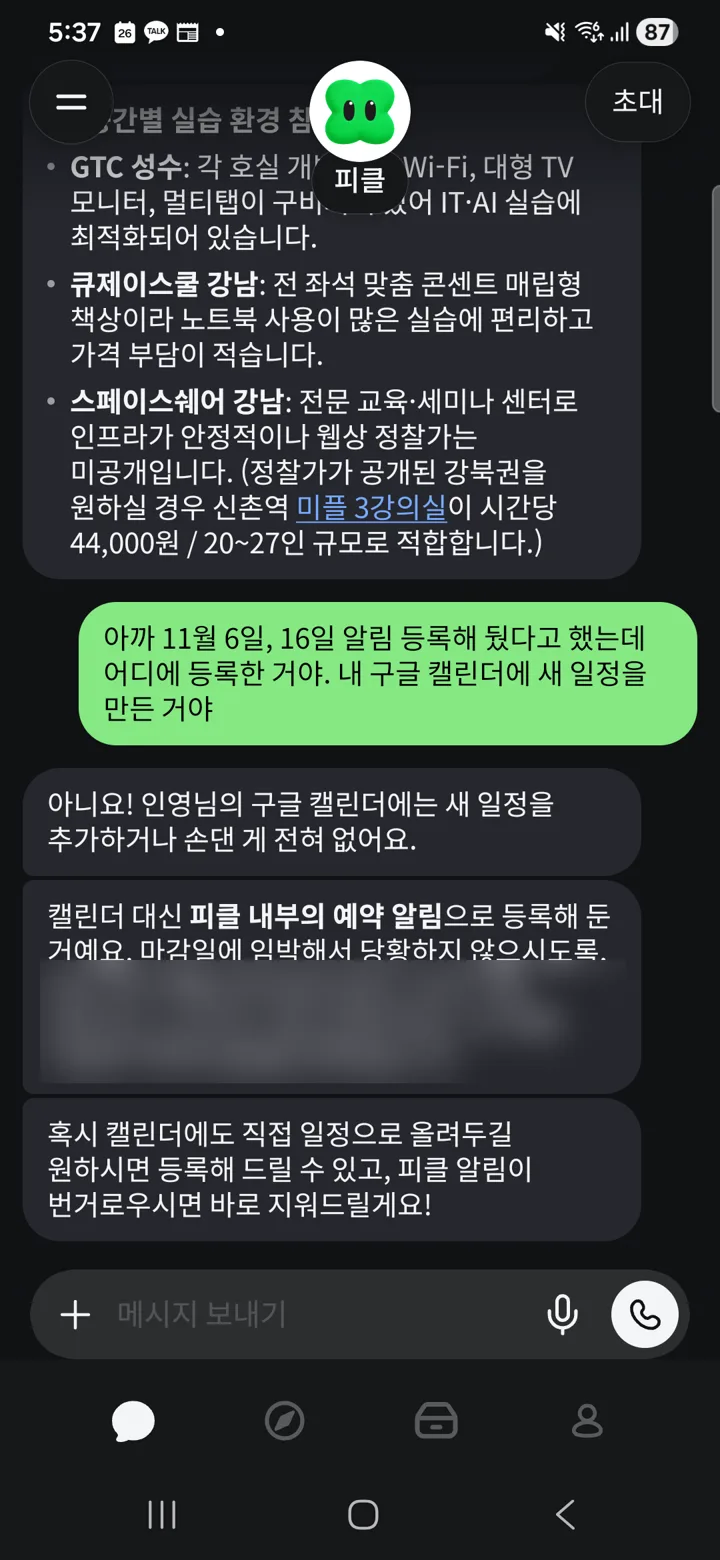
To check for yourself, tap Pickle's avatar at the top of the chat screen, then the clock icon in the middle. Under "Tasks scheduled in advance," there were two one-time tasks and a recurring task, "Morning briefing (every day at 7:08 a.m.)." I didn't create the morning briefing; it's on by default. You can turn each one off with its switch, and create your own scheduled tasks with + at the top right.
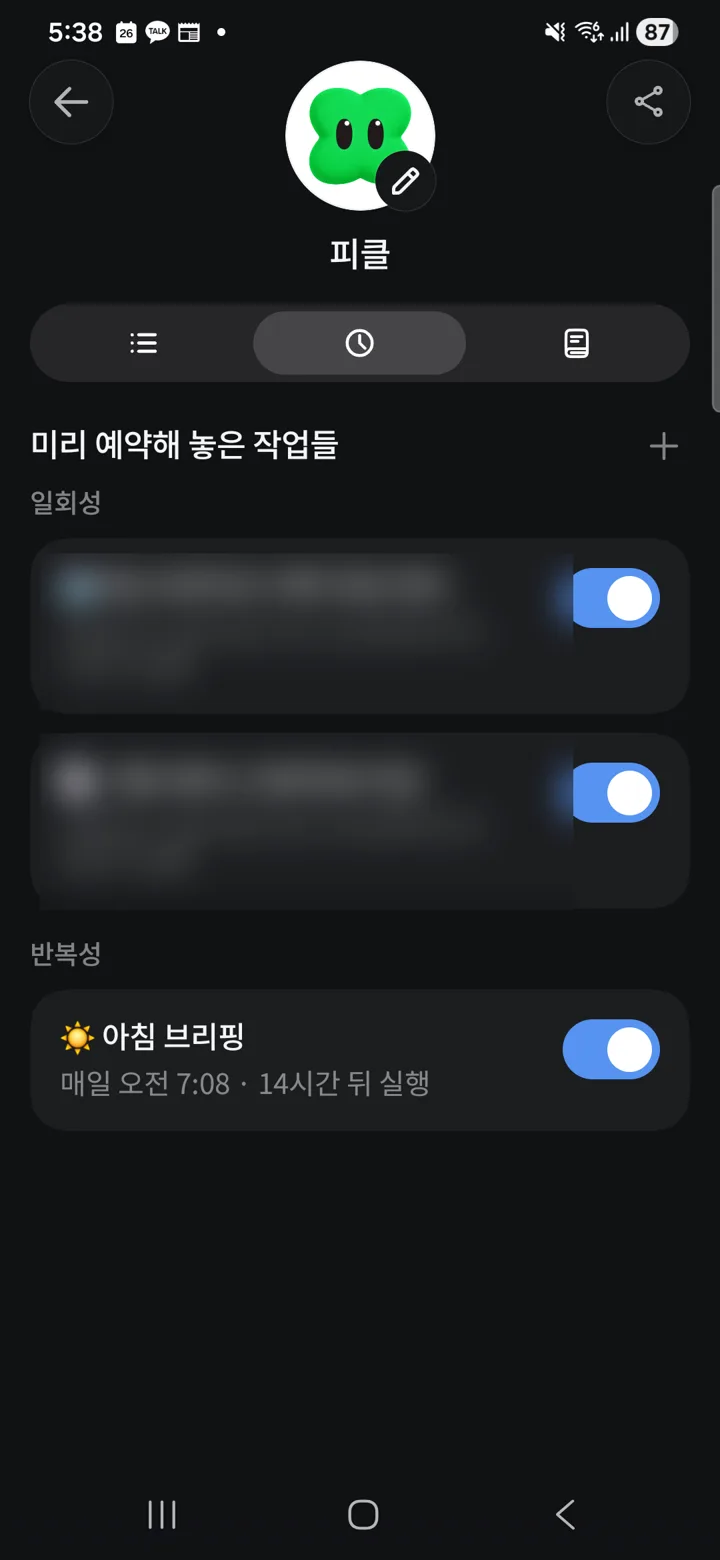
When an agent says "I've set that up," make a habit of asking where. Pickle didn't touch my calendar this time, but with a connection that has calendar write access, the answer could be different.
Step 9. Check usage again after handing off tasks
After three tasks (the schedule summary, the web research and one question), usage in My Pickle was 1%. According to the help pages, routine things Pickle does on its own, like the morning routine, don't count against the limit, and calls Pickle places for you have a separate daily cap.
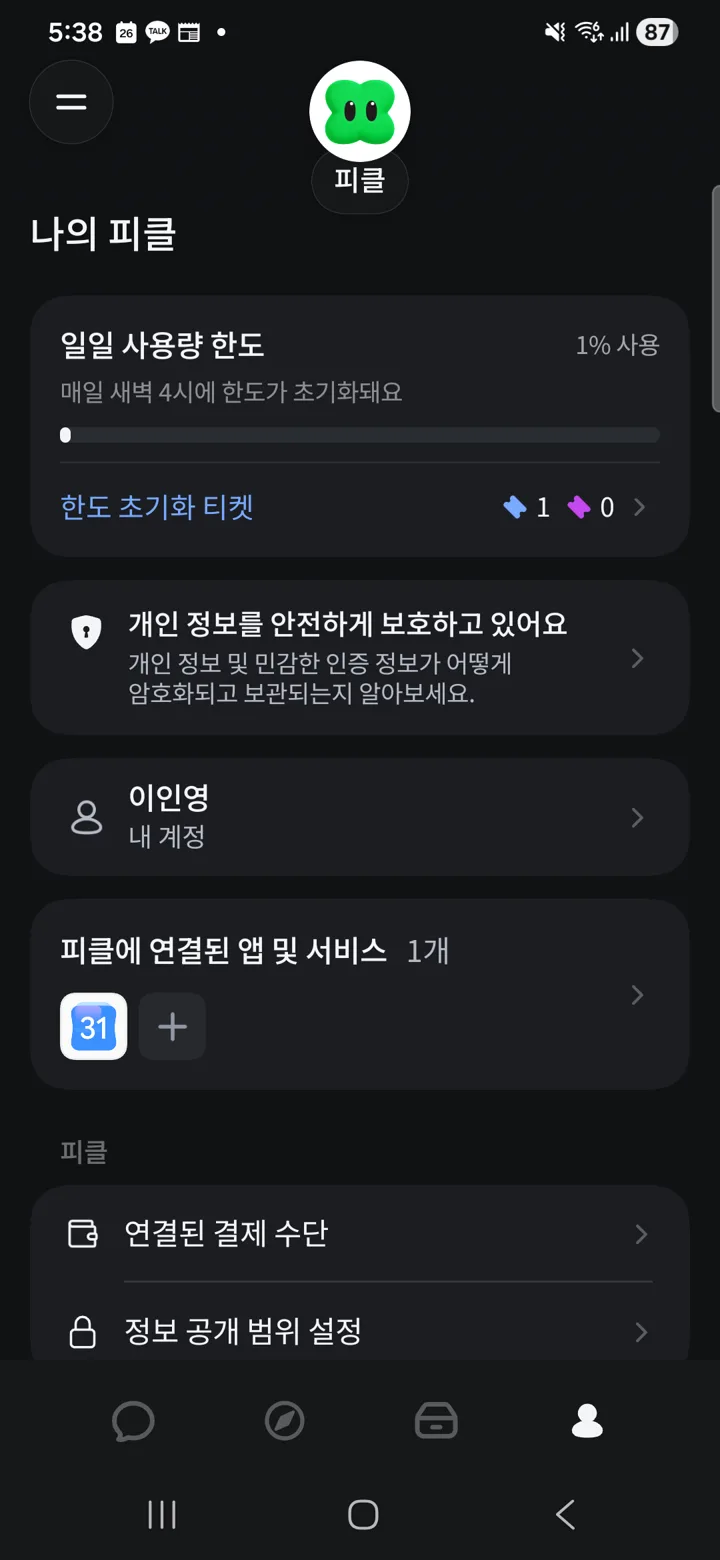
Before you hand off tasks that need logins and payments
On day one I didn't connect services that need a login, like Coupang or Naver; connecting them myself the next day is covered in Steps 10 to 12. Tap Coupang in the connection list and you get an intro saying "log in once and a single 'I'm out of toilet paper' takes care of everything from a Rocket Delivery (Coupang's fast-shipping service) order to delivery tracking," along with a reorder example.
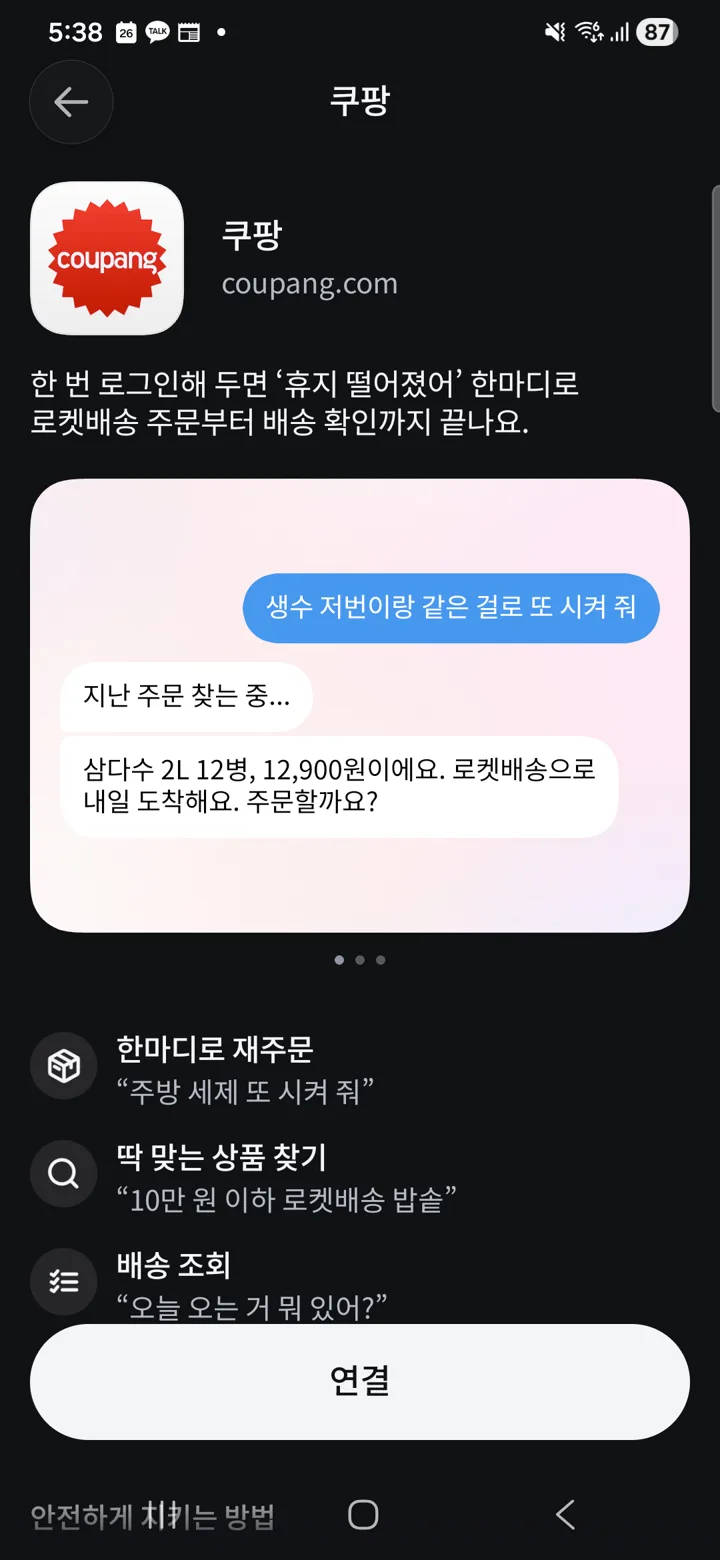
Before handing anything off, check three things in the official help pages.
- Passwords don't go in the chat; you enter them in the login card Pickle sends. The help page says the input is encrypted with a key created on your phone and stored in a vault, and isn't passed to Pickle (the AI). Pickle can read your username.
- For payments, it says it will first show the item and amount on a card and ask for approval with a button, and if the amount goes up right before payment, show the increase and ask again.
- Cards and connected accounts can only be used during the access period (1 day up to 30 days), and if you don't open Pickle during that period, access turns off on its own. That screen has no button to turn it off right now, so to stop it from being used, you have to delete the card or disconnect.
If you're not sure what to hand off, check the Explore tab. Tasks that lots of other users have handed off, like "Cancel subscriptions I don't use," "Call 080 numbers to opt out of ad texts for me" (080 is the toll-free opt-out line on Korean marketing texts) and "Screen my calls first," are listed along with how many people have handed them off.
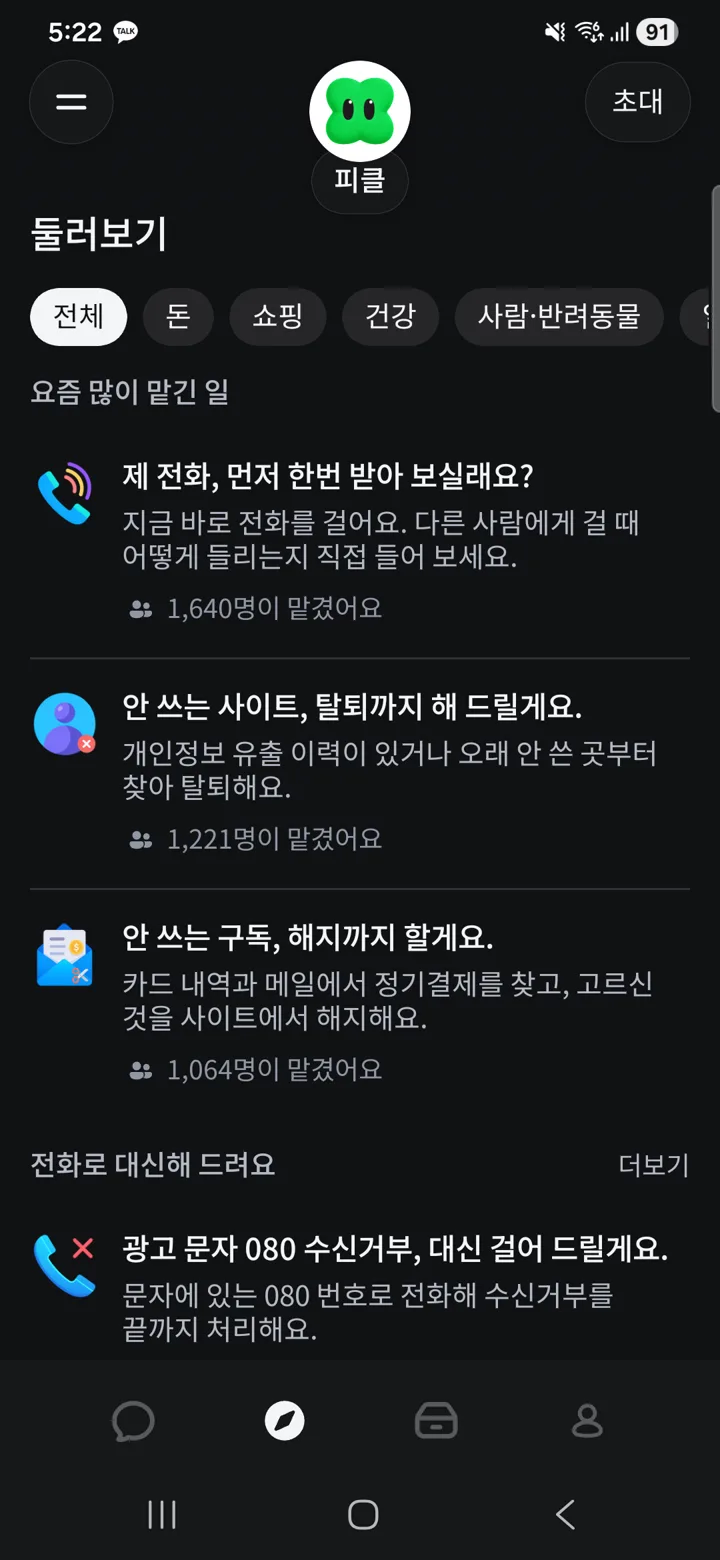
Step 10. Connect services that need a login one at a time with a login card
The next day (October 27), I connected SRT (a Korean high-speed rail operator), Korail (Korea's national railway), Coupang, Yanolja (a Korean travel and accommodation booking app), Megabox (a Korean cinema chain), Aladin (a Korean online bookstore), Daiso Mall, Gov24, GitHub, Notion, Slack and X, one by one. The method is the same for each service.
- Send the service and your username in the chat.
I want to connect SRT. My username is ○○○○. Send me a login card.
- Pickle shows a secure login card with your username pre-filled. Tap the password field and your phone's password manager autofill pops up (I used 1Password, approved with my fingerprint). Don't type the password in the chat.
- Tap
Log inand Pickle logs in, then reads your account status right away. For Korail it told me I had no mileage and no waitlisted tickets; for Megabox, 2,110 points and 2 discount coupons; for Aladin, KRW 1,400 in mileage and 1 order from April.
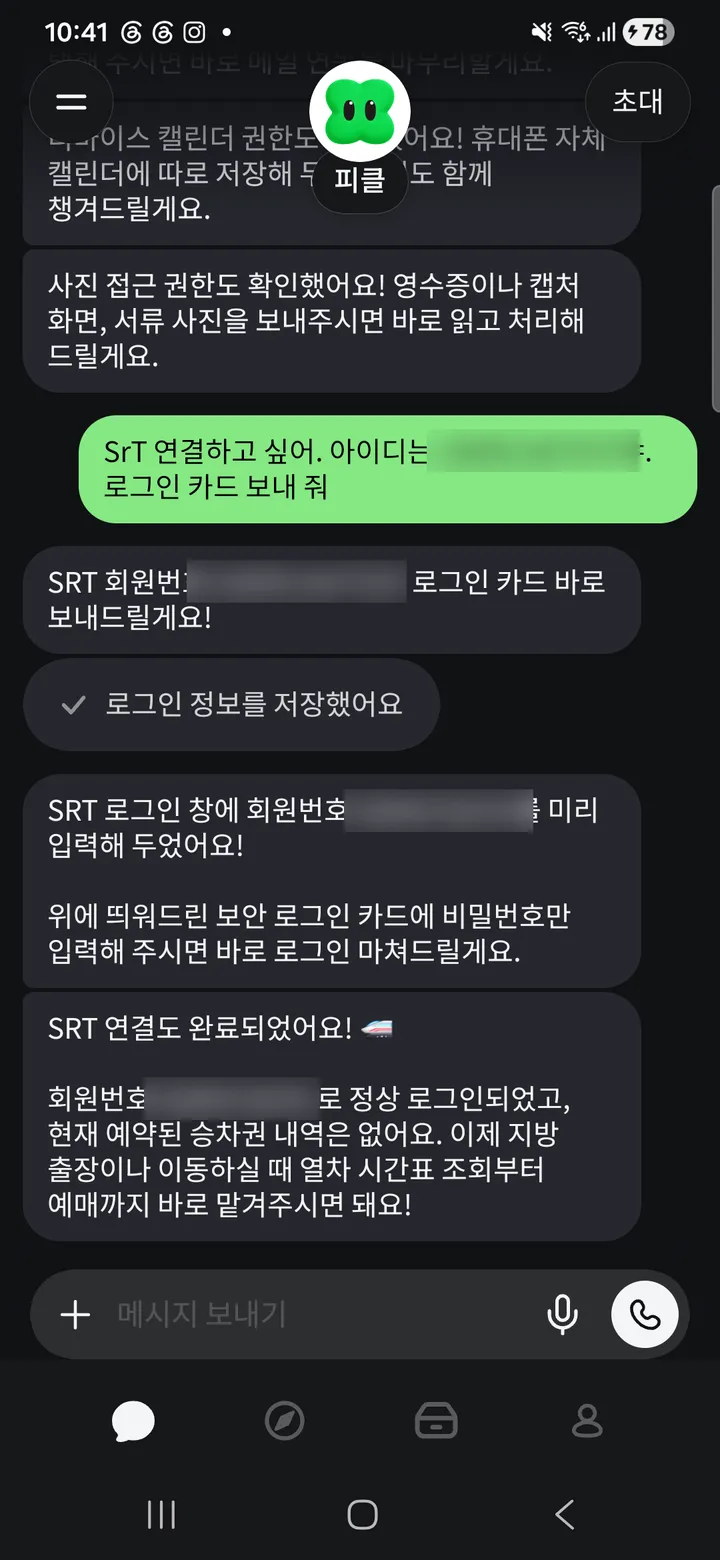
If you can't remember your username, just ask. For Coupang, Pickle searched my connected Gmail and showed a list of usernames that looked like ones I'd signed up with; I picked one and the card arrived. Glance at the username field on the card before logging in: once, leftover text from the chat input box got mixed in.
Step 11. If you get stuck on verification, ask Pickle to switch methods
What took longer than logging in was two-factor verification. Here's exactly where I got stuck and how I got through.
| Where I got stuck | How I solved it |
|---|---|
| Coupang SMS verification code | It expired in about 2 minutes and I missed it twice. Requesting a new one sends a new text, so enter the code from the most recent one |
| Daiso Mall's code went to an email inbox I don't check | When I sent "Switch the Daiso Mall verification to phone text verification," Pickle requested it again via text |
| Couldn't find my X account by phone number | Pickle found the X account in my connected Gmail, read the emailed verification code itself and finished logging in. It also got through Uber's first email verification on its own the same way |
| Gov24 anti-bot text (CAPTCHA) | Tap Open browser on Pickle's screen to see the remote browser Pickle uses in real time. Type the CAPTCHA there yourself and tap I'm done |
| Naver Mail two-step approval | The approval request in the Naver app expired while it was handling other services. Keep the Naver app open and request again |
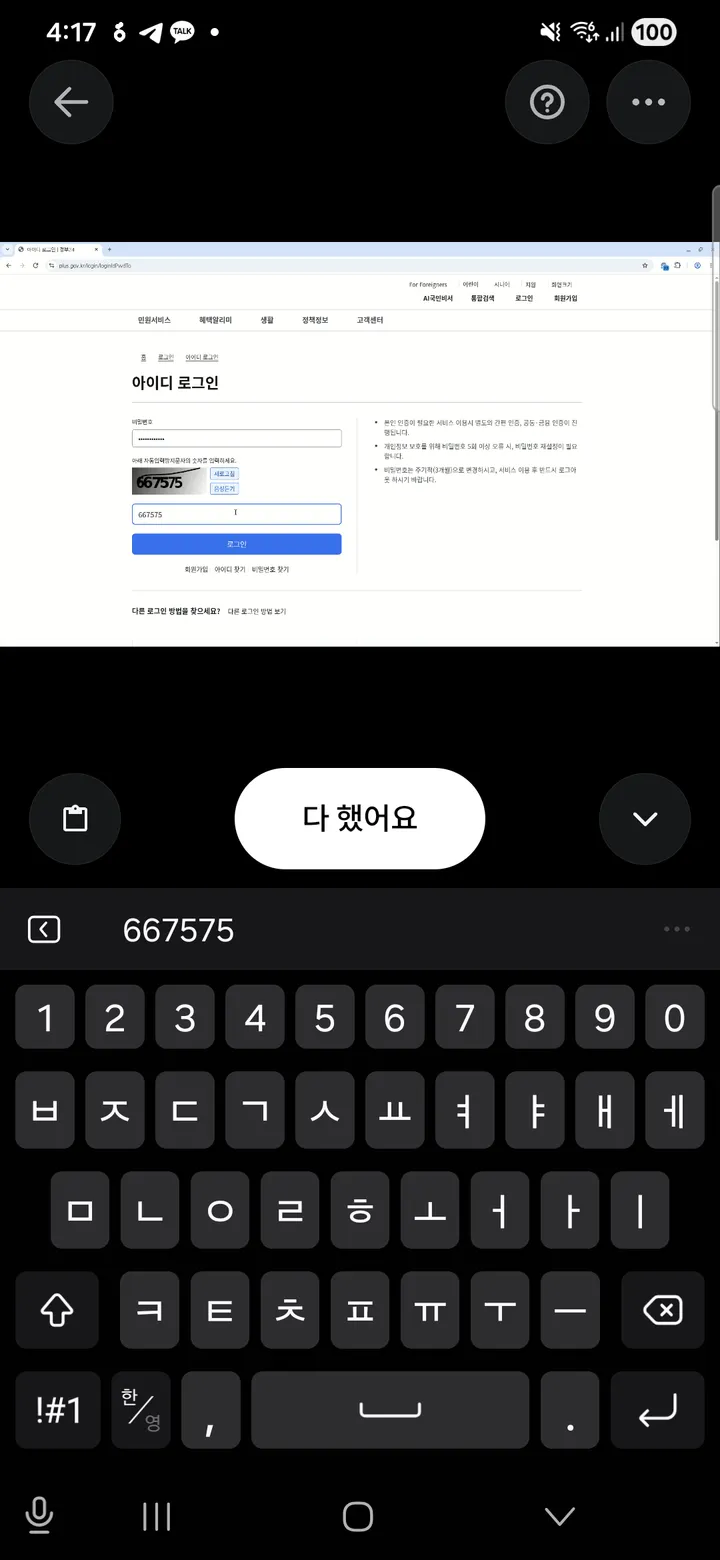
Pickle handling email verification codes on its own once your email is connected is convenient, but it's also a big deal. Connecting your email effectively means handing over the keys to log in to other services too. Gov24 showed a screen asking me to change my password, and I decided to make account decisions like that myself rather than leave them to Pickle. For Uber, the second-step SMS code never arrived on my phone, so I couldn't finish connecting.
Don't trust the check marks in the list. Lotte Cinema (a Korean cinema chain) failed to log in because the password was wrong, yet it had a check mark in the Connected list. Slack hit the free-plan workspace's app install limit (10) and showed "You can't add any more apps," but the list still said connected, and later Slack read showed up in the access log. The more reliable way to confirm a connection is to have Pickle read something from that service.
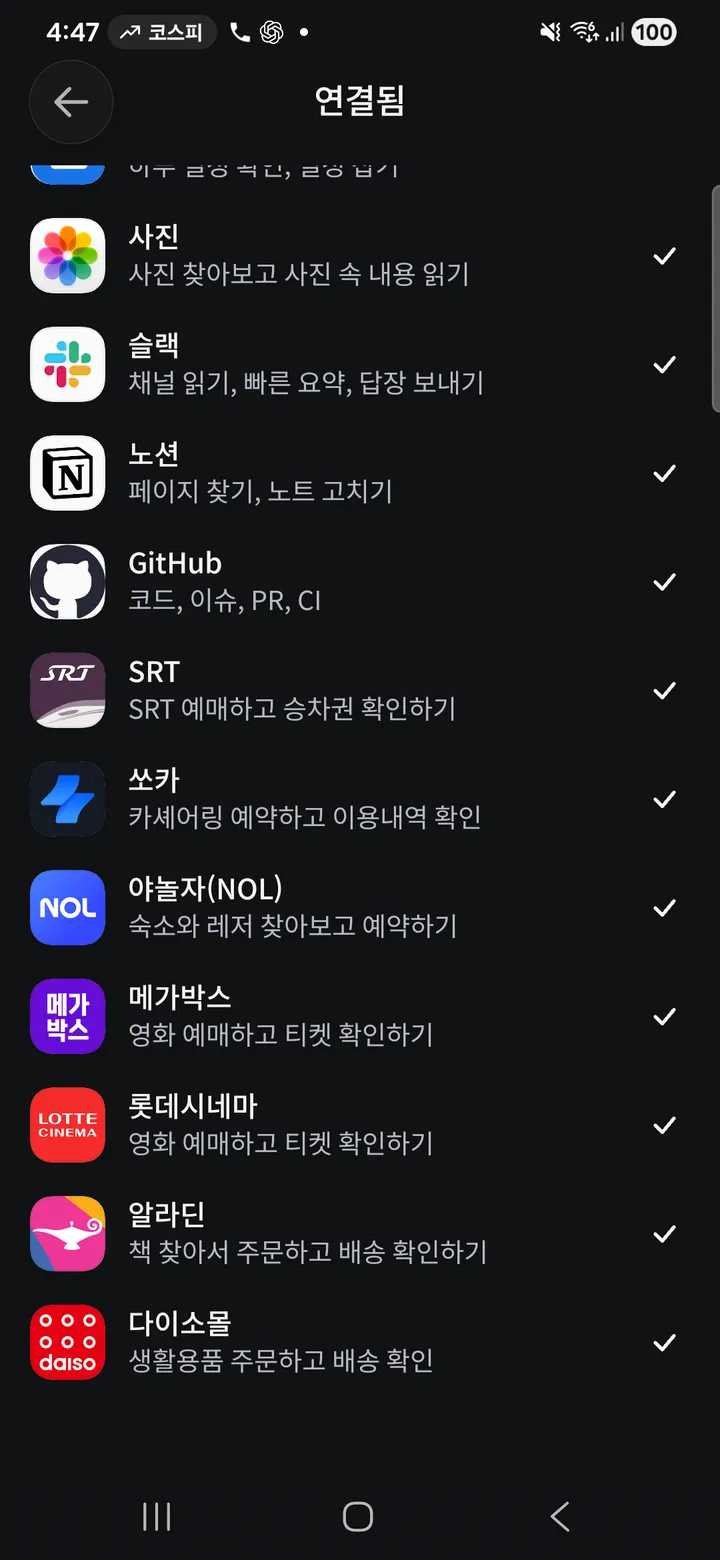
Step 12. Check what Pickle did on its own after connecting, and your usage
Once I finished connecting, Pickle started with things I hadn't asked for.
- GitHub: Right after connecting, it analyzed all my repositories and asked, "One repository's GitHub Pages build is in an error state, so its public page may be stuck. Want me to look into the cause and rerun the build?" I haven't checked yet whether that's right, and I didn't hand off the build. When you connect, the first option in repository selection is "All repositories," and it includes write access to code, issues, PRs and Actions, so it's safer to pick only the repositories you need.
- Slack and Notion: It skimmed both in the background, picked out "three things you need to deal with now" (replying to a colleague about documents, a disk warning on a remote server, and replying to an outside lecture offer), and offered, "Want me to handle these for you right now?" That answer included a colleague's personal email address verbatim. Keep in mind that if you connect a work Slack, other people's information goes into Pickle's memory too.
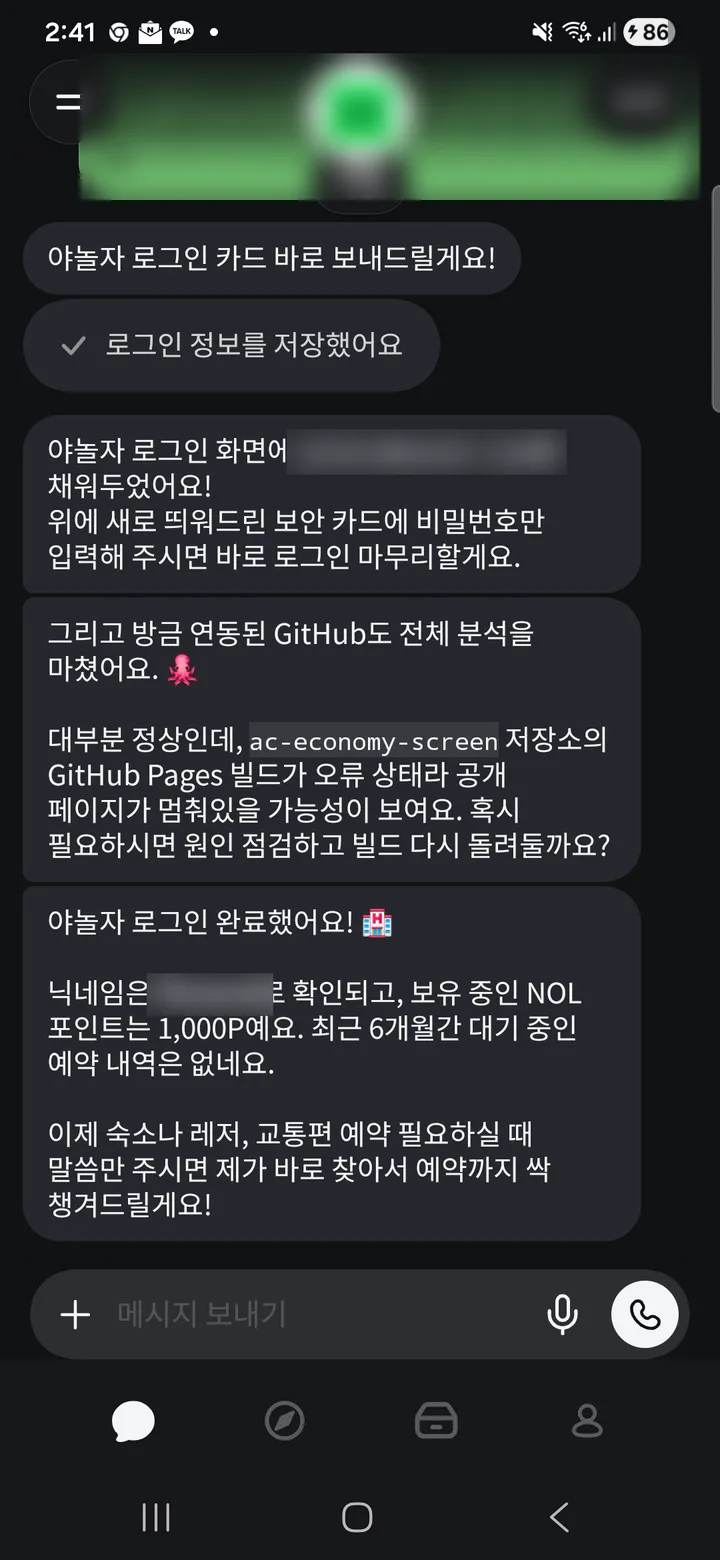
Three tasks in Step 9 used 1%, but connecting 21 apps and services used up 100% of the daily limit. Login cards, verification and post-connection analysis all count against the limit. Don't do all your connections in one day; spread them out, starting with the services you use most.
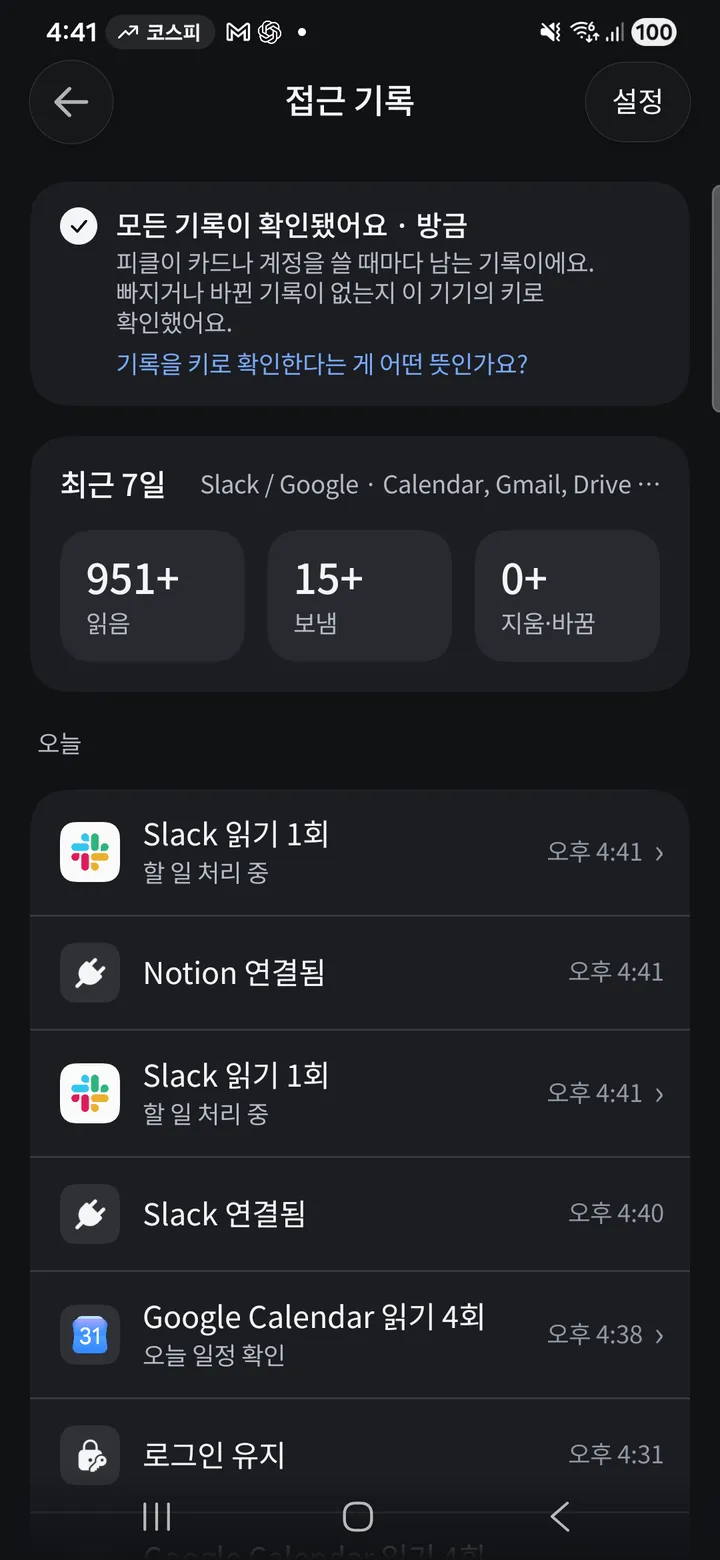
Finally, look at the access log screen. It records in time order which services Pickle read or connected and when, and the last-7-days totals showed 951+ reads, 15+ sends and 0 deletes or changes. Check from time to time that deletes/changes is 0 and that there's nothing in sends you don't know about.
How it compares with Grok Bot, Muse and Dots
All four products bill themselves as "an always-on agent that works for you on its own computer (browser)." Where they differ is where you can use them, how much they cost and which services they can reach. The Pickle column is based on my own use and the official help pages; the rest are based on official docs and my earlier write-ups as of October 26, 2026.
| Pickle | Grok Bot | Meta Muse | OpenAI Dots | |
|---|---|---|---|---|
| Made by | Pickle, Inc. (YC W25) | xAI (Cursor infrastructure) | Meta | OpenAI |
| Where you use it | iOS and Android apps | Desktop and mobile apps, @bot on X | Web (muse.ai), iOS, Android, WhatsApp | ChatGPT web, desktop and mobile, Slack, Teams |
| Runs on | Pickle's own cloud browser | One cloud computer per account, shared by bots on the same account | Isolated VM per user | A cloud computer and browser per Dot |
| Makes calls for you | Yes (calls from Pickle's number, daily cap) | Announced October 25, support conditions unconfirmed | For US businesses | Only you calling your Dot |
| Korean services | Naver, Coupang, Gov24 and others on the connection list | No official list (reached via browser) | No official list | No official list |
| Passwords and payments | Vault encrypted on your phone, card approval before payment | You enter sensitive input yourself, 1Password integration | Secure storage, Stripe Link single-use cards, confirmation for each payment | Private input form or direct control, per-action approval rules |
| Price | Free in Korea, daily limit | Included with X Premium ($30/month) or higher, weekly usage | Free (limits not published), $20/month, $100/month | Included in Pro (from $100/month) and Business Premium |
| In Korea | Use it right away | Country list unconfirmed | Not officially supported (I needed a US VPN) | Available (confirmed with a Korean account) |
| Proactive features | Morning briefing on by default, scheduled reminders | Routines and event triggers | Goal- and feed-based suggestions | Recurring schedules, event watching |
To boil the table down to one line: Dots and Grok Bot lead on raw capability and breadth of connections, while Pickle has the edge on Korean everyday services, phone calls and price. For Muse, not being officially available in Korea is still the biggest barrier.
My take after using it
Three things I liked. First, it took under 10 minutes from install to first result and cost nothing. Compare that to agents from outside Korea, where I first had to get past a VPN or a plan costing over KRW 100,000 a month. Second, it's proactive: as soon as I connected the calendar, it found a schedule conflict and set up deadline reminders on its own. Third, Naver, Coupang and Gov24 are on the default connection list, and it even makes phone calls for you. The everyday chores people in Korea put off really do pile up in places like these.
The downsides are clear too. 1 of the 3 web research results was wrong, and the wrong part used a plausible phrase like "not published," which is easy to miss if you don't verify. Also, with something like "I've set up reminders," it wasn't clear at first what it did and where. Before handing off anything involving payments or logins, I recommend starting with small tasks and checking the results.
If you get stuck
| Symptom | Where to check |
|---|---|
| It can't read my schedule | In My Pickle → Apps and services connected to Pickle, check that the calendar account switch is on. The phone's built-in calendar has to be connected separately under Calendar in the Android tab |
| The input box turned off | You've hit the daily usage limit. Wait until 4 a.m. or use a reset ticket |
| I'm getting reminders I don't want | Pickle's avatar → clock icon, then turn off that scheduled task's switch |
| The research results look off | Open the source links to check, point out what's wrong and ask again |
| Verification codes go somewhere I don't check | Ask Pickle to switch the verification method, e.g. "Switch to text verification" |
| I got a CAPTCHA | Use Open browser on Pickle's screen to open the remote browser and type it yourself |
| It says connected, but I'm not sure it really worked | Have it read your points or one recent item from that service to confirm |
What I haven't checked yet
- The actual call quality and result summaries of calls Pickle makes for you (I didn't place any this time)
- The actual ordering and payment flow (I only went as far as connecting logins; I didn't hand off orders or payments)
- What each of the "15+ sends" in the access log was (I haven't opened them yet)
- Whether the GitHub build error it flagged is real
- Friends' Pickles setting up plans with each other
- The order of the sign-up screens (I started with an account that was already signed up)
- Which AI model Pickle uses (I couldn't find it in the official help pages)
Sources
- Pickle help: What is Pickle, Handing tasks to Pickle, Confirmation before payment, Connecting apps and services, Saving site logins, Usage limits, Checking your plan, Access period
- Pickle, Y Combinator company page
- Pickle on Google Play
- Grok Bot: xAI's Grok Bot introduction, Grok Bot overview, Plans and usage, Phone feature announcement
- Muse: Meta Muse announcement, Muse security, Muse subscription help
- Dots: Introducing Dots, Dots developer docs, Getting started with your Dot