Make Video Subtitles (SRT) on Your Mac with Zero API Cost: A 6-Step faster-whisper Guide
With a few commands in the Mac Terminal, you can turn a video file into an SRT subtitle file entirely on your own computer, without uploading it to any outside server. No API key, no payment. I ran every command in this post on an Apple Silicon Mac in October 2026 and checked the results.
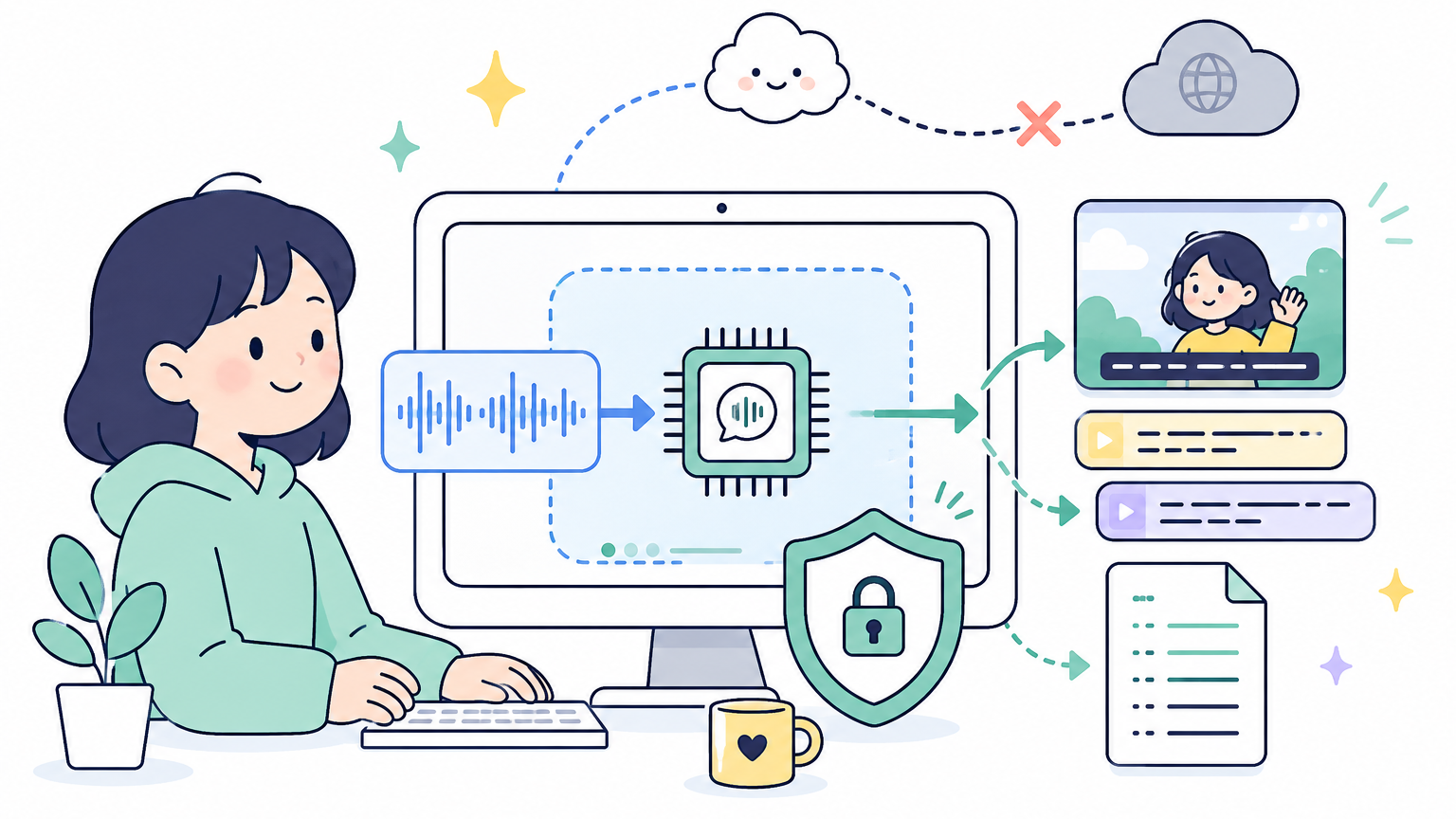
Who this is for
- You make subtitles often and API costs or paid captioning services are adding up
- You want subtitles for videos you'd rather not upload to an outside service, like lecture or meeting recordings
- You can copy and paste commands into a Terminal window (you don't need to know how to code)
If you'd rather just tell an AI coding tool "make subtitles for this," see Part 1: Drop a video into Codex and say "make subtitles". Part 1 uses the OpenAI API, so you pay for what you use and your audio is sent to OpenAI. This post takes the other route: your own computer does the work.
A few terms first
- Whisper: A speech recognition model released by OpenAI. Once you download the model files, you can run it on your own computer without the API.
- faster-whisper: A free program that runs Whisper faster and with less memory. This is what we'll install.
- SRT: A subtitle file format. It's a plain text file listing "this sentence, from second X to second Y," so you can load it straight into Premiere, CapCut, DaVinci Resolve or YouTube.
What you need
| Item | Requirement | Environment I tested on |
|---|---|---|
| Computer | Apple Silicon Mac (M1 or later) | M3 MacBook, 16GB RAM |
| Python | 3.10 or later | Python 3.13 |
| Storage | At least 1GB free | Model about 480MB + programs about 220MB |
| Internet | Only for the first install and model download |
You don't need to install a separate video converter like ffmpeg. faster-whisper reads the audio directly from mp4 files. I didn't test Windows or NVIDIA GPU setups, so this post doesn't cover them.
Step 1. Open Terminal and check your Python version
- Press
Command + Spaceto open Spotlight, typeTerminal, and open it. - Paste the command below and press Enter.
python3 --version
If you see Python 3.10 or later (3.11, 3.12, 3.13, etc.), move on. If the number is 3.9 or lower, or you get command not found, download the latest macOS installer from the python.org downloads page, install it, then close and reopen Terminal and check again.
Step 2. Create a working folder and a virtual environment
A virtual environment is a box that holds only the programs this project needs. It doesn't mix with other Python programs on your computer, and if you ever want to remove it, you just delete the folder.
mkdir -p ~/Desktop/local-subtitles
cd ~/Desktop/local-subtitles
python3 -m venv .venv
source .venv/bin/activate
After the last line runs, (.venv) appears at the start of your Terminal prompt. You need to see this so the next step installs into the box. Whenever you open a new Terminal window, run cd ~/Desktop/local-subtitles and source .venv/bin/activate again.
Step 3. Install faster-whisper
pip install faster-whisper "av<19"
Check that the install finished with this command.
pip show faster-whisper av
You should see two versions, like Version: 1.2.1 (faster-whisper) and Version: 18.1.0 (av).
There's a reason for adding "av<19". av is the component that pulls the audio out of a video. As of October 2026, running just pip install faster-whisper also installs the latest av 19. But faster-whisper 1.2.1 isn't compatible with av 19, and you get TypeError: open() got an unexpected keyword argument 'metadata_errors' the moment you run it. Pinning av to version 18 makes it work. This pin may become unnecessary once faster-whisper is updated.
Step 4. Create the subtitle script
The block below creates a script called make_srt.py in your working folder. It takes a video file and saves a .srt file with the same name. Copy the whole thing at once, from the first line cat > to the last line EOF, paste it into Terminal, and press Enter. You don't need to change any code.
cat > make_srt.py <<'EOF'
import argparse
from pathlib import Path

from faster_whisper import WhisperModel


def to_srt_time(seconds: float) -> str:
    ms = int(round(seconds * 1000))
    h, ms = divmod(ms, 3_600_000)
    m, ms = divmod(ms, 60_000)
    s, ms = divmod(ms, 1000)
    return f"{h:02}:{m:02}:{s:02},{ms:03}"


parser = argparse.ArgumentParser(description="Turns a video or audio file into SRT subtitles.")
parser.add_argument("file", help="Video or audio file to subtitle")
parser.add_argument("--model", default="small", help="tiny, base, small, medium, large-v3")
parser.add_argument("--device", default="cpu", help="cpu or cuda")
parser.add_argument("--compute-type", default="int8", help="int8 for cpu, float16 for cuda")
parser.add_argument("--language", default="ko")
args = parser.parse_args()

model = WhisperModel(args.model, device=args.device, compute_type=args.compute_type)
segments, info = model.transcribe(args.file, language=args.language, vad_filter=True)

out_path = Path(args.file).with_suffix(".srt")
with open(out_path, "w", encoding="utf-8") as f:
    for i, seg in enumerate(segments, start=1):
        f.write(f"{i}\n{to_srt_time(seg.start)} --> {to_srt_time(seg.end)}\n{seg.text.strip()}\n\n")
        print(f"[{to_srt_time(seg.start)}] {seg.text.strip()}")

print(f"Done: {out_path}")
EOF
To check that it was created correctly, run the command below. If you see the usage message, you're set.
python make_srt.py --help
usage: make_srt.py [-h] [--model MODEL] [--device DEVICE]
                   [--compute-type COMPUTE_TYPE] [--language LANGUAGE]
                   file

Turns a video or audio file into SRT subtitles.
Step 5. Add a video and run it
- In Finder, move the video you want to subtitle (for example,
my-video.mp4) into thelocal-subtitlesfolder on your Desktop. File names without spaces are easier to type. - Enter the command below in Terminal.
python make_srt.py my-video.mp4
The first time, it takes a few minutes to download the speech recognition model (small, about 480MB). The model is saved in ~/.cache/huggingface, and it won't download again after that.
While it runs, each recognized sentence prints on screen, one line at a time. Here's the real output from a 25-second Korean test video (the script defaults to Korean; I've translated the transcript into English).
[00:00:00,000] Hi, this is Data Popcorn.
[00:00:04,040] Today we'll look at how to make video subtitles for free on your own computer.
[00:00:11,400] The subtitle file gets created without uploading the audio to the internet.
[00:00:18,040] First, file line, create a virtual environment and install the packages.
Done: my-video.srt
With the model already downloaded, my M3 MacBook took about 21 seconds to process this 25-second video. Times vary with video length and hardware, so for long videos I recommend trying a 1 to 2 minute clip first.
Changing options
| What you want | Command |
|---|---|
| Run with defaults (Korean, small model) | python make_srt.py my-video.mp4 |
| English video | python make_srt.py my-video.mp4 --language en |
| Audio file (mp3) instead of video | python make_srt.py my-audio.mp3 |
To change the model size, add the name after --model (for example, --model medium). Models get bigger in this order: tiny, base, small, medium, large-v3. Bigger models are more likely to be accurate, but the download and processing time grow too. The only model I actually ran for this post is small, so I suggest going all the way through with small first and only moving up if the results fall short.
Step 6. Open the SRT file and fix mistakes
A my-video.srt file with the same name as your video appears in the folder. Open it in a text editor and it looks like this (transcript translated from Korean).
1
00:00:00,000 --> 00:00:04,040
Hi, this is Data Popcorn.

2
00:00:04,040 --> 00:00:11,400
Today we'll look at how to make video subtitles for free on your own computer.
The transcription isn't perfect. In the test above, "Python virtual environment" (파이썬 가상환경) came out as "file line, virtual environment" (파일 선, 가상환경). Always check these three things by eye:
- Product names, people's names and technical terms (these get it wrong most often, like "Python" above)
- Spacing in company names ("데이터팝콘", DataPopcorn, came out as two words, "데이터 팝콘")
- Numbers and units
Leave the timing lines (the ones with -->) alone, fix only the text lines, and save. How to bring the corrected SRT into your editing tool is covered in Part 1, "Importing the generated subtitles (SRT) into your editor".
If you get an error, check here first
| Error message | Cause | Fix |
|---|---|---|
TypeError: open() got an unexpected keyword argument 'metadata_errors' | av 19 is installed and isn't compatible with faster-whisper 1.2.1 | Run pip install "av<19", then try again |
ModuleNotFoundError: No module named 'faster_whisper' | You ran it with the virtual environment turned off (no (.venv) at the start of the prompt) | Run cd ~/Desktop/local-subtitles, then source .venv/bin/activate |
No such file or directory: 'my-video.mp4' | The video isn't in the working folder, or the file name is different | Check the file name and location in Finder. If the name has spaces, wrap it in quotes, like "my video.mp4" |
command not found: python3 | Python isn't installed on your Mac | Install it from the python.org link in Step 1 |
| The first run seems stuck for a long time | It's downloading the model (about 480MB) | Check your internet connection and wait. From the second run on, it starts right away |
Wrap-up
Check Python → create a virtual environment → pip install faster-whisper "av<19" → paste the script → python make_srt.py <video-file> → review the SRT. Those six steps give you a subtitle file on your Mac at no cost. You only install once; after that, you drop a video into the folder and run the single command from Step 5. The trade-off: processing takes as long as your computer needs, and just like the API route, a human still has to review the transcript once.